Admins have access to several categories of settings that define the overall workings of the platform.
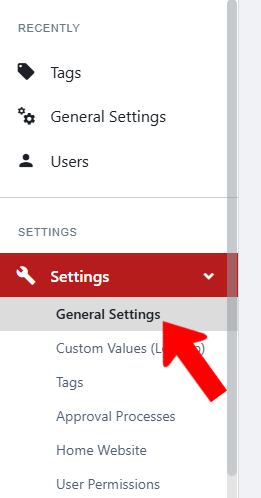
To get started, switch to Admin mode Accessing Admin Features if needed. Open Settings on the left, which opens to General Settings.
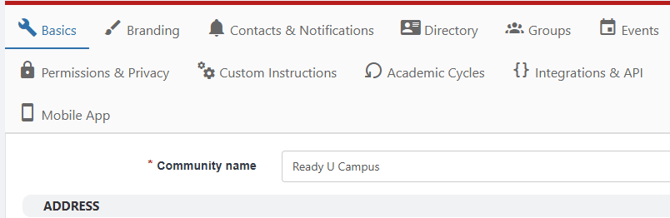
Settings categories are listed as tabs across the top.

Categories of settings include:
- Basics
- Branding
- Contacts & Notifications
- Directory
- Groups
- Events
- Money & Finance
- Login & SSO
- Permissions & Privacy
- Custom Instructions
- Academic Cycles
- Integrations & API
- Rooms
- Storage
- Co-Curricular Transcript
- Mobile App
Basics Tab
The Community name field is the name of your school, campus, institution, etc. Other sections here include physical address, general contact email and phone, and location.
This becomes the default address of your platform and all activities, including events. These details appear in the footer of the platform pre-login, as well as in the Contact sections of all group websites, unless different details are provided.
Branding Tab
There is where admins customize the platform to be consistent with your school's branding.
Note: Be sure to keep accessibility in mind when editing these settings.
- Topbar Background Color, Topbar Button Color, Light Color Topbar and Reverse Button Color On Mouse Over determine how the topbar looks and functions.
- Logo is the image that displays on the left side of the topbar.
- The Login image displays on the login page above the login box. (This image will be cropped to 375px x 70px, so we recommend uploading an image at least 350px wide.)
- Login Background is the image displayed behind the Login box. Ensure the image resolution is high enough to display clearly across devices.
- The Cover image is used throughout the platform in many places (Event Photo on web, Group Cover Photo, etc.), and serves as the default photo unless replaced.
- The Hub Icon is used when selecting your hub. The color you set in your Hub setting dictates the color of the top bar on your mobile app.
- The Favicon is the small icon that appears on the browser tab.
- Notification email template: Replace the CampusGroups logo with your own, to personalize branding for system notification emails. Contact your Client Support Manager if you need assistance.
- Footer customization, JS/CSS customizations: Contact your Client Support Manager or Implementation Project Manager to discuss these personalization options.
Contacts & Notifications Tab
The people listed on this tab are instrumental in maintaining seamless communication.
For fields that accept multiple users, you can enter each user manually, or click Paste List. This opens a popup in which you can enter a list of emails or IDs, click Search, and the system will add each user automatically.
- Primary Contact: The main point of contact for your platform and community. This is also the go-to person for users wishing to modify any locked fields in their profiles or groups. This role can be assigned to a single person or to a shared email address. This user will also automatically receive all notifications designated for the roles listed below.
- Community Engagement Specialist (optional): The user(s) who will be leading community engagement initiatives on the platform.
- User verification request recipients: The user(s) who should receive an email when an account verification request is submitted.
- Account deletion request recipients: The user(s) who should receive an email when an account deletion request User Deletion Requests is submitted.
- User/content report notification recipients: The user(s) who should receive an email when a feed post is reported by a user. They will need access to the Content Moderation Dashboard Content Moderation to act on reported content.
- IT security/privacy contacts: The administrators whom we need to contact for privacy or security questions/issues.
- Daily today’s events notification recipients: The user(s) who should receive a daily email listing the day’s events. (Event privacy settings are not taken into account - all events are listed.)
Directory Tab
By default (and best practice), users cannot create their own Tags for sports and interests. By unchecking these options, you will be enabling users to create these tags.
Groups Tab
This tab contains settings for group membership and website.
- Join Groups: You can turn off group sign-ups, closing all groups from taking new members. (Admins can still add members to groups during this time. This is most commonly used during summer when schools don’t want students joining clubs. You can also enter a custom message that will appear on the Group Page Managing the Group Page when sign-up is closed.
- Waivers: Some groups require a waiver for new members. If there is no waiver configured in the group's Settings Group Settings, the text entered here will be used instead. If Activate group waiver is enabled, one group officer must sign the waiver before other officers can access the group.
- Group/Department Website Disclaimer: This text will be added to the bottom of all pages across all group websites Pages for all groups. This text is typically used for policies, terms, or disclaimers that need to appear on school-sponsored websites.
Events Tab
The settings on this tab affect how officers create events and how users register for events.
- Event instructions: Instructional text that officers will see at the top of each event creation page.
- RSVP Login Step 1 instruction: Text that will appear on an event’s RSVP page when a user is not signed into the platform.
- RSVP new accounts instruction: Text seen by users who create a platform account while registering to an event.
- Dress code: If enabled, officers will see a dress code selector in the More Details Creating an Event step of creating an event. Dress code options are set in Custom Values.
- Event waiver not editable: If enabled, officers cannot edit the event waiver.
- Event public location: If disabled, the event location will only be shown to users who are signed into the platform.
- Officers can create Event Tags: By default, only platform admins can create event Tags. But you can enable officers to do this as well.
- Prevent users from registering to several events happening at the same time: If over time overlap from other events is detected, the user cannot register for another event.
- Deactivate blank event template: Officers start with an event template Creating an Event when creating an event, and by default there is a blank template option. If you want officers to always start from an admin-created template, or an officer-created template, enable this option.
- Restriction timeframe create event: Specify the minimum allowable timeframe for officers to create an event. For example, a 2-day timeframe will prevent officers from creating an event the next day. If a timeframe is specified, choose the group types to which the restriction will appear. Or leave all types unchecked, to apply the restriction to all groups.
Money & Finance Tab
The settings on this tab affect are related to platform finances.
- Payment: Enter your payment gateway details (if enabled), choose whether check payments can be accepted, and set your currency.
- Refund: If refund requests can be made Refund Requests, enter instructions and choose the groups that can process refund requests.
- Tax: Information to include on payment receipts regarding tax information. Tax percentage is a display of the breakdown for VAT-style tax, where the tax is included in the total cost of the item charged. It does not add an additional percentage to the amount charged or a line item to the transaction amount. These values are strictly for accounting and record-keeping purposes.
- Budgeting & Accounting Book: Determine whether non-admins can enter Transactions manually, and whether group funds Transactions are enabled.
Login & SSO Tab
Options used for setting up the login page Setting Up Your Login Page.
Permissions & Privacy Tab
Settings on this tab determine what guests (users without a platform account) can do on the platform that will enable them to create a Guest / Other account.
Note: The User Permissions page User Permissions determines what Guest / Other users can do on the platform.
This includes whether guests can:
- Join groups (adds the Create Account link to the login page on web)
- Be added as a member or contact by a group officer
- RSVP to events
- Respond to forms
- Book a session in a connection program Join a virtual fair
- Join a virtual fair
At the bottom of this tab are two options related to community feed.
If Community Feed Posting is enabled, only admins can post/comment on the main Community feed. Otherwise, any user with access to the feed can post/comment.
You can also opt to hide the feed from specific types of users.
Custom Instructions Tab
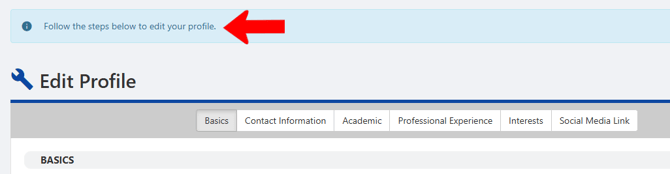
This tab has fields that determine platform instruction text for a range of user actions. For example, when a user wants to change their use profile User Profile and Privacy, this message will appear across the top:
- Login instructions: Instructions that appear on the platform login page
- Email example: Provide an example email address in the profile or club signup form, helping users understand which email address they should enter. For example “firstname.lastname@uni.edu.”
- Email instructions: Instructions on which email address users should use in their profile or when signing up for a club.
- Accounting book instruction: Text that will appear on the Accounting Book page for each group
- Edit profile message: Instructions that appear when a user edits their profile
- User verification instructions: Text that appears for unverified users above the Request Full Access button
- Custom unsubscribe message: Text that appears at the bottom of platform emails. You will need to include the text [UNSUBSCRIBE] within this message.
Academic Cycles Tab
Define the months in which the following terms end: first quarter, first semester, third quarter, and second semester. The date will be the last calendar date of the specified month.
These dates are used to define membership duration, which is set on the Membership tab of Group Settings.
Integrations & API Tab
If you connect CampusGroups to other platforms, you will need the API key for your CampusGroups instance. That key can be found at the top of this tab.
Other fields enable you to integrate your account with Google Analytics, Facebook, X, LinkedIn, YouTube, and Instagram.
Rooms Tab
If you have the EMS or 25Live Room Reservation integrations, you will access your configuration setup screens here.
Storage Tab
Change the global storage threshold, in Gb, for groups to use for photos, videos, files, documents, etc. Your total platform storage limit remains 2Gb x the number of groups in your platform.
To change the threshold of a single group, or explore increasing the overall storage capacity for your platform, please contact your Customer Support Manager.
Co-Curricular Transcript Tab
The Co-Curricular Transcript, or CCT, is a record of student engagement. Other popular terms for CCT include Involvement Record, Extra Curricular Record, etc.
Options in this tab enable you to control what users see in their CCTs.
- Instructions: Text that appears at the top of the CCT.
- Header Banner: Use the default image, background color, and logo, or upload your own. Note that the banner image may be cropped to fit. You can also change the Co-Curricular Transcript Title if you want to use a term other than CCT.
- Footer Banner: Enter the details that will appear at the bottom of the CCT.
- Content Selection: Define what should appear on the CCT. By default, all sections (groups, events, badges, etc.), group types, group content, and membership roles appear. But you can select only the items you want to appear.
- Add experience: Adds a section to the CCT that enables users to add custom experiences from groups or organizations outside the platform. If disabled, only experiences populated in-platform will be included.
- Content Sections: Rename any section, or keep defaults.
- Sharing Options: Choose whether users can share their CCT via link, or save the CCT as a PDF.
Mobile App Tab
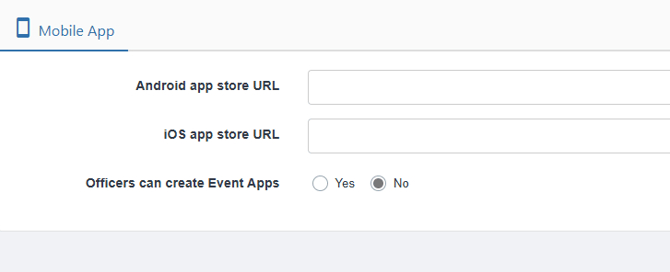
Enter the URL for the CampusGroups app, or your custom branded app.
You can also determine whether officers can create Event Hubs (also called Event Apps).