
To create a group event, start by managing your group Managing Your Group, Group Dashboard.
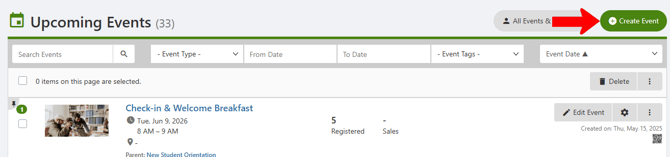
Click Events along the left, which opens your list of Upcoming Events Managing Events: Events List.

Click Create Event.
If there is a relevant platform-wide or group template, you can choose that here, or click Blank Event Template.
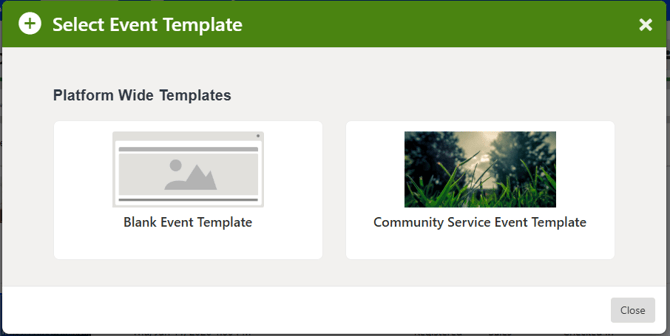
If no templates have been set up, you will proceed straight to event creation.
Note: You can create an event to be used as a group template Event Templates.
As you create your event, keep in mind that this is a multi-step process that may take some time. If you need to save your work and continue later, click Save as Draft at the bottom. When ready, open Drafts under Events, find the event, and click Edit Event.

When finished, click Create Event. If your event requires approval, you will proceed through the Event Approval Process.
Step 1: What
Assign an event name and description. If you add a detailed, HTML-based description this will appear in the web version, but the shorter description will appear in the mobile app. Choose one Event Type, and one or more Event Tags if desired.

Note: Event types and tags are typically configured by your platform admin.
The Event Coordinator must be a group officer Group Officers: Best Practices, and you can add a Custom Host, such as a community member. You can also include either an email or chat in the Event Page, for attendees to reach organizers.
The Create Activity Stream option opens a chat with other organizers. Automated messages will be sent to organizers each time there is an event change, registration, cancellation, waiting list change, etc.

If your platform admin has set up additional custom fields, those will appear under Additional Details.

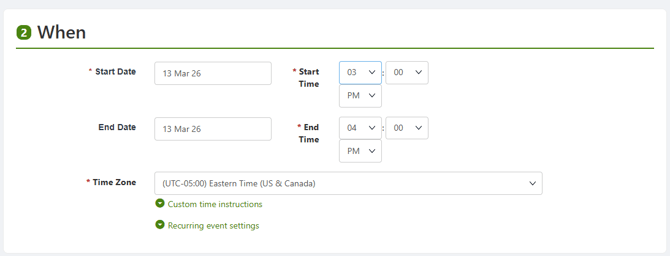
Step 2: When
Specify event date and time. Custom time instructions will appear below the date and time listed on the Event Page. If the event will be repeated, such as a weekly meeting or rehearsal, open Recurring event settings Repeating or Recurring Events.
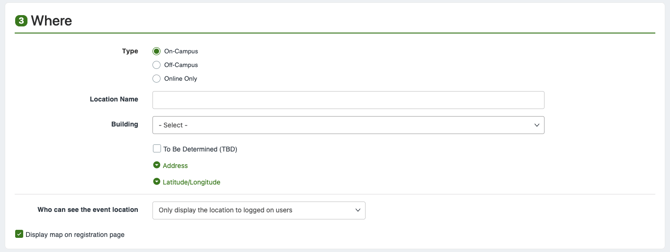
Step 3: Where
If your campus does not have a room reservation integration, and the event is in-person or hybrid, choose the space Type and add Location Name.
For planning purposes, enter an expected Number of Attendees.
Choose a Location Name if needed, and set whether the event location will be visible to all users or only those who have registered.
If your campus has the CG Rooms module, you’ll see additional room options, with times required for setup and breakdown.

Clicking Book rooms presents available room options based on Event Type, date, number of attendees. Search the list and choose the best space for your event.
Note: If you need to change event location later, you must first release the existing reservation by clicking Book rooms and canceling the existing reservation. Make any necessary edits to date, time, or attendees, then use Book rooms again for the new space.
If the event is online only or hybrid, enter the Meeting Link and Meeting App. Clicking Create Video Conferencing Link opens a menu of several meeting platforms. (If you use Zoom, our integration enables automatically tracking attendance.) You can also set whether all users or only registrants can view the link.

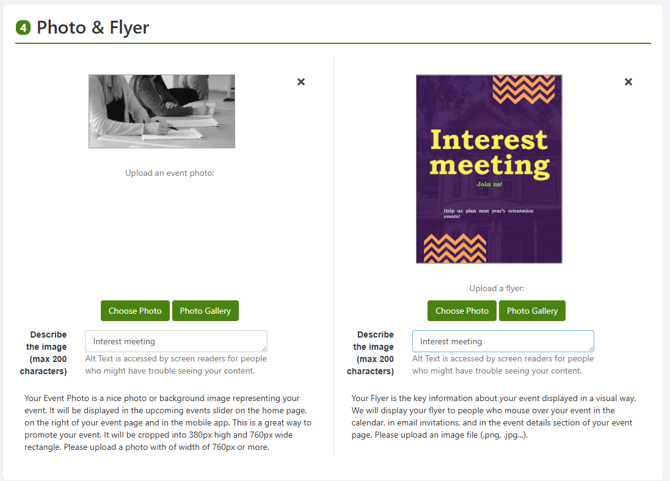
Step 4: Photo & Flyer
(Optional)
Upload a photo as an event background image, and / or an event flyer. Both files must be images. The flyer will appear in users’ calendars, email invitations Event Page, and in the Event Details section of the Event Page.
If a photo is not added to the event, the group cover photo will appear in the event listing on web. No image will appear for the event on mobile. (The group cover photo is set on the Basics tab of the Group Settings.)
Step 5: More Details
(Optional)
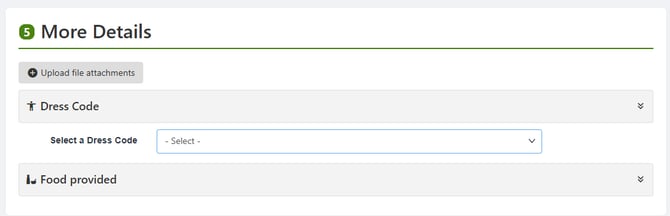
Upload any event-related attachments. If you want to encourage attendance with food, open Food Provided and enter details. If enabled by your platform admin, dress code options will also appear here.
Step 6: Access & Display Options
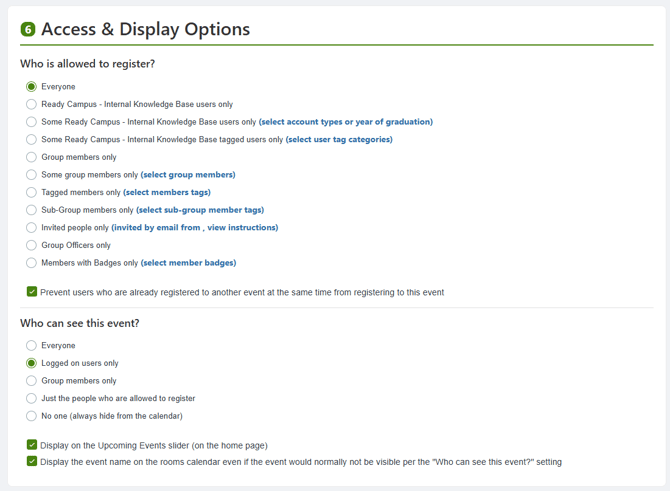
In this step, the first set of options defines who is able to register Access Rights: Privacy Settings for this event, similar to Access Rights Access Rights: Privacy Settings. An additional option is to prevent users who are registered to a concurrent event from registering for this one.
Note: You can also change registration access settings from the Events list Managing Events: Events List.
The lower options define which users can see the event.
At the bottom is the option to keep or remove the event from the Upcoming Events slider. If the Rooms module is enabled, you can also choose to display the event name even if the event is not visible to all users (according to the Who can see this event setting above).
To make your event invite-only (only invited guests will see the event and be able to register for it):
- Set Who can see this event to Just the people who are allowed to register or No one.
- Set Who is allowed to register to Invited people only.
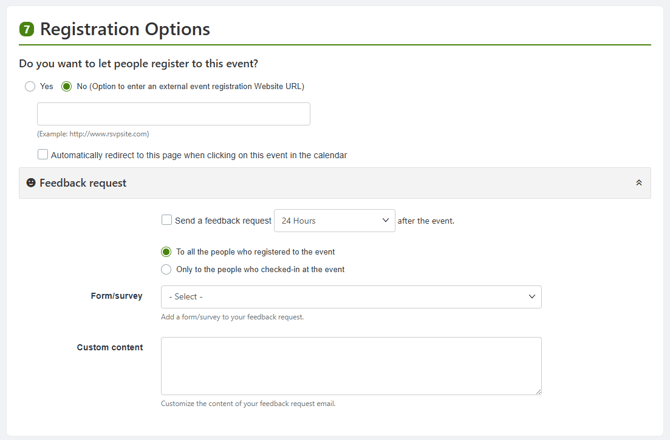
Step 7: Registration Options Registration and Feedback Options
If your event does not require registration, and attendance will not be tracked (for example, an open meeting), choose No at the top of this step. No is also the option for events whose registration is completed via an external website.
If you want to set up one or more registration options, and / or want to request event feedback, see Registration Options Registration and Feedback Options.
Step 8: Advanced Options
For details on the large number of additional event options, see Advanced Options Advanced Options for Events.
Save or Create
Once your event is created, you can save it as a draft or click Create.
If you can create events without approval, it will appear in the Events list Managing Events: Events List.
If your platform admin requires event approval, creating the event starts the approval workflow. Until approval is granted, the event will appear in the Drafts list.