
When creating an Event Hub, keep this in mind: Creating an Event Hub creates the main event; this event does not exist until the hub is created. (The main event is not taken from the Events list Events Lists and “made into” the hub event.)
Note: By default only admins with the Hubs permission Accessing Admin Features can create event hubs. In order for officers to be able to create Event Hubs, an admin must open General Settings to the Mobile App tab, and grant officers permission to create Event Hubs.
An Event Hub must be created within the group hosting it. Start by managing the group Managing Your Group, Group Dashboard, then open More Tools along the left and choose Hubs.

Click Create Hub.

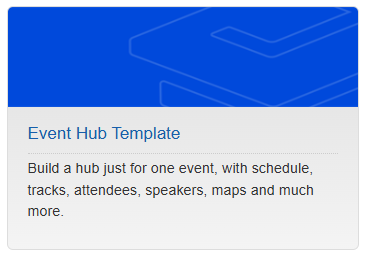
Choose the Event Hub template.
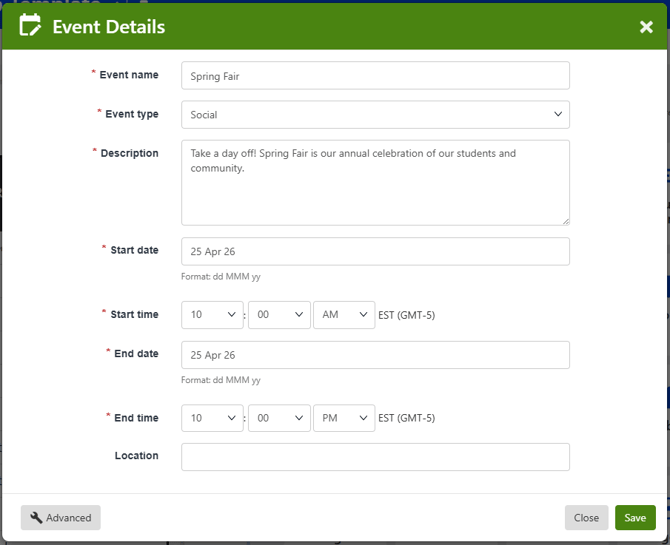
In the Event Details popup, enter the event name, type, and description. Start and end dates and times should include all sessions.
Clicking Advanced opens the Edit Event page, which contains the same steps you would see if creating this event Event Page from scratch. You can also edit this event Creating an Event from the Events page.
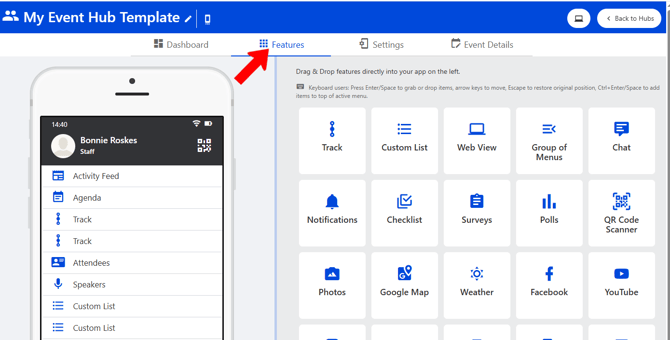
This opens the hub to the Features page. On the left are the default Hub Menu Items included in the template, and additional available menu items are on the right. Menu items can be dragged in and out and reordered as needed.
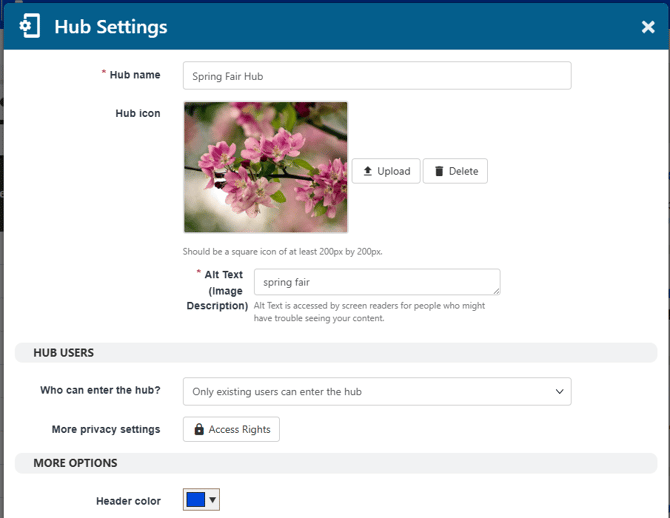
To change the hub name and access other settings, click the Edit icon or the Settings tab.

In the Hub Settings popup, in addition to name and icon, you can also determine mobile access, who can enter the hub, and additional Access Rights Access Rights: Privacy Settings.
Note: There are specific settings for hubs that permit guest access but want guests to register on the platform guest registration settings.
Other options on this popup include header color and logo, and the landing page mobile users will see when entering the hub.
Clicking the Advanced button opens additional options:
- Access denial message: The message displayed when a user without access tries to enter the hub.
- Access denied button name and link: For an unregistered user trying to enter the hub, provide the name and link of the button that will lead to the registration site.
- Allow feed post: If enabled, all users can post on the Event Activity Feed.
- Google Analytics UA code
The hub Dashboard is where you can manage features (hub menu items), attendees, sessions Hub Menu Items, maps, and speakers Hub Menu Items.

At the top is a button to preview and test the hub on web. In addition, if the Event Hub is a hybrid event, the URL that is generated when clicking this icon is the address that should be shared with attendees for accessing the Hub on web.
Clicking Back to Hubs returns you to group managing mode.

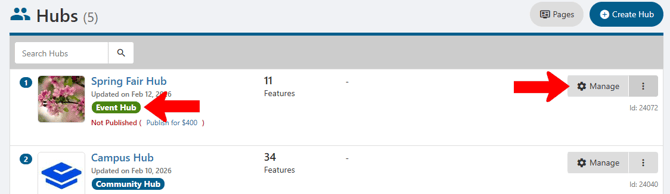
The hub appears in the Hubs menu, listed as an Event Hub. You will have to coordinate with your platform admin to get your hub published. Clicking Manage returns you to the hub editor.
The Events list Managing Events: Events List will now include the event named in the hub. When sessions are added Parent - Child Events to the hub, they will appear as child events of this event.
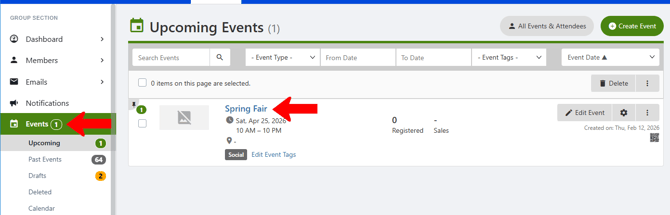
Note: The main hub event, and all added sessions, appear on the Events list whether or not the Event Hub is published.