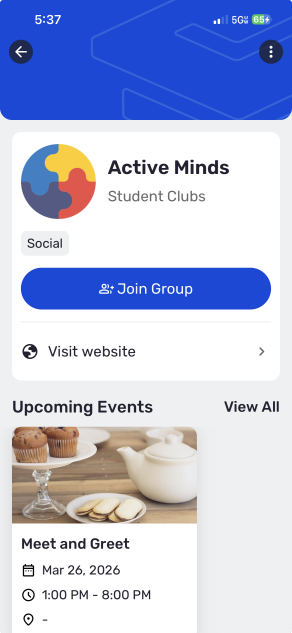
A group is a sub-community of the CampusGroups platform, with its own portal, rosters, programs, and communication channels. Groups can be created by students or set up by campus staff. You can choose groups to join, and you may also be added to groups automatically by campus staff.
You can explore groups on the web version or on the mobile app.
Notes:
- Groups you join will appear in My Activity / My Groups.
- After you’ve joined a group, you can manage your membership options which include leaving the group.
- If you don’t see the group you want to join, you can register your own group.
- If you try to join a group but the group requires re-registration Requiring Group Re-Registration, you may be able to complete that process even if you’re not currently in the group.
Exploring and Joining Groups on Web
To explore groups on the web version, click Groups at the top. Depending on how your home page and left menu are configured, you may also see group options in those spots.
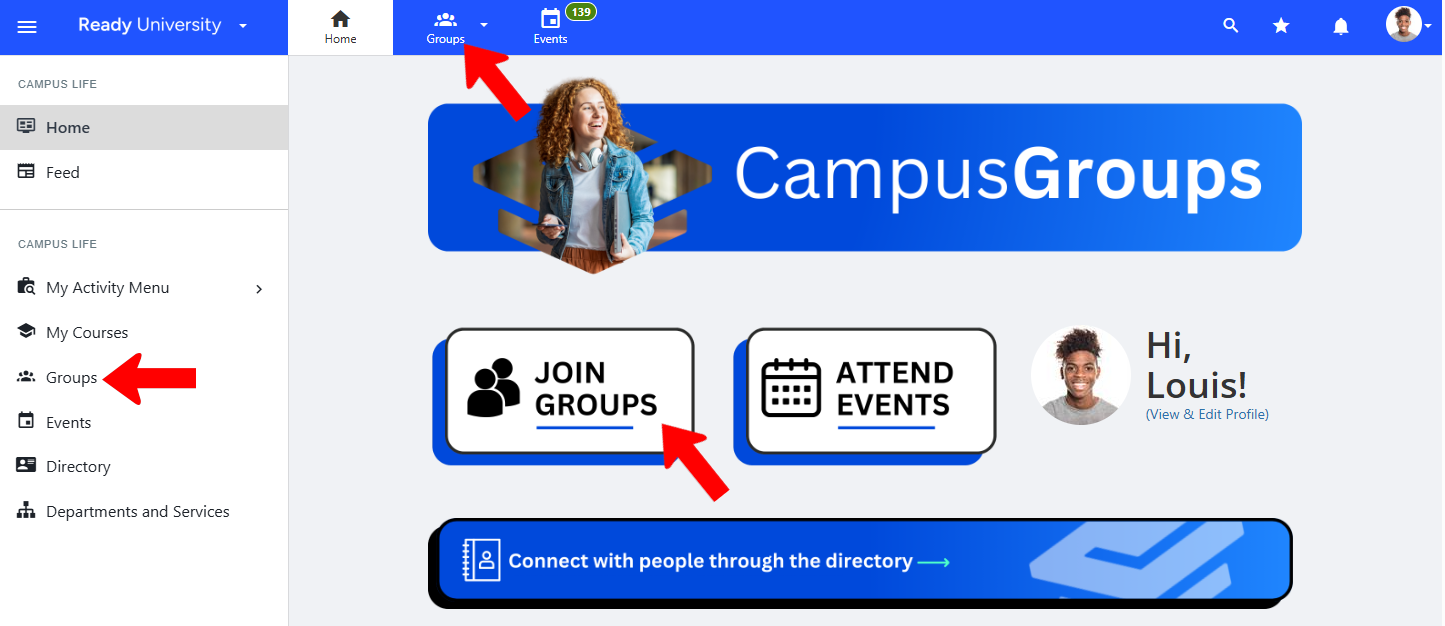
The group drop-down shows recently-visited groups at the top, then groups of which you're a member. Suggested groups are listed below that.
Note: If you’re a group officer, you’ll see a Gear icon, and clicking the group name is how you can manage your group.
To see the entire list of groups, click All Groups.

The Groups list itself can be searched or filtered, and you can narrow the list by group type.
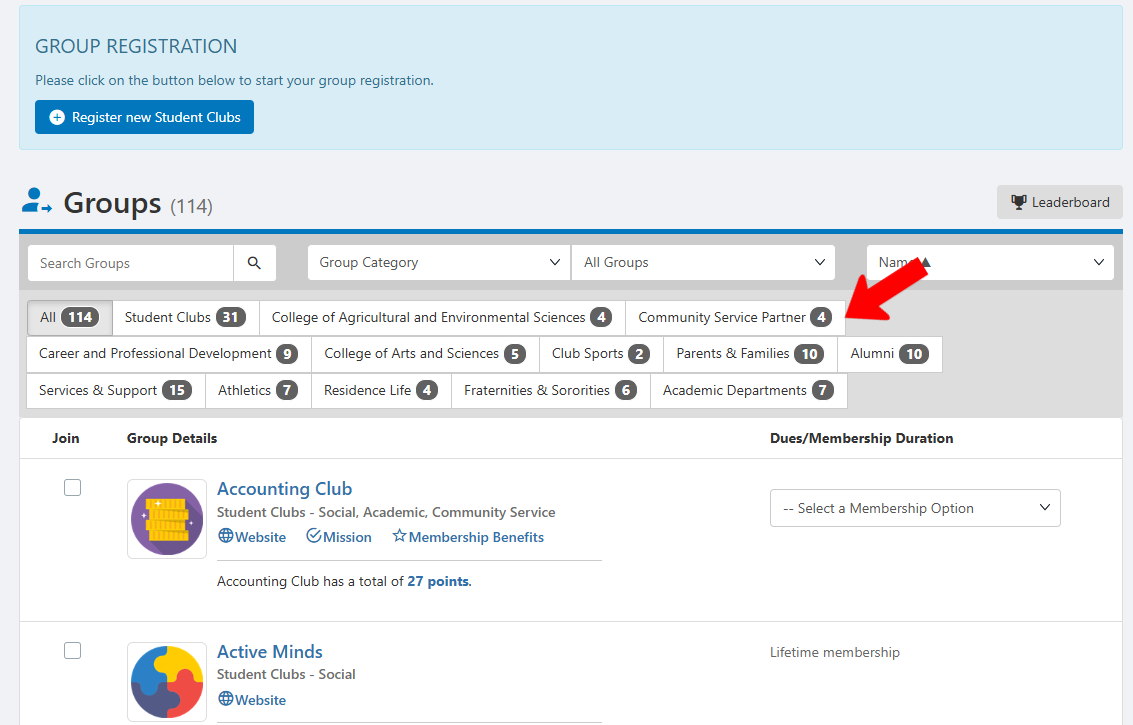
Note: If enabled by your campus, you may see an option at the top to register your own group.
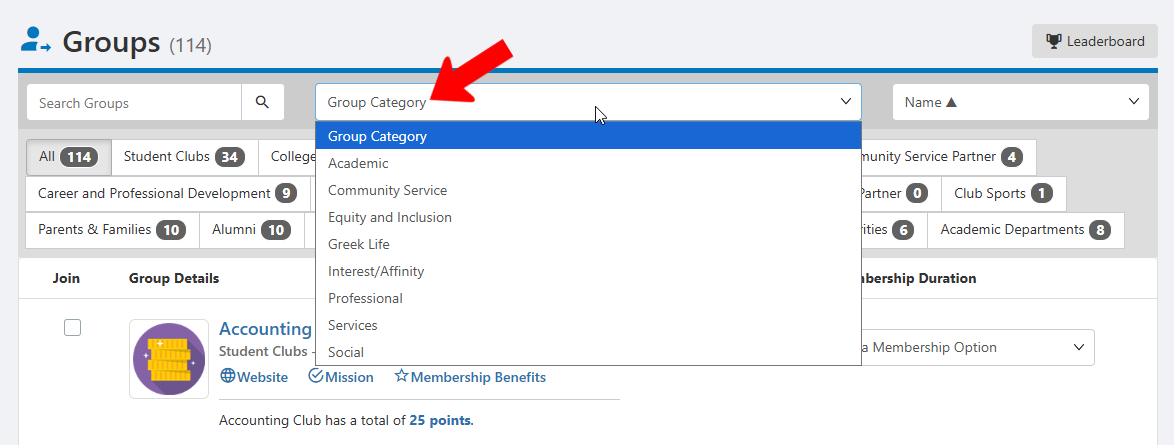
Groups can also be filtered by category.
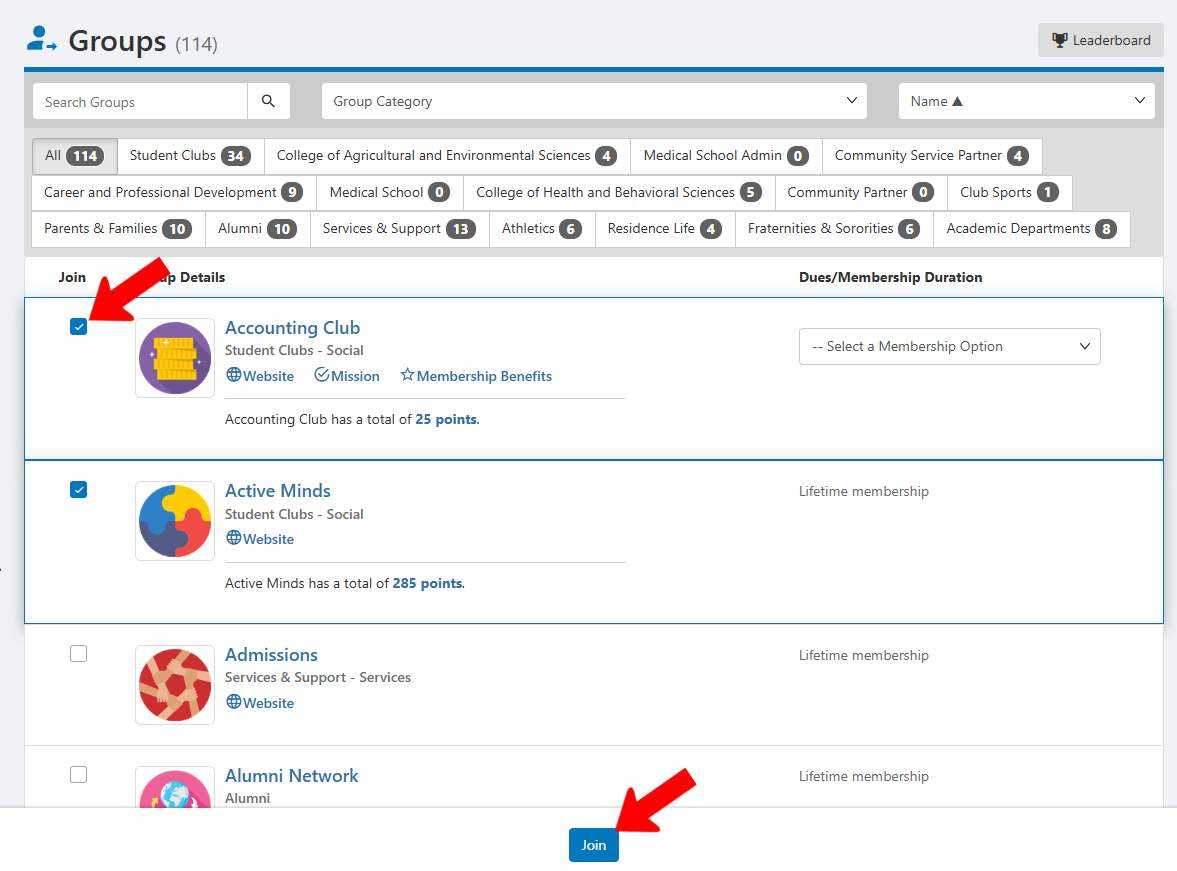
To join one or more groups from the Groups list, select the groups and click Join at the bottom.
To learn more about a group, click its name to open the Group Page. The About section will have a Join Group option. (If you don’t see this option, your Account Type may not be eligible for membership.)
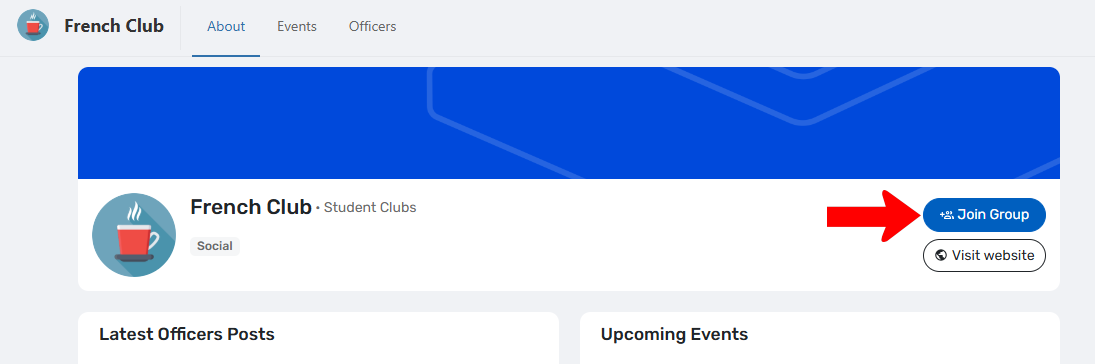
Depending on group settings, your membership may be accepted automatically, or you may need to wait for a group officer to verify you.
Exploring and Joining Groups on Mobile
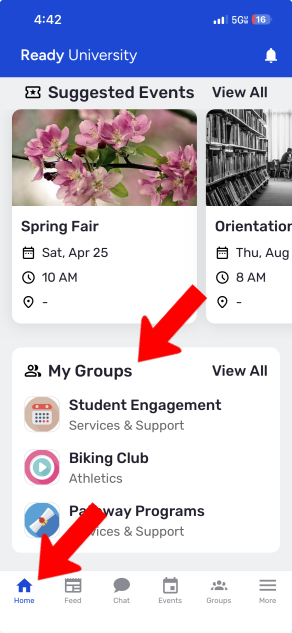
On the mobile app, tap Home along the bottom and scroll down. You’ll see Suggested Groups, which becomes My Groups once you join at least one group.
You can also tap More along the bottom and tap the Groups menu (if available).

Another option is to tap Groups along the bottom. At the top, the default view is My Groups - groups to which you already belong. There are options above the list to search by group name, or filter by membership type (member or officer), group type, or group category.
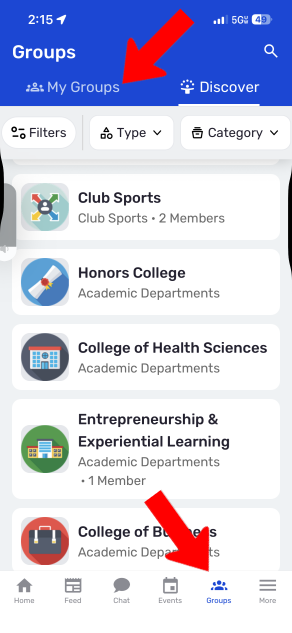
Tap Discover to explore more groups.
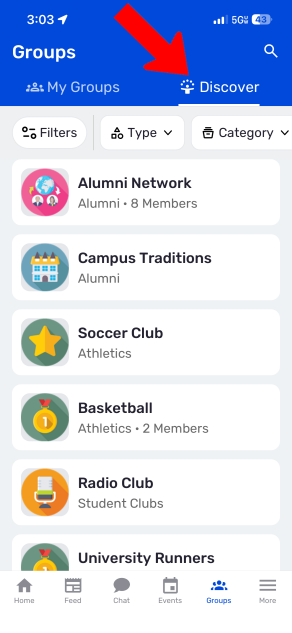
Tapping a group name takes you to the Group Page, which provides information and joining options.