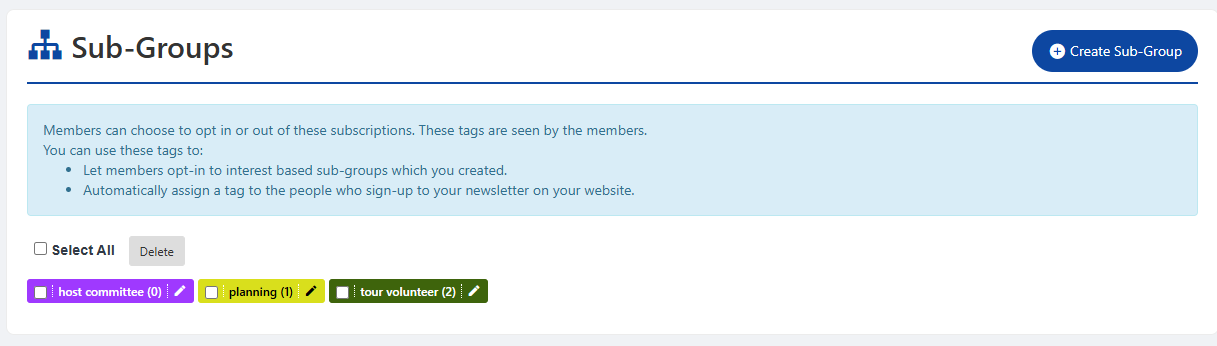
Tags are used throughout the CampusGroups UI, to assign one or more categories or descriptions to a person or item.
Note: Some tags, such as User Tags and Event Types, are typically created by platform admins (unless permissions to create those tags is granted to officers). The tags that officers can create are in the Tags list, covered farther on in this article.
For example, in the Current Members list, members can be assigned one or more Member Tags, and / or one or more Sub-Group Tags.

You can also assign tags to emails, as well as surveys, videos, news categories, and more.
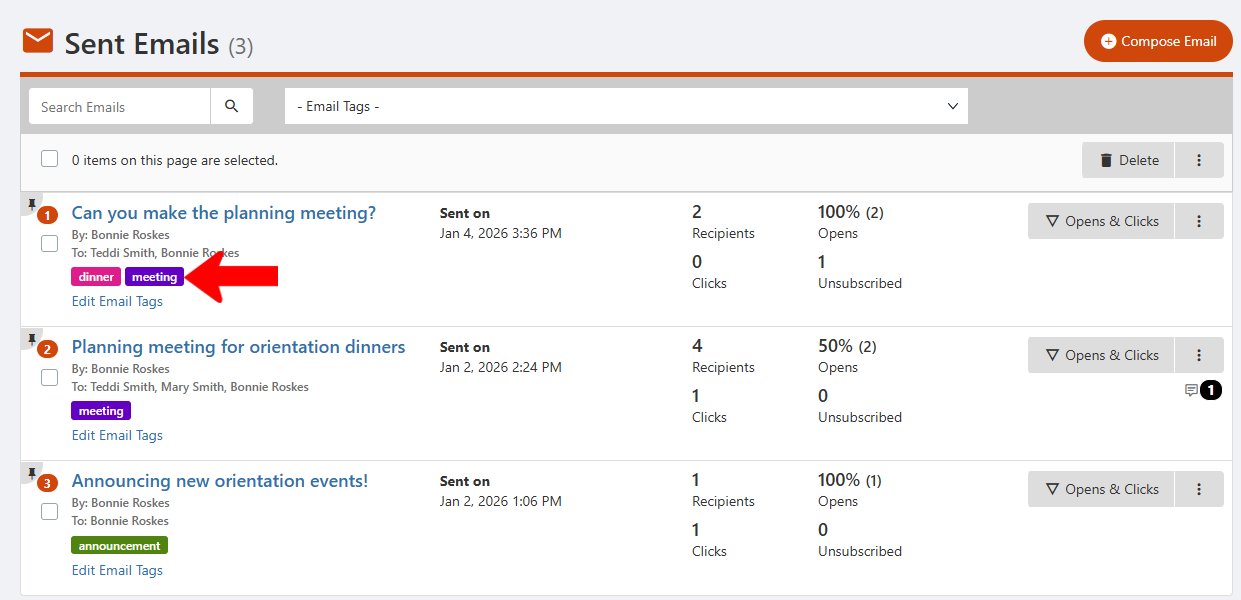
A primary use for tags is in filtering lists. For example, can you narrow your members list to see only those with one or more specific tags.
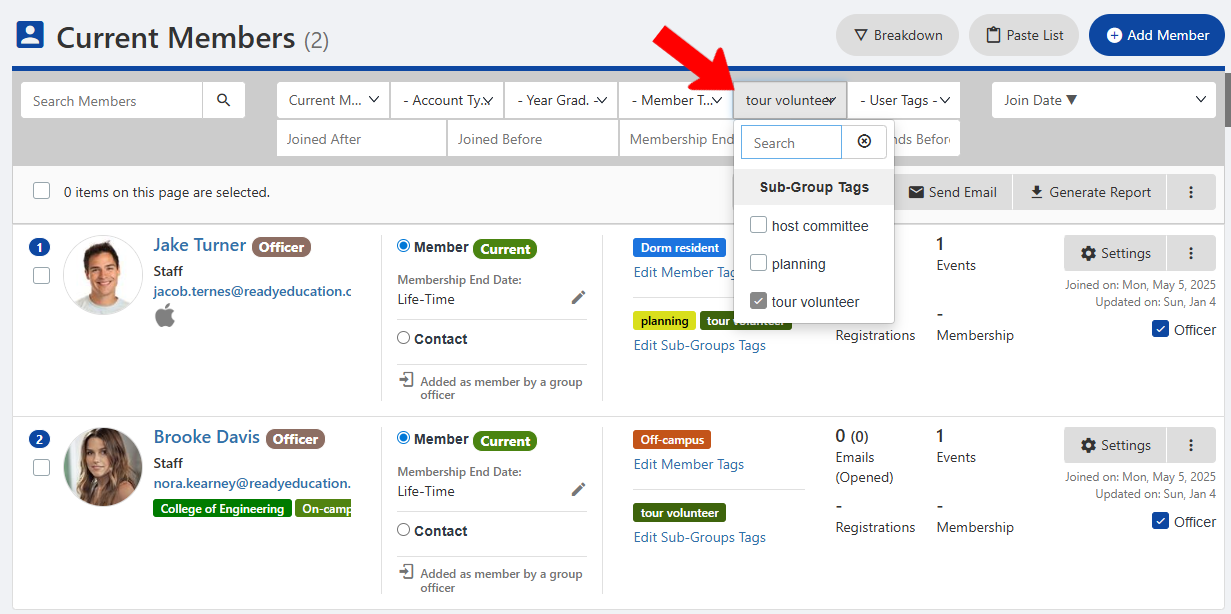
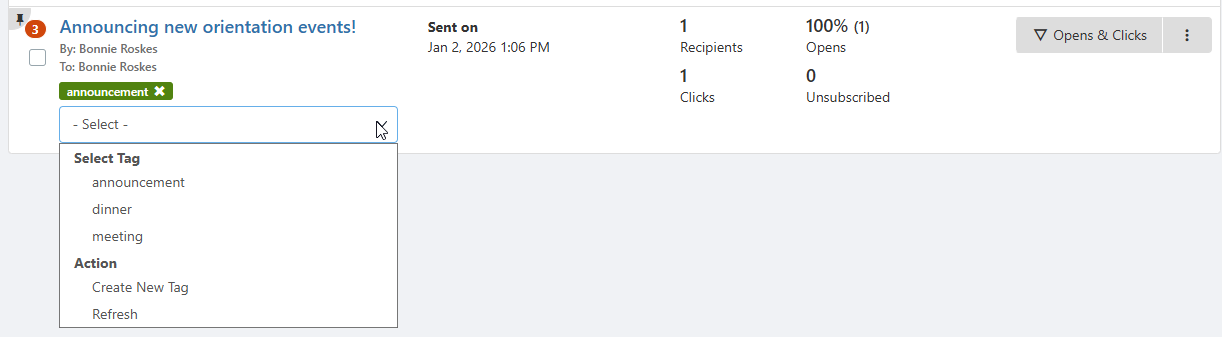
To assign one or more tags, click the item’s Edit Tags link.
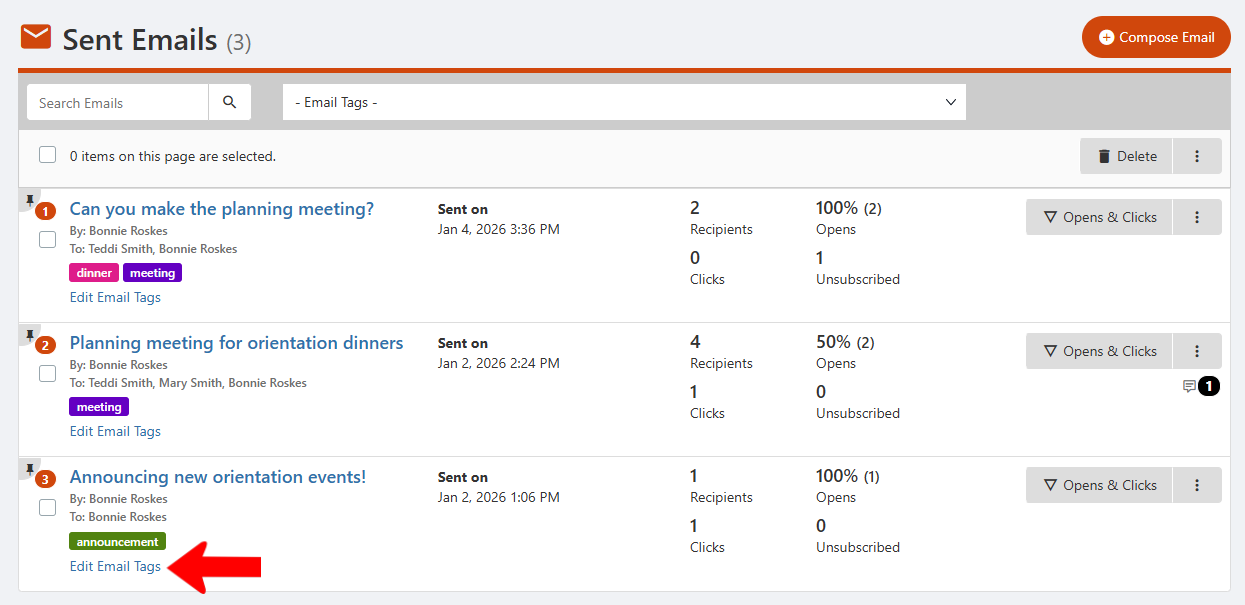
From the drop-down, choose the tags that apply. There is also a Create New Tag option, if the one you want does not appear.
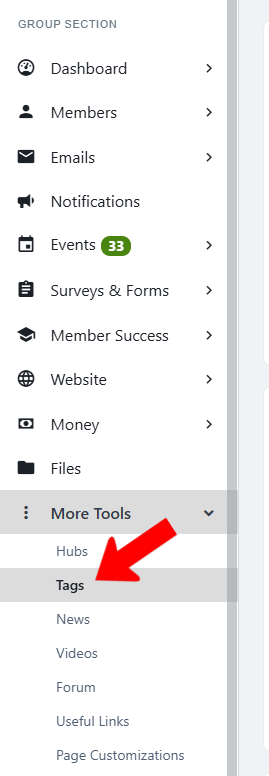
To manage all tags, open More Tools along the left and click Tags.
All lists for which you can create tags appear here: Members, Albums/Folders, etc. Any existing tags will be listed, and can be edited or deleted. There is also a relevant Create Tag button for each type of list.
Note: A new tag created directly from a list (as opposed to created on the Tags page) will have the default gray color. You can edit a tag in the Tags list to change its color.
We recommend looking over the definitions of each tag, to see how they can be used. For example, Member Tags are seen by officers only, not members themselves. Member tags can also be used to grant content access.

For another example, Sub-Group Tags are seen by group members. Members can use these tags to opt-in to specific interest-based groups, and officers can automatically assign sub=group tags to newsletter sign-ups.