
To view the list of all platform users, switch to Admin mode if needed. Open Users on the left, which opens the Active Users list.
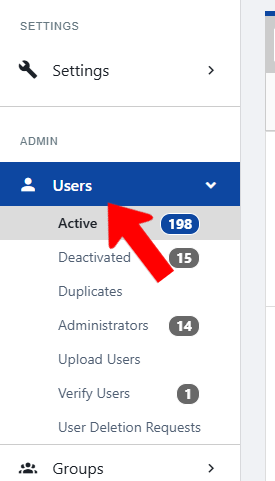
This opens the list of Active Users, which can be searched (by name or pasted list) or filtered. At the top is access to the Leaderboard and the Add Users button Leaderboard.

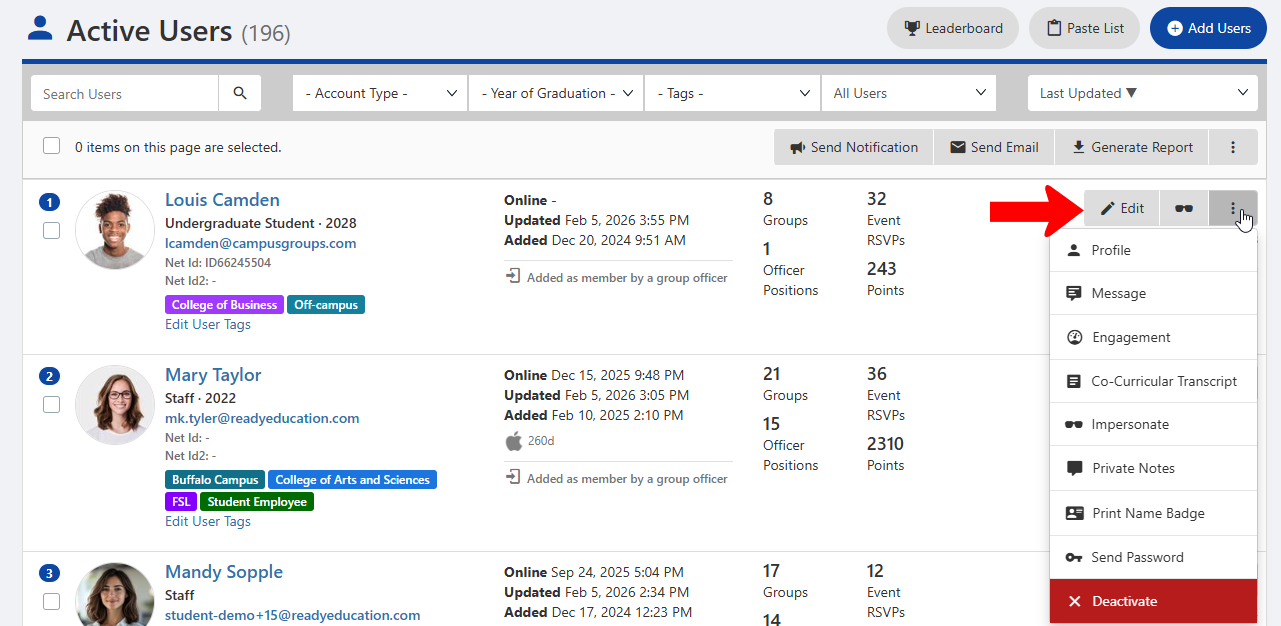
Each user is listed with their Account Type Tags, email, and User Tags. You can also see how the member joined (for example: added by an officer), status and dates, and the number of groups, events, officer roles, and points they have. Clicking a user name opens their User Dashboard. If the Admin box on the right is checked, the user is an admin User Dashboard.

For each user, there are options on the right to edit user details, or impersonate the user. Clicking the More (three-dot icon) opens a menu with additional options:
Note: See our best practices Recommended User Attributes for recommended user attributes to include.
- Display the user profile (opens in a separate tab)
- Message (chat) the user
- View the user’s Engagement Co-Curricular Transcript
- View the user’s Co-Curricular Transcript
- Impersonate Co-Curricular Transcript the user
- Add a private note to the User Profile
- Print a name badge
- Send the user a password reset email (available for users with Email / Password login Deactivate)
- Deactivate the user
Options above the table are applied to all users who are selected.
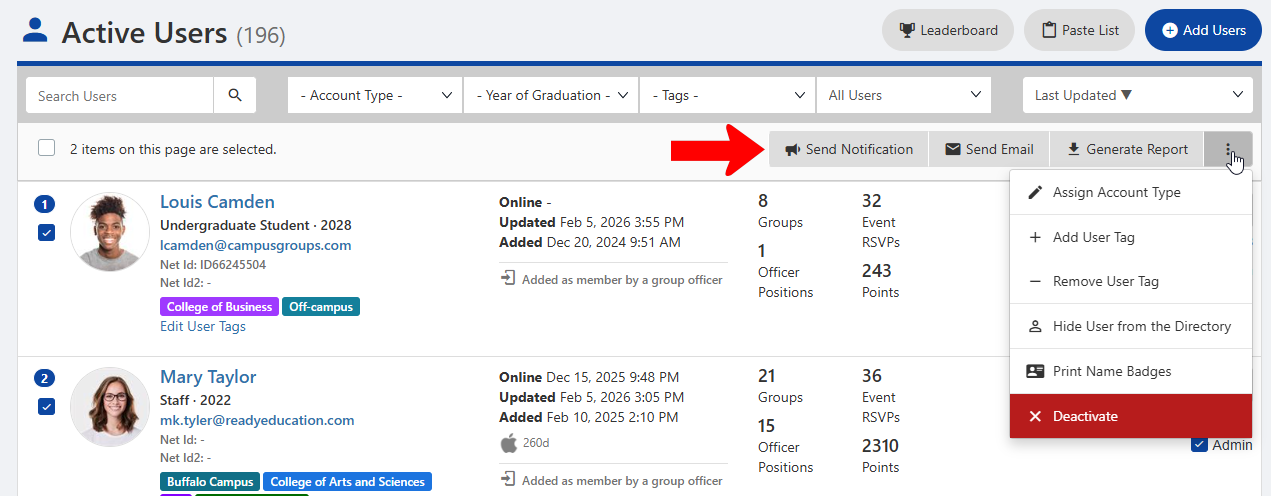
These options include:
- Send notification
- Send email Send notification
- Generate report
- Clicking the More (three-dot) icon opens a menu with options including assign Account Types Tags, add or remove User Tags, hide from user directory, print name badges Tags, and deactivate Tags.