
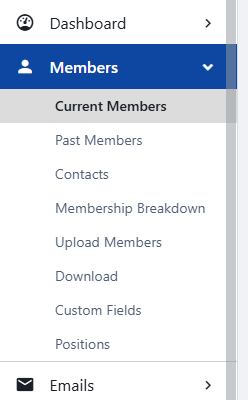
To see your group members, start by managing your group Managing Group Members and click Members on the left.
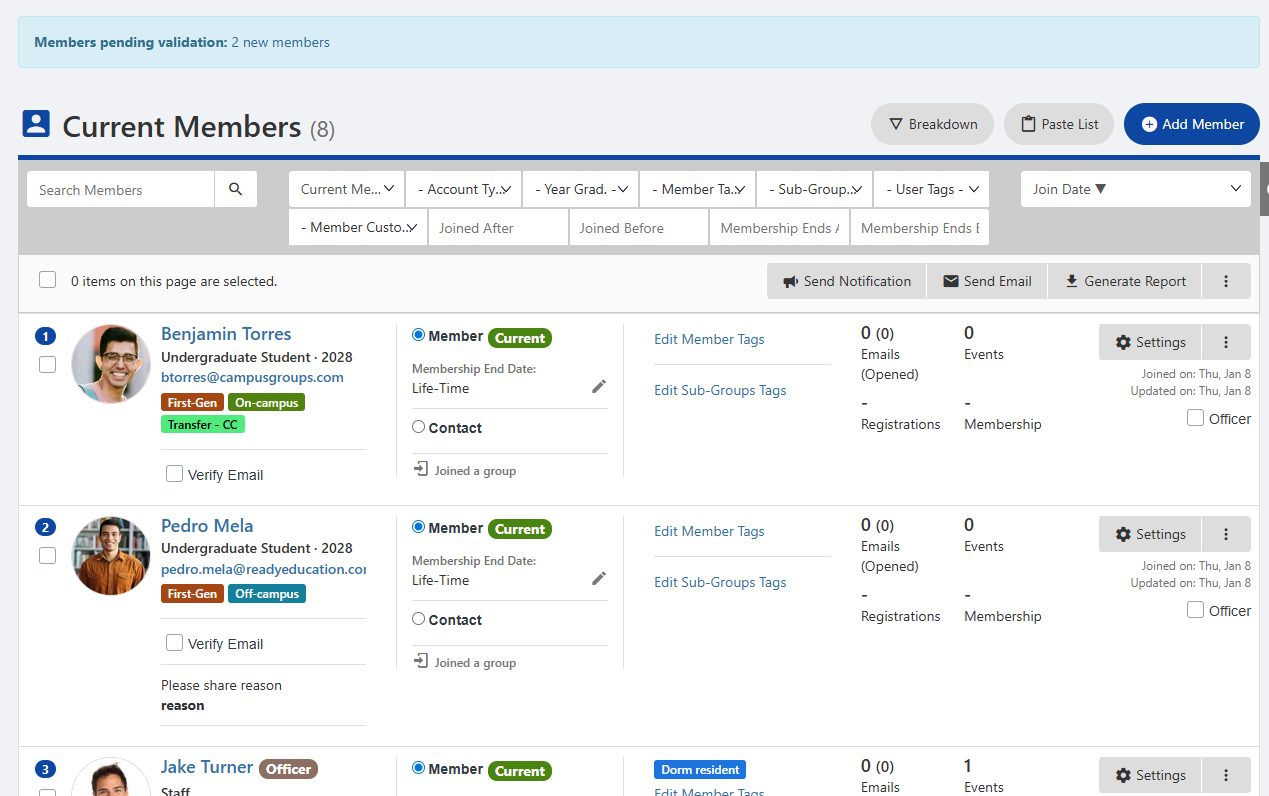
This opens the list of Current Members. This list can be searched (by name or pasted list) and filtered downloaded, and any pending validations filtered will appear at the top.
Note: The list of members can be downloaded Membership Reports, and you can also generate Membership Reports.
Each user is listed with their User Tags and email. You can also see how the member joined (joined a group, added by an officer, etc.) Clicking a user name opens their Member Dashboard.

For each user on this list there are several options:
- Verify their email
- Adjust their membership end date and custom field responses
- Assign a member position Tags
- Switch between member and contact Tags
- Assign or edit Member Tags or Sub-Group Tags
- View emails and events
- Make the member an officer
- Click Settings to adjust membership information
- Click the More (three-dot) icon for options to send an email, check engagement, send password, send profile update link, view payments, send a private note, and delete the member.
Options above the table are applied to all members who are selected.

These options include:
- Send notification Generate report
- Send email Send notification
- Generate report add to event
- Clicking the More (three-dot) icon opens a menu with options including add to event Tags, membership end dates, reset waiver signature, add / remove Member Tags, validate / un-validate, make member or contact, assign / un-assign checklist, and delete.