
Notifications can be sent in-app, and as a push notification to the recipients’ mobile app. Notifications also appear in the notification list (Bell icon at the top right) on the web version.
Notes:
- This requires that you have the Send Notifications officer permission.
- In addition to notifications, the other ways to communicate with group members are emails and channels (group feed). You can also send notifications to event attendees.
To send a notification to group members, start in your Members list.

If needed, filter or search the list. For example, you can filter to see past members or contacts, members with specific Account Types or User Tags, etc.
Check the selection boxes for the people to receive notifications, or select all. Then click Send Notification.

Enter your notification and click Send. This notification can include a pasted URL, if you want to prompt users to take a specific action. Note that the URL must include the http:// or https:// in order to be clickable on web and mobile.
To track all sent notifications, open Notifications.
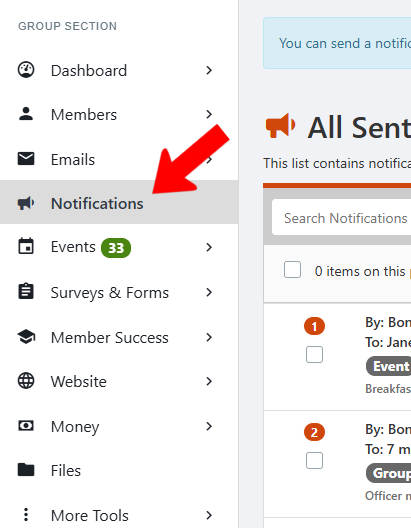
The list includes all notifications sent to members / contacts and notifications sent to event attendees. You can filter to see either type.
