
Most platforms have multiple admins who access and interact with different features of the platform. An admin must be added first as a user.
To make a user an admin, switch to Admin mode if needed and open the Active Users list Admin mode. Search for the user (using the search field if needed) and check their Admin box.
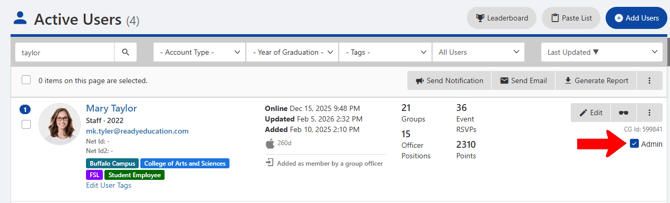
Note: While admins are typically campus staff, any type of user can be made an admin. For example, an undergraduate employee of the Student Life office may be given limited access to user account features. Or the Student Government president may be given access to the Money module for approving budget requests.
To open the list of admins, choose Administrators under Users.
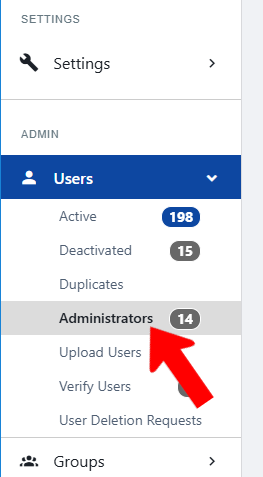
Find the admin you just added. You can assign Administrator Tags if needed.
Of the first five permissions columns, only Is Admin is checked by default. The others can be set as needed.
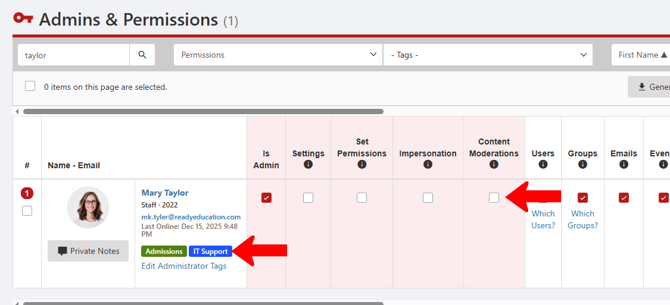
The other main permissions include:
- Settings: Access to the admin Settings, effectively making this user a “super admin” with full platform control
- Set Permissions: Access to permissions for all admins
- Impersonation: Ability to impersonate Content Moderation any other user
- Content Moderations: Access to content moderation features Content Moderation
Beyond the first set of permissions, the rest are enabled by default, and can be adjusted as needed.
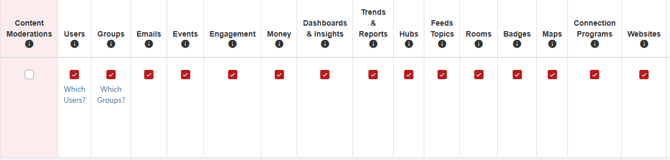
These permissions include:
- Users: Add, edit, de-activate, re-activate, verify and manage users from the Users list. Click Which Users to restrict user types via Access Rights.
- Groups: Manage any group All Groups List: Managing Groups. Click Which Groups to restrict access to only selected groups.
- Emails: Access to all platform emails Email and Notifications for Admins
- Events: Access to all events in the platform Managing Events: Events List, view all events in the calendar
- Engagement: Access the Engagement Admin Dashboards features
- Money: Access to view all payments and to manage budgets from the Money menu AI Insights
- Dashboard & Insights: Access to Data Intelligence AI Insights menu and dashboards
- Trends & Reports: Access to the Report Builder / Library Reports Library and Report Builder
- Hubs: Ability to create and manage Community Hubs What are Community Hubs?
- Feeds Topics: Access to the Feeds Topics menu What are Community Hubs?
- Rooms: Access to the Rooms module CG Rooms Module
- Badges: Access to the Badges feature CG Rooms Module
- Maps: Access to the Maps menu Important Dates
- Connection Programs: Access to the Connection Programs menu Important Dates
- Websites: Access to the Websites menu
- Important Dates: Access to the Important Dates menu Important Dates
- Home Page Customization: Access to the Home Page Important Dates for Community Hubs
- API: Access to the API menu What are Community Hubs?
- Career Center: Access to the Job Board What are Community Hubs?
- Surveys & Forms: Access to the Surveys & Forms menu Surveys and Forms: Best Practices