
While group officers have the ability to send push notifications XREF and emails XREF to their group members, admins are able to communicate with all or selected platform users.
Notes:
- Community Feeds XREF are another communication method.
- Admins can also track all sent notifications XREF, and sent emails XREF, from all platform users.
- Admins can also send notifications to specific users about a variety of system changes XREF.
Admins typically use email and notifications to broadcast campus news or updates, send announcements to targeted users, share reminders for deadlines, or promote special opportunities.
On the web version, notifications appear at the top right.

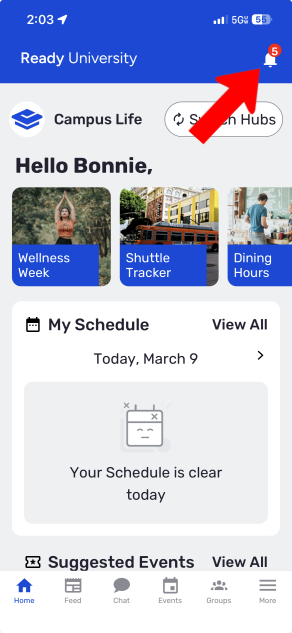
On the mobile app, notifications also appear at the top right.
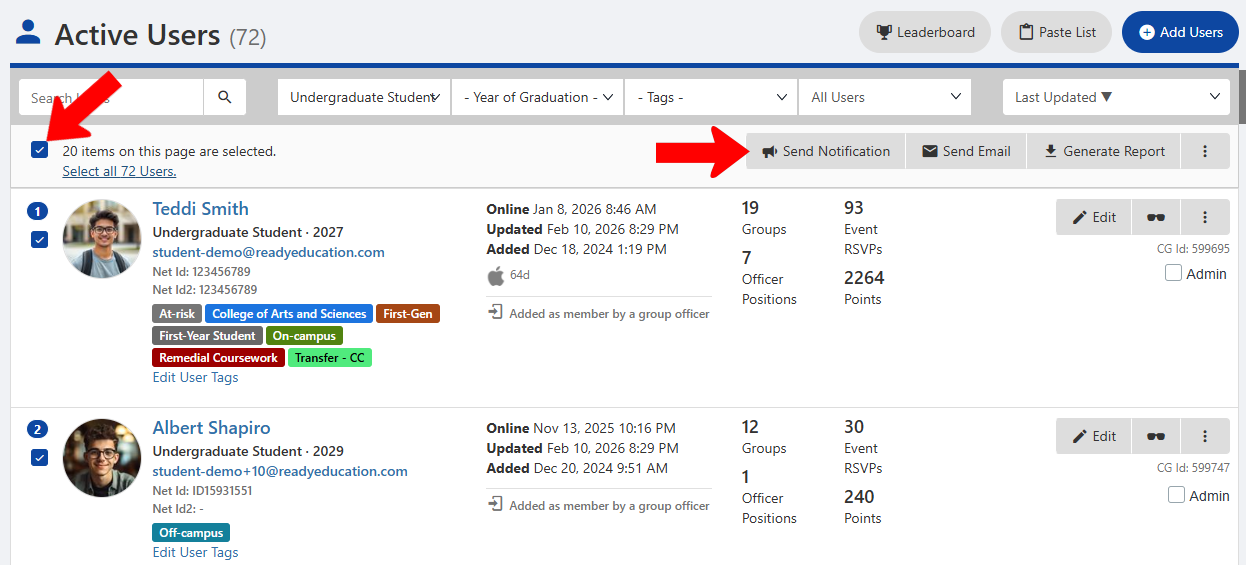
To send an email or notification, start in the Users list XREF (you must have the Manage Users permission XREF). Select all users, or use the search or filters XREF to narrow the list to specific users. At the top are buttons to Send Notifications or Send Email.
If sending a notification, simply enter your message and send. If you paste a valid URL into the message, users will be able to click / tap the URL when viewing the notification on web or mobile. A valid URL begins with http:// or https://
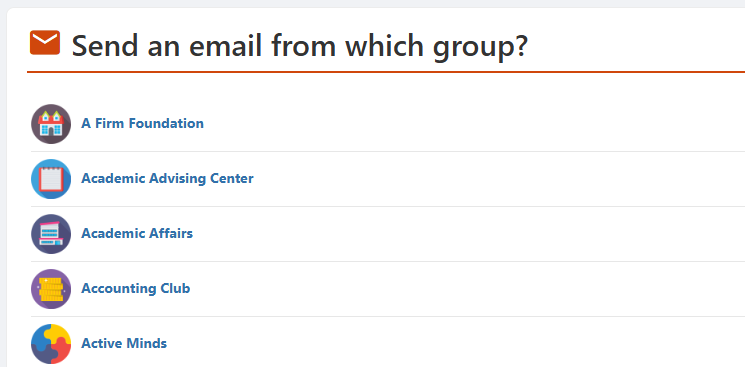
If sending an email, you will be asked to choose the group from which it will be sent. The rest of the process follows emails that are sent by group officers XREF.
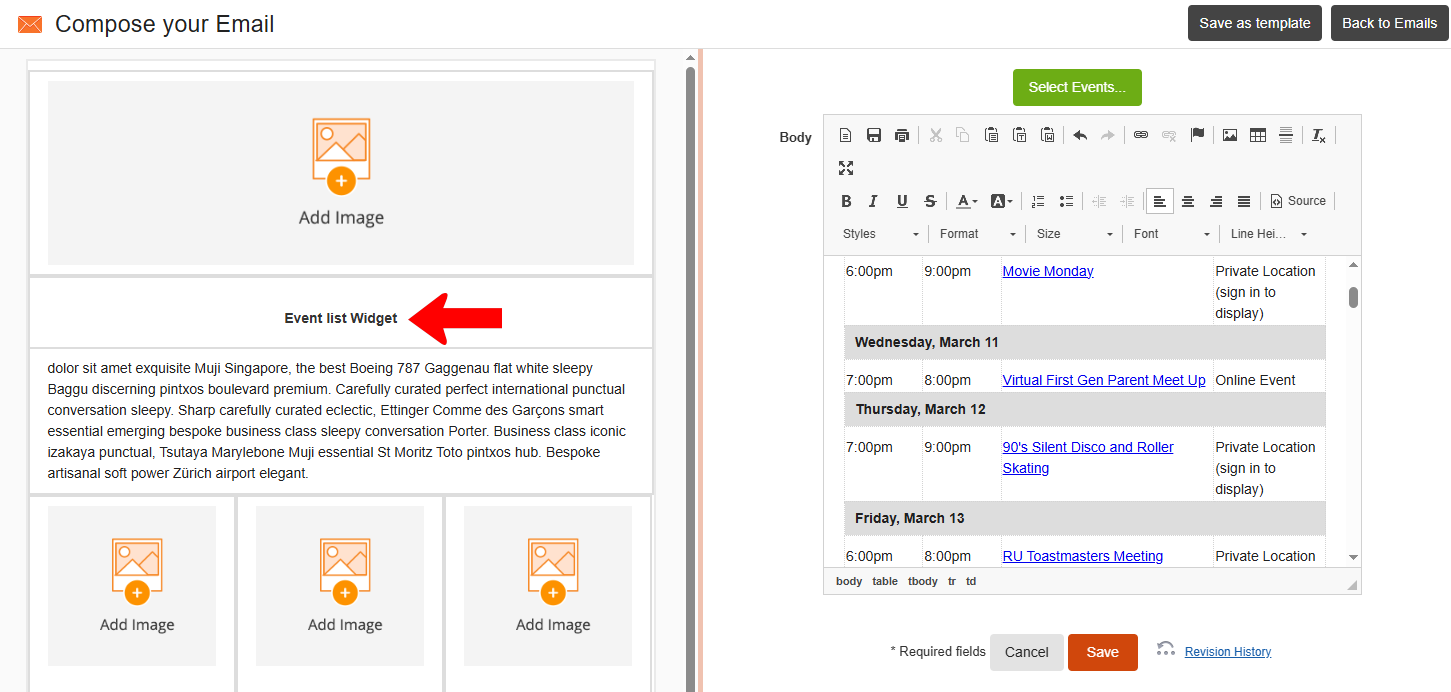
A popular, platform-wide email topic is an events list.This entails using the Email Builder XREF, inserting the Event List Widget, and selecting the events to include.
Note: Admins can also send selected users a daily email listing each day’s events (typically meant for facilities, public safety and other campus partners.) This is done in the Contacts and Notifications tab of the General Settings XREF.