
When Sending Group Emails, choose Email Builder if you want to create a newsletter-style email with drag and drop elements. There is an option toward the end to save the email as a template, for repeated or regular use.
Note: The other email creation option is Email Composer Using Email Composer.
Email Composer consists of a series of steps, listed along the bottom. Click Next when ready to proceed to the next step.

Step 2: Use the list previously selected, or make changes here. There is an option to edit the list, add more recipients, and add CC and BCC addresses. You can also send the email as a notification Sending and Tracking Group Notifications to mobile and web.

Note: A push notification cannot be sent if the email is to be scheduled to be sent later. This is done in Step 5.
Step 3: Enter your email subject. By default, the email sender will be you. But you can choose any other group officer or the general group email. (This email is set in the Contact Information tab of the Group Settings). You can also add an introduction or attachments.

Step 4: Choose the email template Email Templates to use as a starting point.

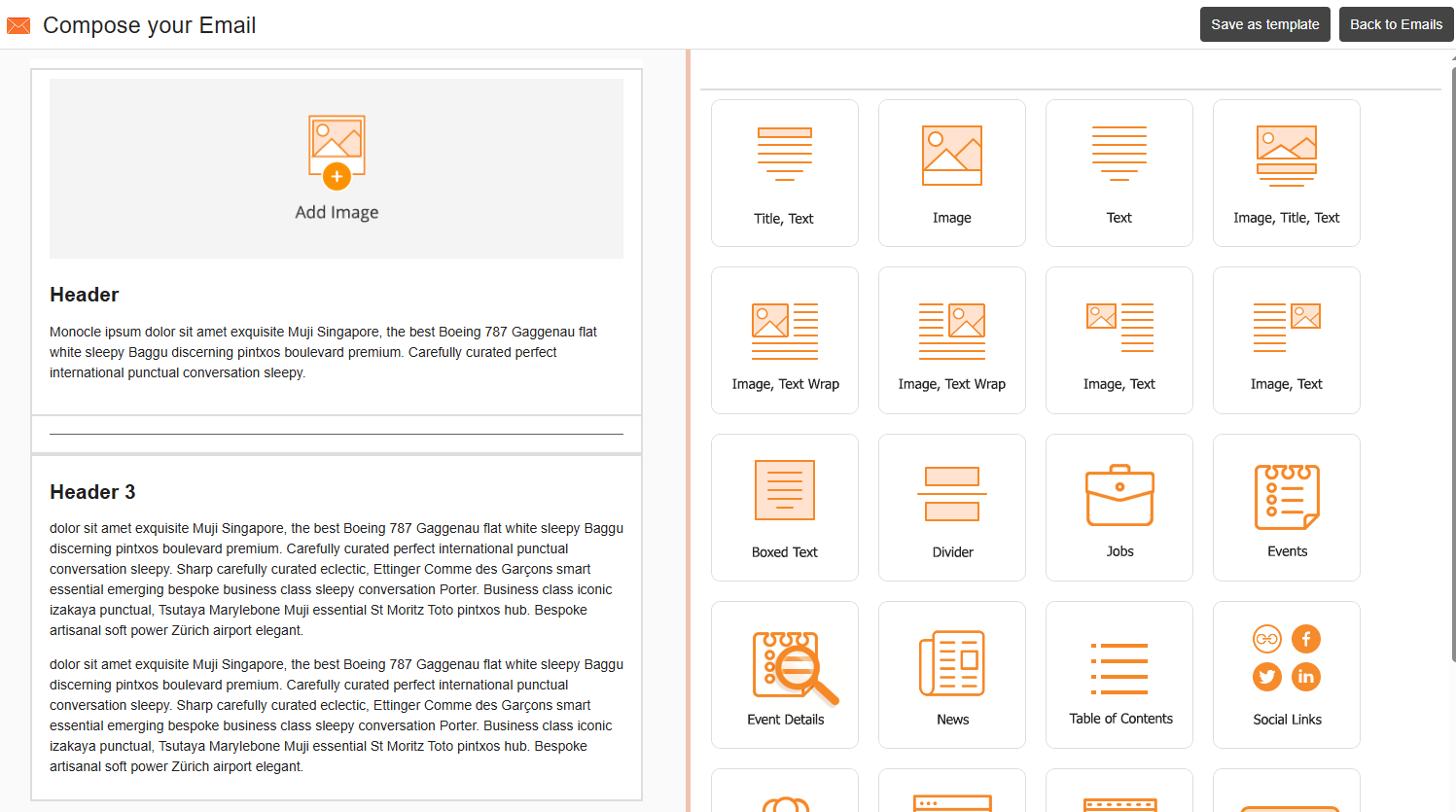
Your template appears on the left, with a list of widgets on the right. In addition to text and image widgets, there are options to add events, event details, jobs, news, social links, and more.
To add a widget, simply drag it into the template.
Note: Events can also be added in the Clickboxes step, which is described further on.
Hovering over any template widget displays options along the top to move, edit, copy, or delete the widget.

To insert widget content, start by editing the widget. On the add your text, images, mail merge fields, URLs, etc. When finished, click Save.

Note: If you are including a URL, be sure to include the http:// or https://. Videos and animated GIFs (or other formats) should not be embedded, as they will likely be stripped out by mail clients as malware. The only way to include motion graphics/video is through a URL.
After saving, your completed widget appears on the left. There is also a Save as template button at the top.

Step 7: If your group has upcoming events creating an event, each event will be listed as a potential checkbox to include in your email. If you want to include an RSVP link for an event, a handy copy-paste insert is included (be sure to include the brackets).

Step 8: If you want the email sent later, choose a send date and time. Otherwise leave these fields blank. For footer options, the default footer contains sender details and an Unsubscribe link. You can choose to include only the Unsubscribe link, or choose not to include the footer.
You can send yourself a test email or preview on-screen. You can also save as a draft if you want to continue working on the email. If the email is ready to go, click Save and Send.

Once sent, you can view live opens and clicks Opens & Clicks, or publish the email as a news article News.