
Your Group Page Managing the Group Page has a section for News (if made visible in the Page Settings).

The posts that appear here are set on the News page.
Note: The News section of the Group Page also includes sent emails published as news.
To access the News page, start by managing your group Managing the Group Page. Open More Tools along the left, and choose News.

There are two buttons at the top. Clicking Edit Categories opens the Tags page Tags, where you can configure News Category tags. (You can also create categories on the fly after creating a news post.) To add a news post, click Create News.

Each post requires an author and headline, and a photo is optional. The post itself has all the standard formatting options, including images, tables, URLs, etc, and you can upload attachments.
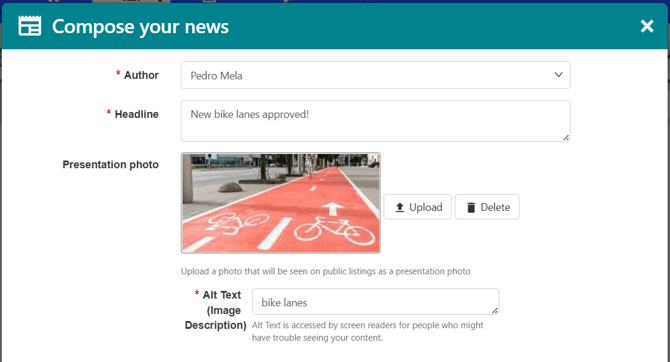
Other fields include:
- Invited blogger: If this post was written by a non-officer, you can add their name here. This user will be listed instead of you as the post author.
- Date: The date that will appear on the post.
- Publish: This must be enabled in order for the post to appear as news.
- Desired news publication date: The date the post will appear.
- News expiration date: The date on which the post will no longer be displayed.
Once saved, you will have to assign one or more categories to the news post. If the category you want does not yet exist, you can create it here.

Each post has an Edit button, and clicking the More (three-dot) icon opens options to view the post on the Group Page, or archive or delete the post.

The News list can be searched or filtered, and the Status filter can be set to show expired or archived posts.
