
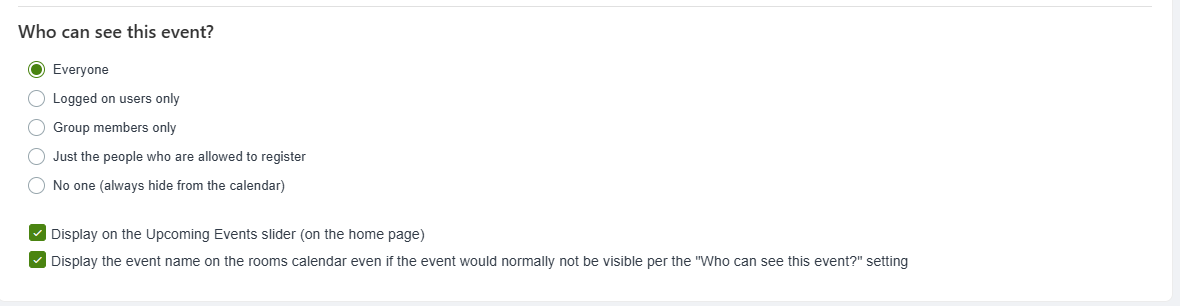
Once your event is created, its visibility to platform users depends on the Who can see this event settings from Step 6: Access & Display Options.
Beyond general platform access, there are other options for letting users know about your event.
Notes:
- You can also invite users manually from the Attendees list.
- The More tab of the Group Settings has an option to automatically add all group members as attendees. This setting also automatically removes attendees from upcoming events if they are not a member.
Distribute the Event URL / QR Code
To distribute the event link or QR code, find the event in the Upcoming Events list and click its QR icon.

This displays the QR code which can be saved as an image, and a URL which can be copied.
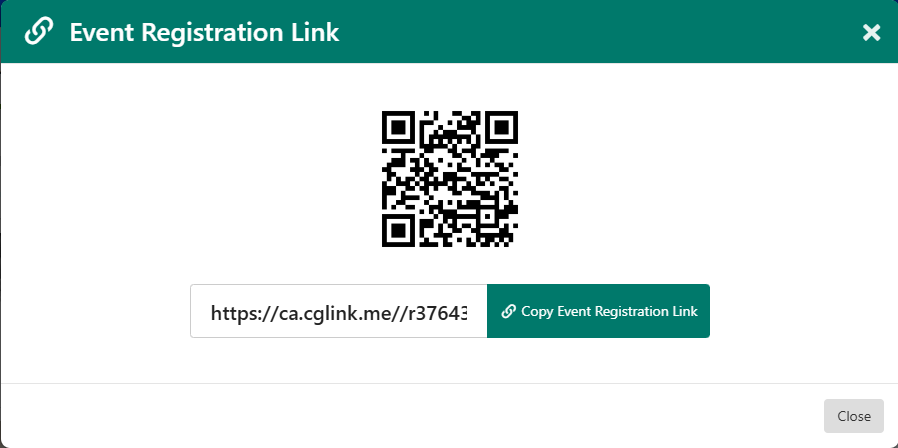
You can also find the event URL by clicking its More icon and choosing Copy Link.

Send Email Invitations
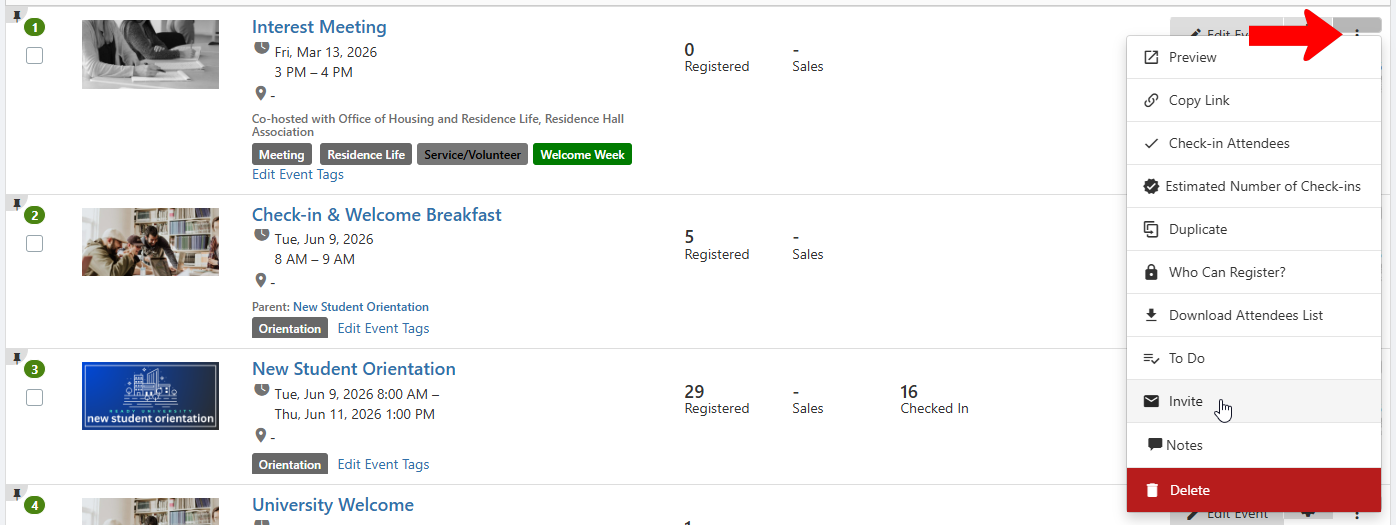
Find the event in the Upcoming Events list, click its More icon, and choose Invite.
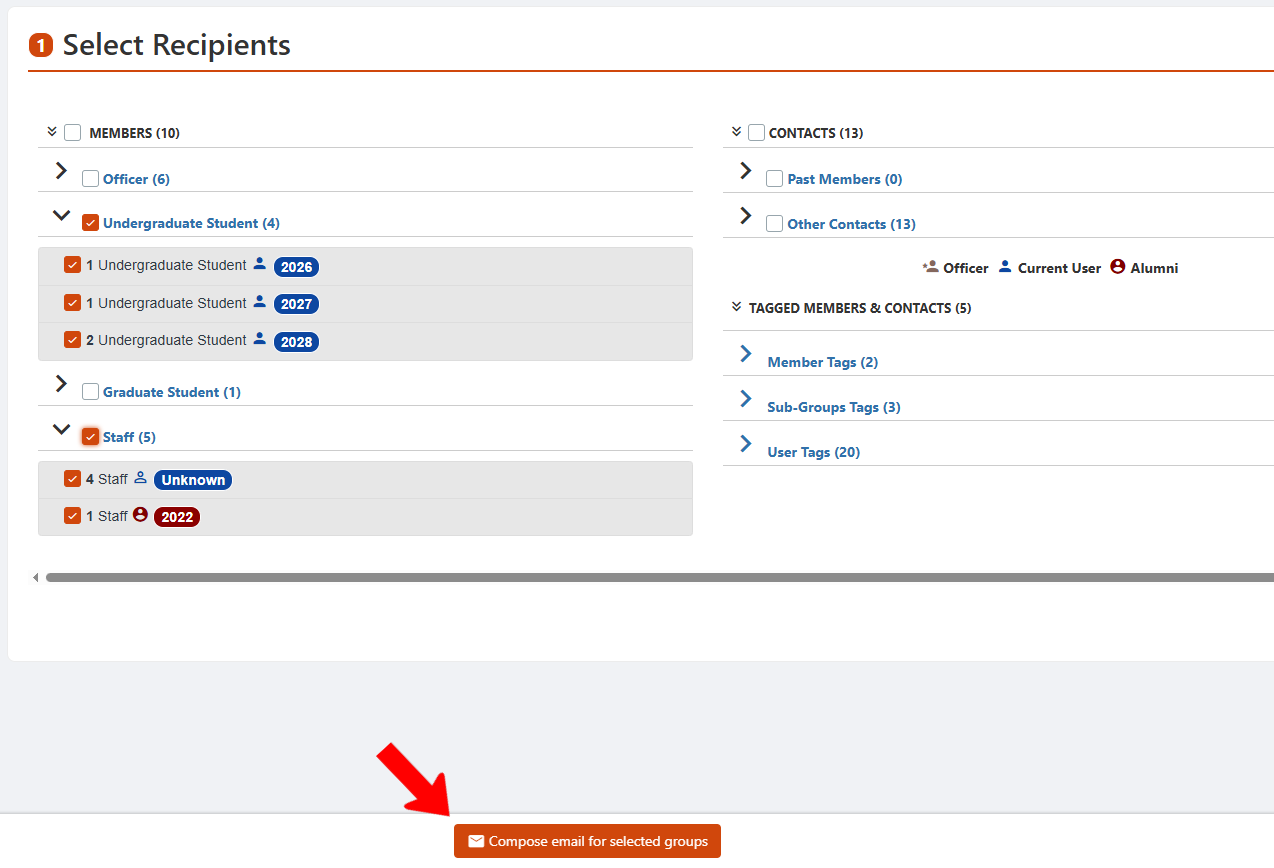
Choose your email audience and click Compose email for selected groups.
This starts the email interface, using either Email Composer Using Email Composer or Email Builder Using Email Builder.
If you use Email Composer, the event clickbox will be enabled by default. You can also paste the RSVP code into the email.
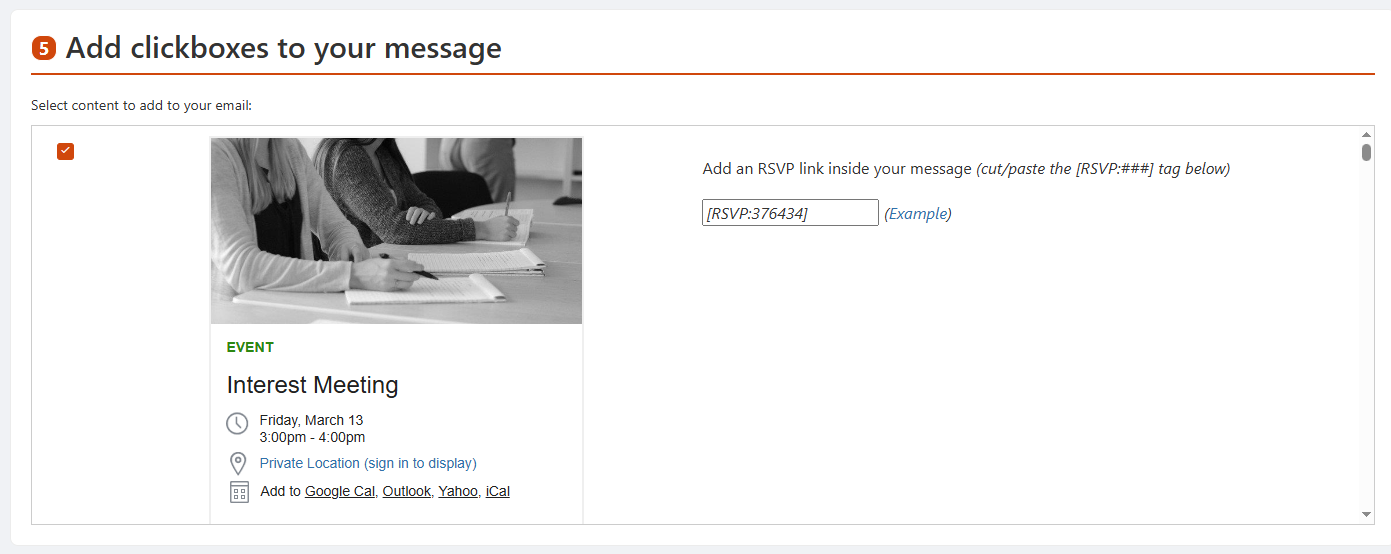
If you use Email Builder, add a widget for Events and / or Event Details.
Post about the Event on Your Feed
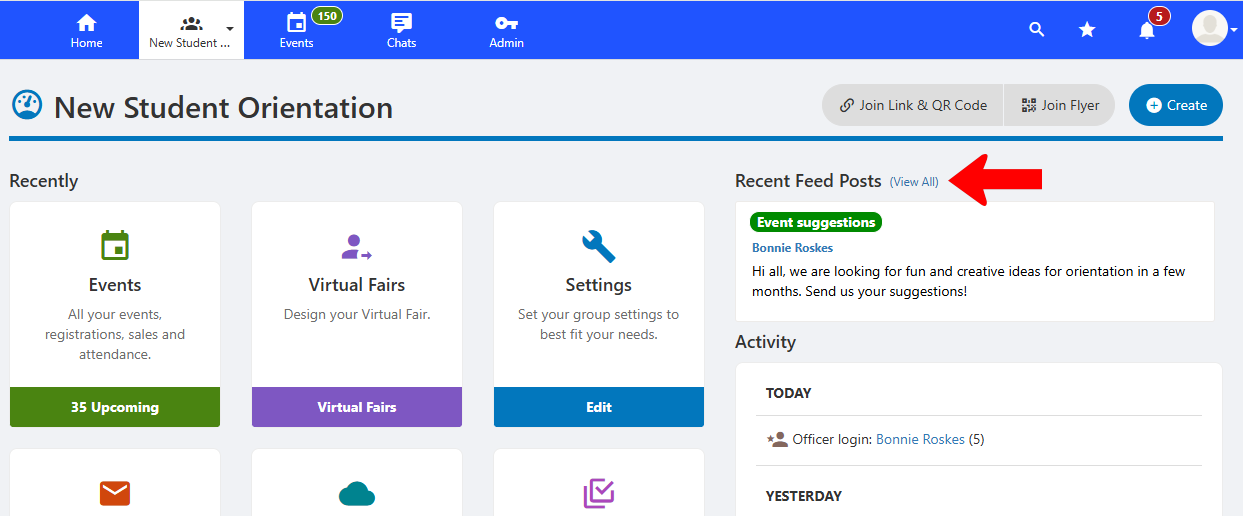
Your group channel is a running feed of posts by officers, and members or others if permitted. To access your feed, manage your group and click View All for feed posts.
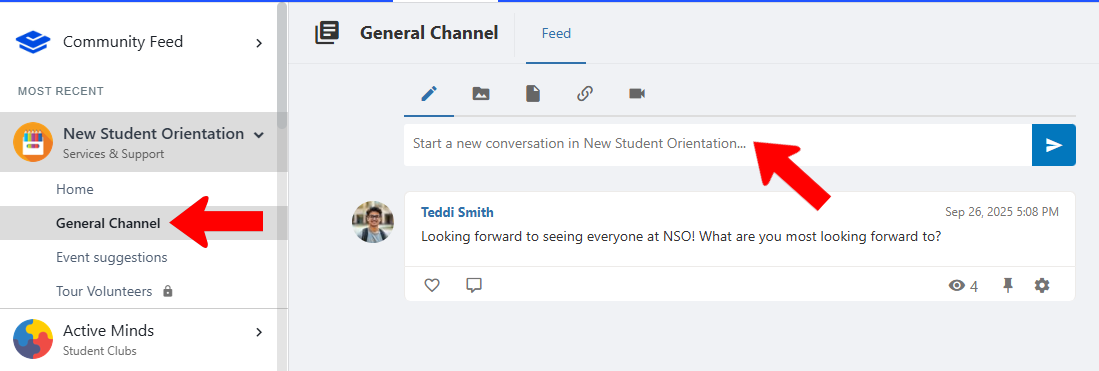
Choose the default General Channel, or another channel if created. Simply enter your event-related text and post.
If you need to copy and paste the event URL, find the event in the Upcoming Events list and click its QR icon.
