
In addition to manually adding new groups, you can also upload groups from a file.
Note: Once groups are added, you can also upload group members and officers Uploading Group Members and Officers from a file.
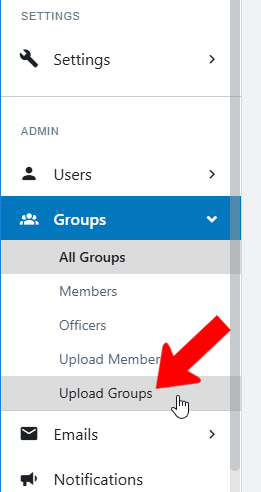
Switch to Admin mode if needed. Open Groups on the left, and choose Upload Groups.
Download the group template file by clicking the file name in Step 1.

Be sure to read the detailed instructions in Step 2, explaining how to work with the template file.

Important points:
- Do not remove or rename any columns, even if some columns have no data.
- The worksheet containing the data must be named "groups."
- Cells in Column B are for the group acronym - the characters appended to the school website for use as The Group Website. These characters must also be included in the website-url cells (Column G). A list of existing acronyms is provided so that you won’t overwrite them.

- Group Types (which are configured in Custom Values) go in Column C. A list of these is provided as well, so that you can include exact wording.
- Column D is for Group Categories, which are Group Category Tags. A list is provided, and multiple categories can be added, separated by commas.
- If a group has a parent group, enter the parent group ID in Column I. (Parent groups are assigned in the Access & Privacy tab of the Group Settings).
- If you have group templates set up, entering a group template’s acronym will give the uploaded group the same Group Settings as the template.

Note: Group IDs can be found in a group report. This ID also appears when hovering over a group name in the All Groups list, at the end of the URL that appears.
When your file is ready, save it and upload it in Step 3.
