
If you’ve explored groups on campus but haven’t found the exact one you’re looking for, you can register your own group.
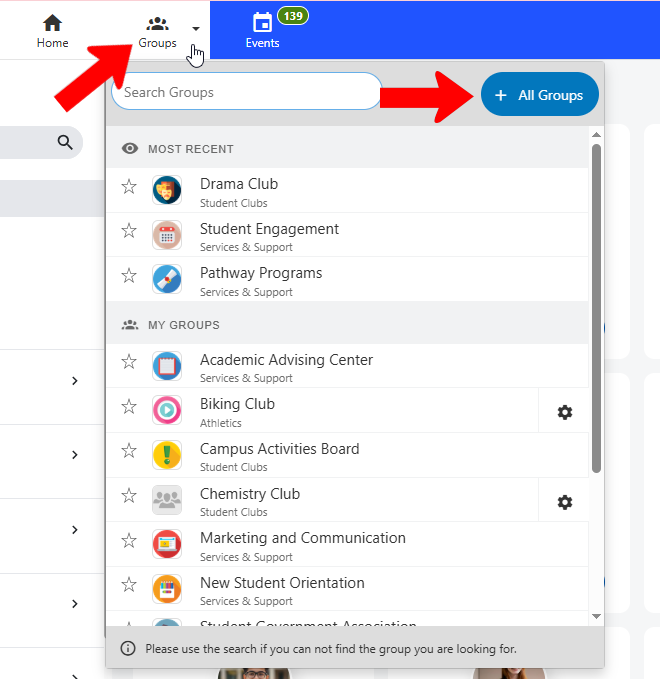
To get started, on the web version click Groups at the top, and open All Groups.
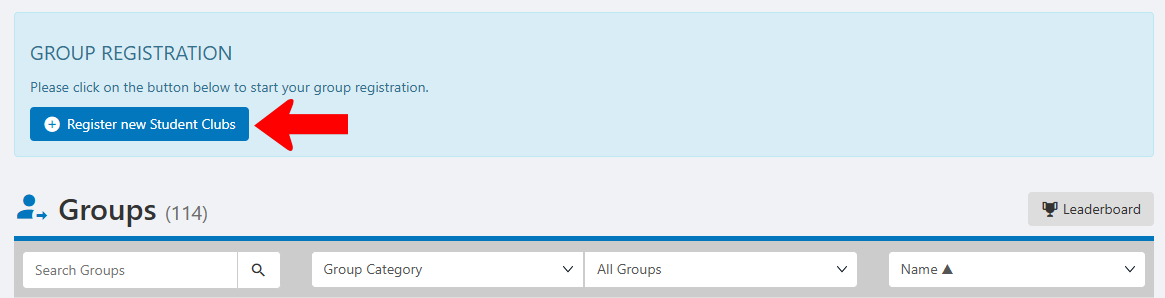
Above the Groups list is a button to Register New Student Clubs. (This option is usually available at specific times during the academic year. Check with a platform admin for details.)
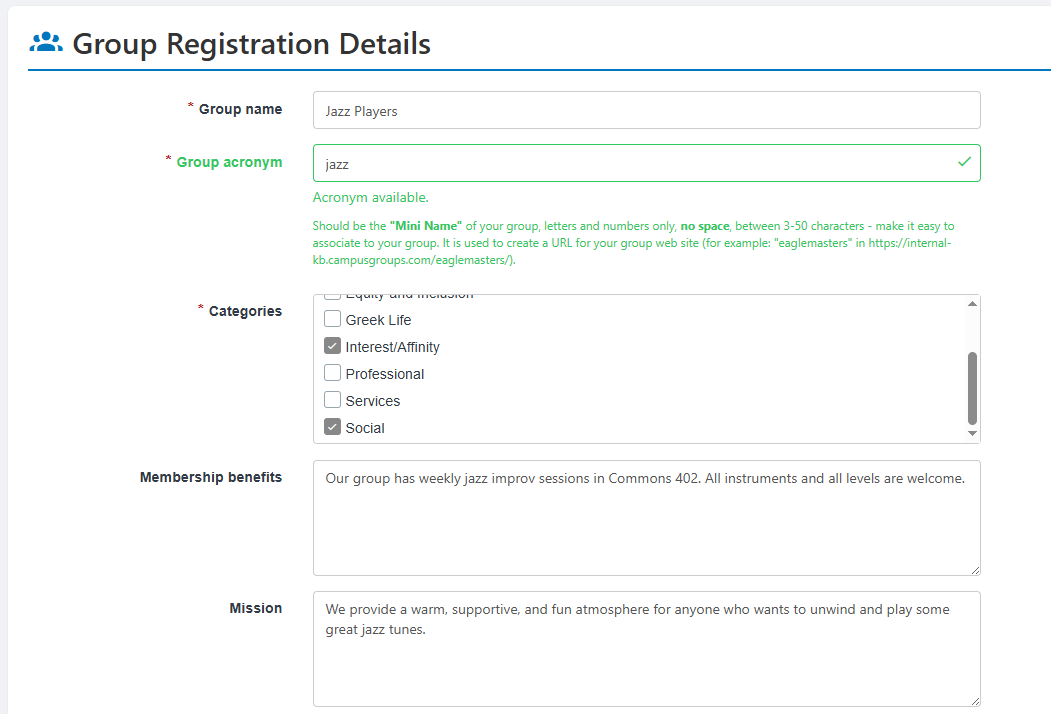
In the Group Registration Details page, required fields include name, acronym (a text string that will define how to find the Group Page), and the categories that will help other users find your group. You can add membership benefits and a mission statement as well; these will appear on the Group Page but can be edited if needed by future group officers.
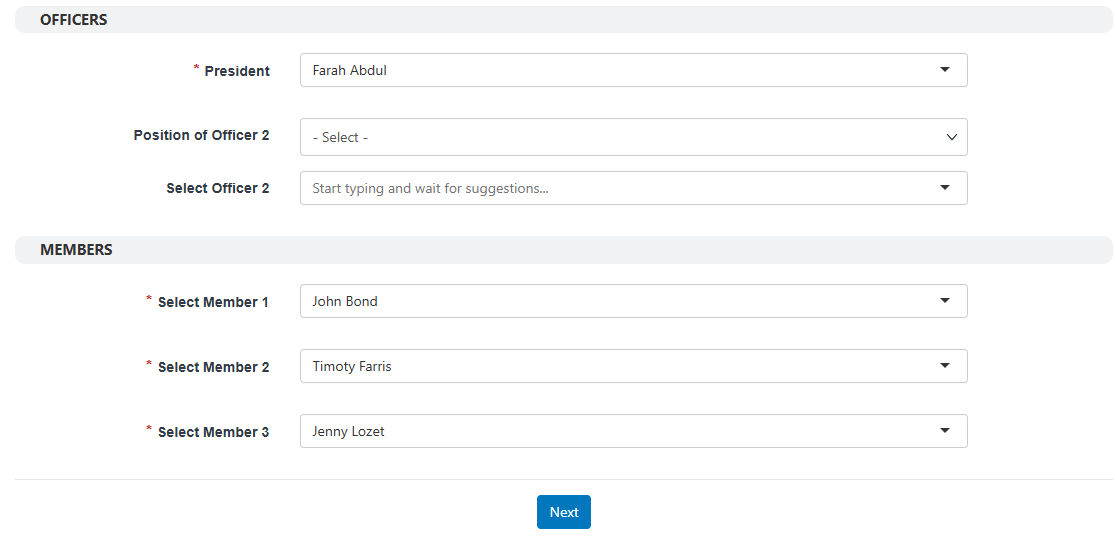
What you’ll see for Officers and Members depends on the requirements set up by campus staff. You may have to define one or more officers and a specific number of group members. Then click Next.
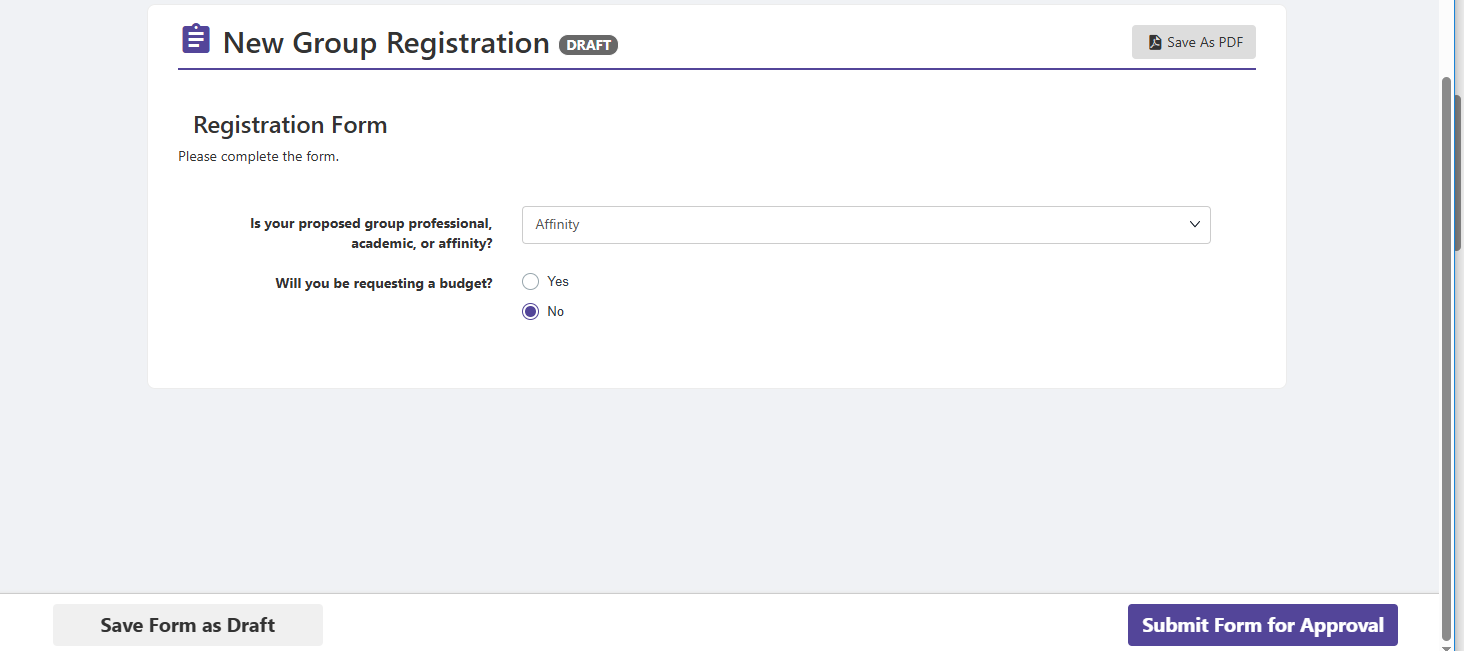
The form that appears next also depends on campus requirements. Complete the fields and submit when ready. You can also save the form as a draft and complete and submit later.
To track the approval process, go to My Activity and choose My Surveys / Forms. Your group registration form will be listed as Pending Approval.

Once the various approvers have had their say, and the process is complete, your group will (hopefully) be approved. You may also see different statuses: Rejected, On-Hold, or Needs Modifications.

Depending on campus requirements, incoming officers may also have to accept or approve their new positions.