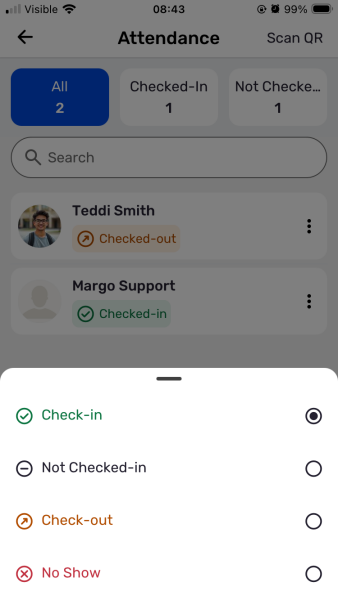
Manual check-in is one of several methods for checking in attendees and tracking attendance Check-In and Attendance Tracking.
This method is a good way to manage your event on the backend, and is good for handling multiple check-ins simultaneously. Manual check-in is particularly advantageous when you need to retroactively check-in users after the event has concluded.
You can check users in via computer or mobile app.
Check-in Via Computer
Start in your Attendees list Check-in via Computer.
For a single user who has already registered, find the user and click their Check-in button.
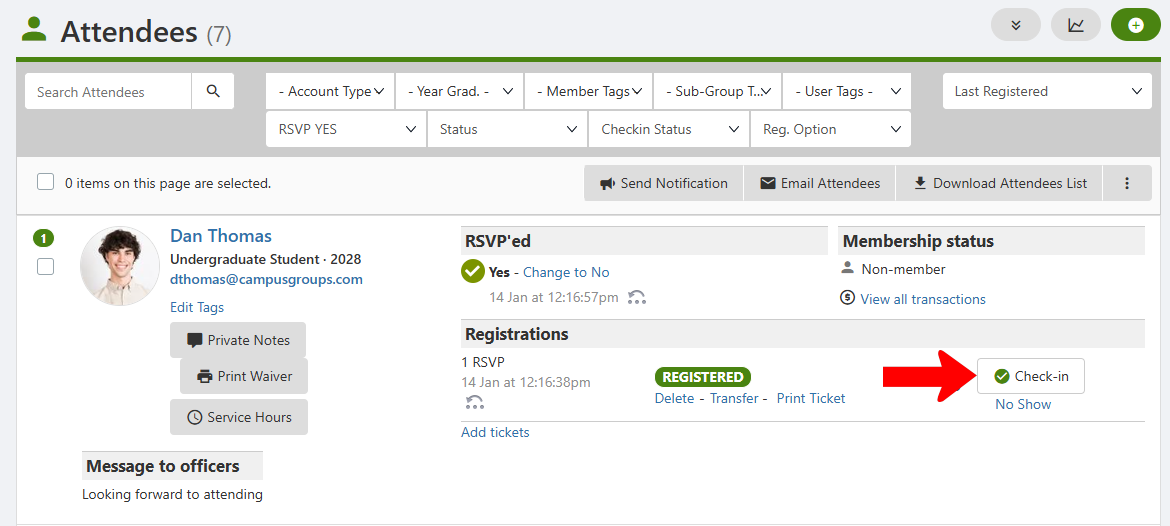
Each checked-in attendee is listed as such in the Attendees list. They can also be checked out here when they leave.

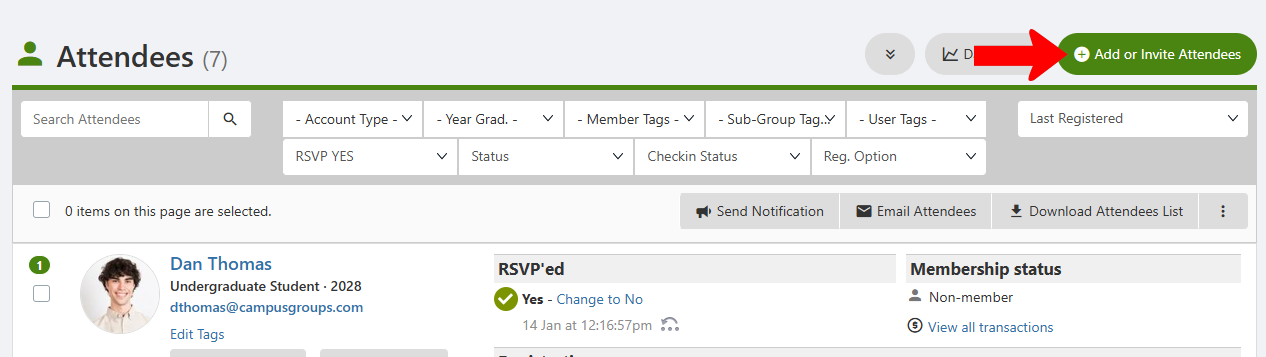
To check-in one or more users at a time, click Add or Invite Attendees.
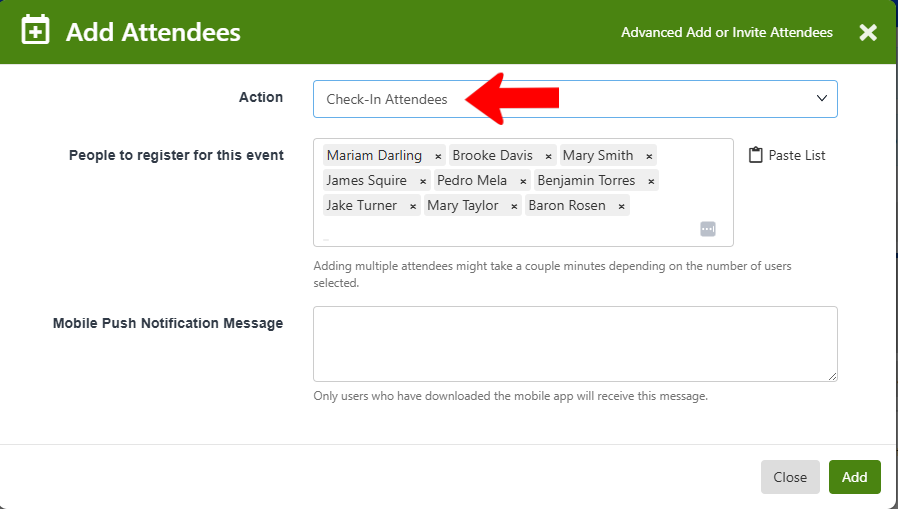
Set the Action to Check-In Attendees. In the People to register field, start to type names and choose each user one by one. You can also send an optional notification text.
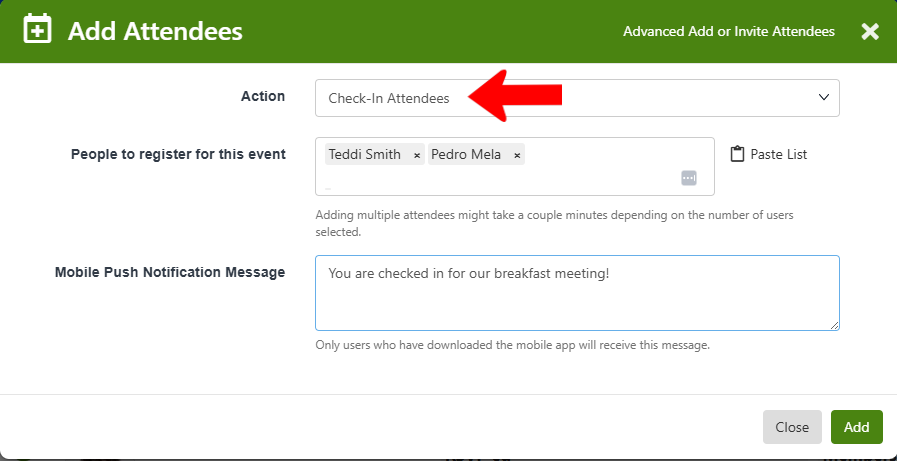
The Paste List option above enables you to enter a list of emails or IDs. Click Search to identify and check in all pasted users.

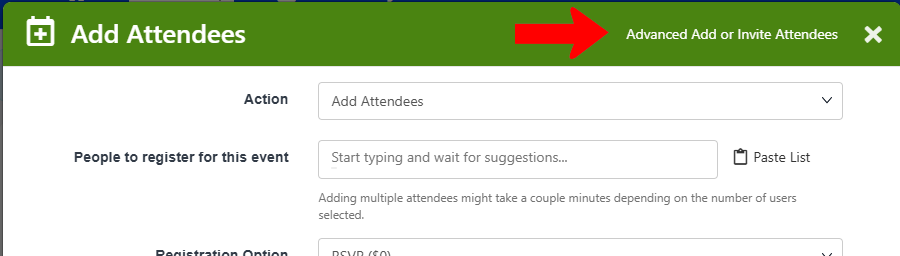
The Add Attendees popup also has an Advanced Add or Invite Attendees option at the top.
This opens, in a separate tab, your list of members and / or contacts. Select the users to check-in, click the More icon, and choose Add to Event. Note that these users must already be registered as attendees.
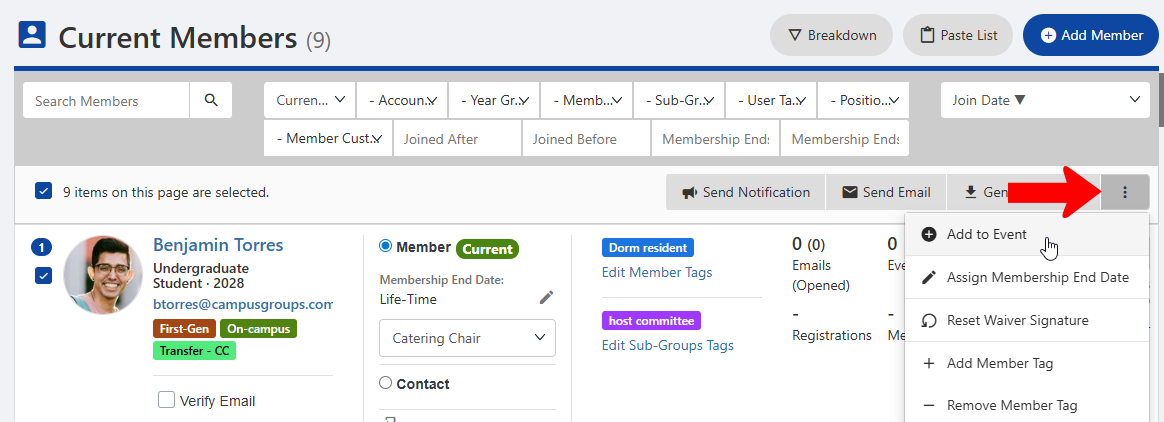
Choose the event.
Returning to the Add Attendees popup, choose the Check-In Attendees action, and the user list is automatically populated with the members you selected from the list.
Check in Via Mobile App
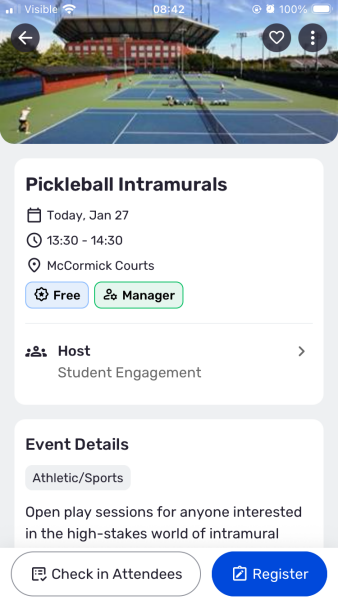
Tap Events along the bottom. Then find and tap the event.
Use the Check In Attendees button.
Each attendee will be listed, and you can tap their Check-In Button. Tapping an attendee’s (three-dot) icon will show their check-in status.