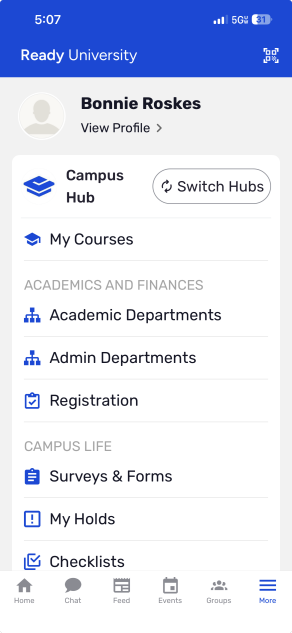
To configure a community hub, switch to Admin mode if needed. Open Hubs along the left.

Note: The Edit Apps admin permission is required for managing a Community Hub.
Click the hub’s Manage button.
.
Note: You can also manage a hub from the group hosting it. (This is the default group originally included in the platform.)

Managing a hub opens the mobile hub experience, with a content preview on the left, and available Hub Menu Items on the right. Along the top you can access the hub Dashboard Pages, Pages, Hub Settings, and Quick Links Pages. The hub name appears at the top left, and can be changed by clicking its Edit icon.
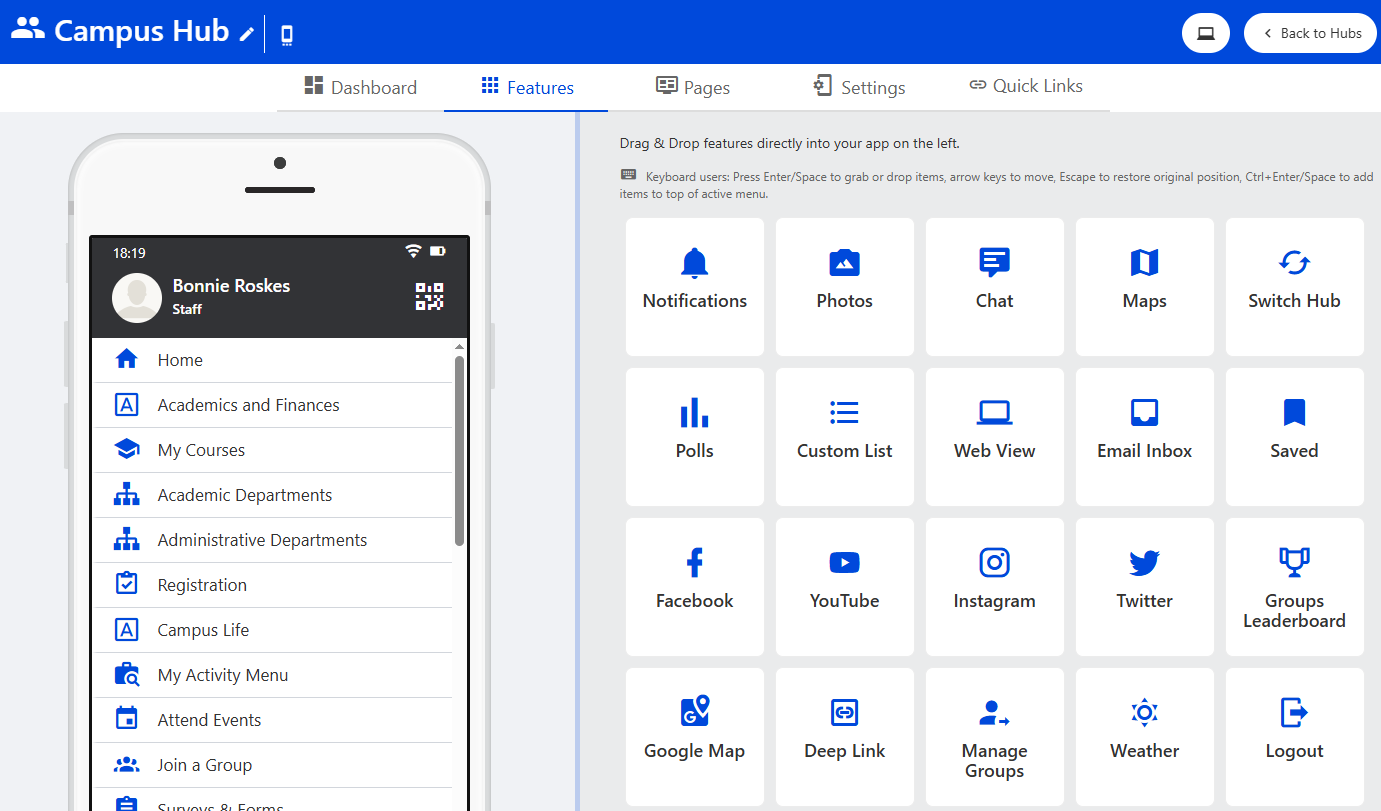
To configure Hub Menu Items, simply drag them from the right, reordering as needed. To remove a hub menu item, hover over it and click its Delete icon.
If you make changes to your hub menu, we recommend leaving at least these hub menu items:
- Home (which is a Page hub menu item)
- Feed
- My Activity (keep in mind that My Activity Menu is available for both web and mobile, while My Activity Section is web only)
Each hub menu item can have customized settings My Activity. This includes determining whether the menu will appear on mobile, web, or both.
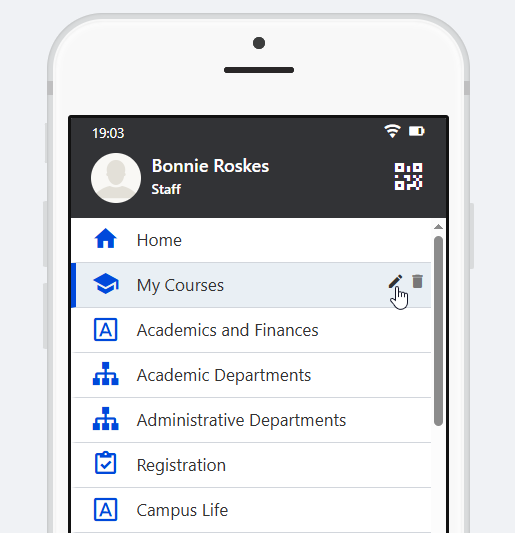
Note: While most hub menu items can be used in both mobile and web experiences, some are mobile-only or web-only.
On the mobile app, there are also buttons along the bottom of the screen. The default configuration is Home, Feed, Chat, Events, Groups, and More. (Tapping More is how app users access the hub menu.)
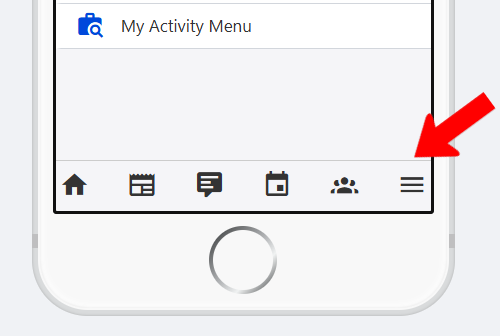
To configure these buttons, hover over the preview and choose Edit Bottom Menu.
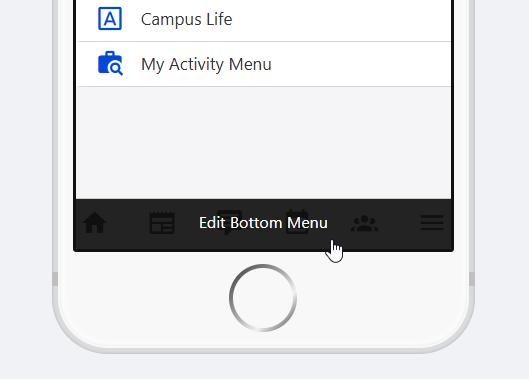
The buttons and their order are set in the Hub Bottom Menu list. Each can be edited to have a different name or icon. (The Home button cannot be removed or edited.) To add a button, click Add Bottom Menu, and choose from the available but menu items Hub Menu Items.

Note: There is no set limit on the number of buttons that can be added to the bottom menu, but we recommend no more than six.
To preview the web experience, and test hub menus while editing, click the Web button at the top.
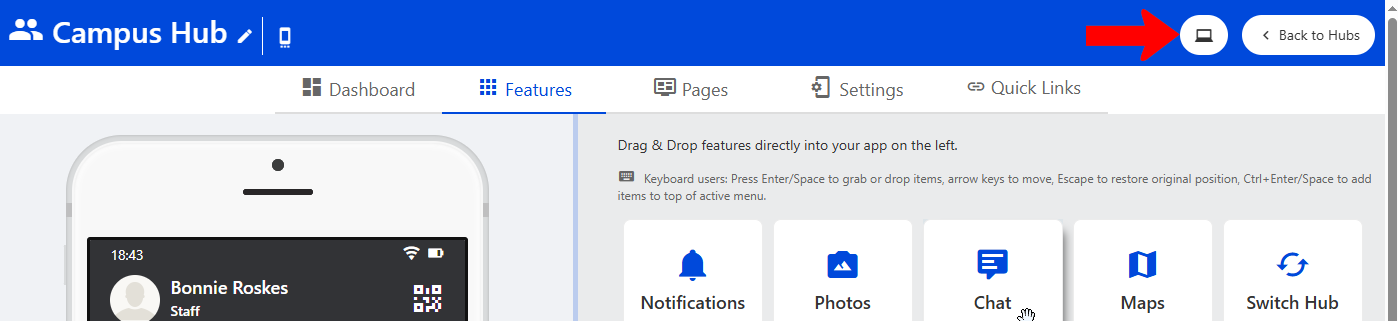
This shows the hub menu that appears on web.

The mobile app will reflect the configured bottom menu, and tapping More will display the hub menu.