
While the various form types (surveys, quizzes, etc) work the same way, and provide access to the same question types Questions and Question Types, there are some differences in their default settings.
For example, a survey includes an approval box by default, while an election does not.
So before inviting users to your form Inviting Users to a Form, take a few moments to check the form Settings.
Find your form in the Surveys & Forms list Surveys and Forms List, click its More icon, and choose Settings.

The Settings popup consists of several tabs.
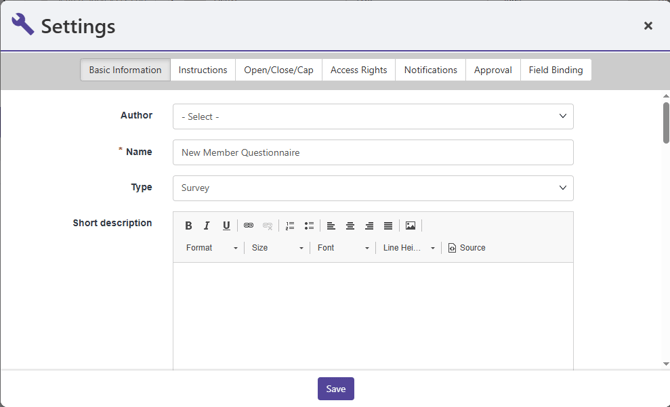
Basic Information
- Author: Choose the group officer users will see as the form author (optional)
- Name: Keep or edit the form name
- Type: Choose the form type (survey, election, etc.) that will appear in the Surveys & Forms list. Changing form type does not change its contents.
- Short description: Text that appears at the top of the form.
- Custom confirmation message: The message users will see in the confirmation email after they submit the form.
- Select a workflow template: If the form will require approval consisting of two or more steps Creating an Approval Workflow, choose the workflow.
- Block Re-Submission for Approval Status: If the form is part of an approval process, choose the statuses under which the user cannot re-submit. (Officers and admins will still be able to re-submit.)
- Make this survey/form required for: Choose the type or status of group member (including officers) for whom the form will be required upon sign-in. Be sure to set the correct access in the Access Rights tab. This is a platform-admin only feature.
- Quiz Configuration: If the form has quiz questions that require a certain score to pass, enter the Quiz Pass Score. (This value is total points, not a percentage.) You can also set custom notification text for users who pass and / or fail the quiz.
Instructions
- Closing Sentence: Text that appears below the last question on the form
- Message displayed on the submission confirmation page: The text that appears after a user submits their responses
Open / Close / Cap
- Click Close survey to stop receiving submissions, or enter a Cap value after which the survey will close automatically.
- You can also set open and close dates and times.
Access Rights
- Login required: If enabled, users who respond to your form must be logged in, which means you can track respondents.
- Anonymous answers: Choose whether to enable users to respond anonymously
- Disable editing: If enabled, users will not be able to edit their responses after submitting the forms
- Single submission: If enabled, users can only submit the form once. This setting requires login.
- Access selection: Choose the officers that can modify the form and view and manage responses. (Example: For an election, you may not want incoming leaders to see election results, so access is limited to outgoing leadership and / or election coordinators).
- Privacy: Use the Access Rights Access Rights: Privacy Settings popup to determine who is allowed to view the form. You can also choose to place the form on the group page The Group Website or group website The Group Website.
Note: The Surveys & Forms section of the group page is available to all users, not only group members. If you don’t want non-members to see your form, be sure to choose the correct Privacy setting.
Notifications
- Select officers who should receive notification upon each submission, or notifications on forms approved or denied.
- Tag newly submitted answers: Choose from a list of form Tags
- You can also write custom messages that will be sent for submissions that are approved, denied, or put on hold.
Approval
Show or hide the Approval box on the form submission page. This option can be used for forms that do not require approvals, such as surveys or elections.
Field Binding
Choose the binding type (typically a platform admin feature)