
To add one or more new members to your group, start by managing your group Managing Group Members, then open your Members list Members List: Managing Group Members.
There are two ways to add members manually:
Note: You can also import Uploading Group Members a list of new members.
Add Members Popup
Click Add Member at the top of the Member list.

If the new member is a CampusGroups user, find them by entering a few characters from their name or email. Multiple users can be added this way.

After clicking Add, you can choose whether to send new members an email. If a welcome email Sending a Welcome Email to New Group Members is set up, that email will be sent. Otherwise the user will receive a default notification.
If the member you want to add is not a platform user, click the link at the bottom of the popup.

For each user, enter their email, name, Account Type, and year (if known and relevant). You can also use the Paste Emails feature to enter multiple emails at once.
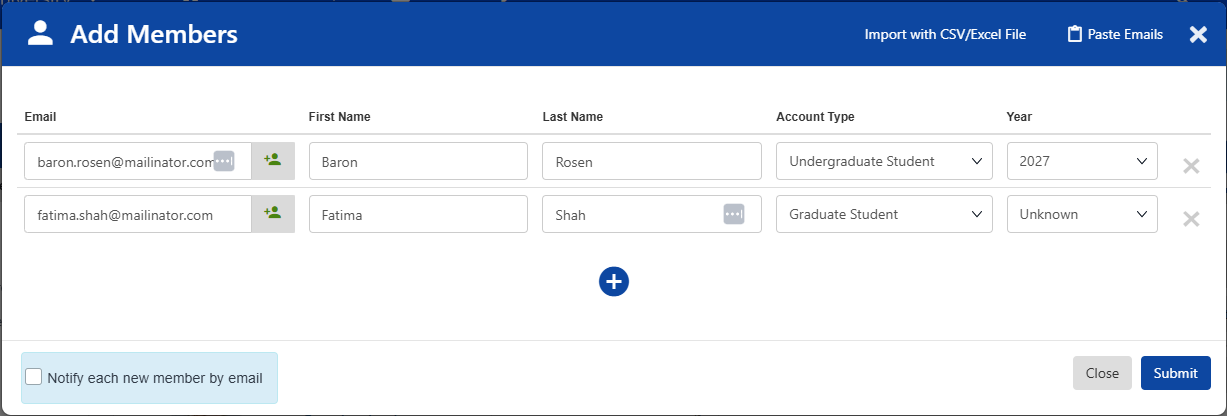
Note: The Import feature can be used to upload a list of members Uploading Group Members.
Each new member will be added to the list, as added by a group officer. You can edit each member as needed by opening their Member Dashboard.

Paste List
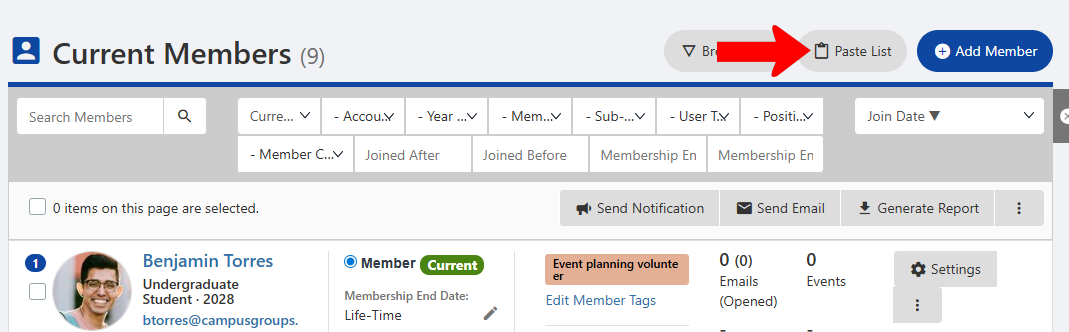
Click Paste List at the top of the Member list.
In the Paste List popup, enter one or more user emails, then click Search.
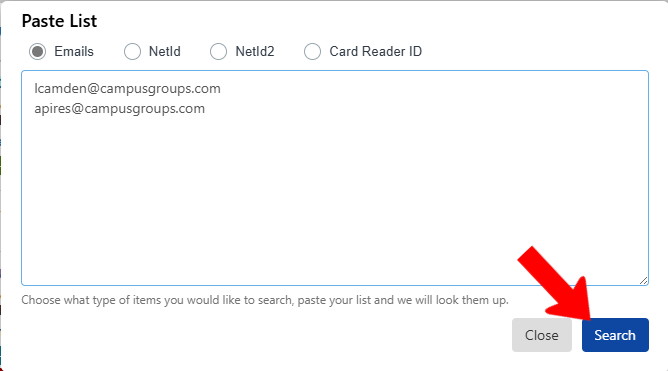
Note: NetID2 and Card Reader ID are only available to platform admins. You may have access to NetIDs, though schools often restrict those as well to admins only.
The pasted users are added as members. To return to the complete Members list, click Cancel Paste List mode.
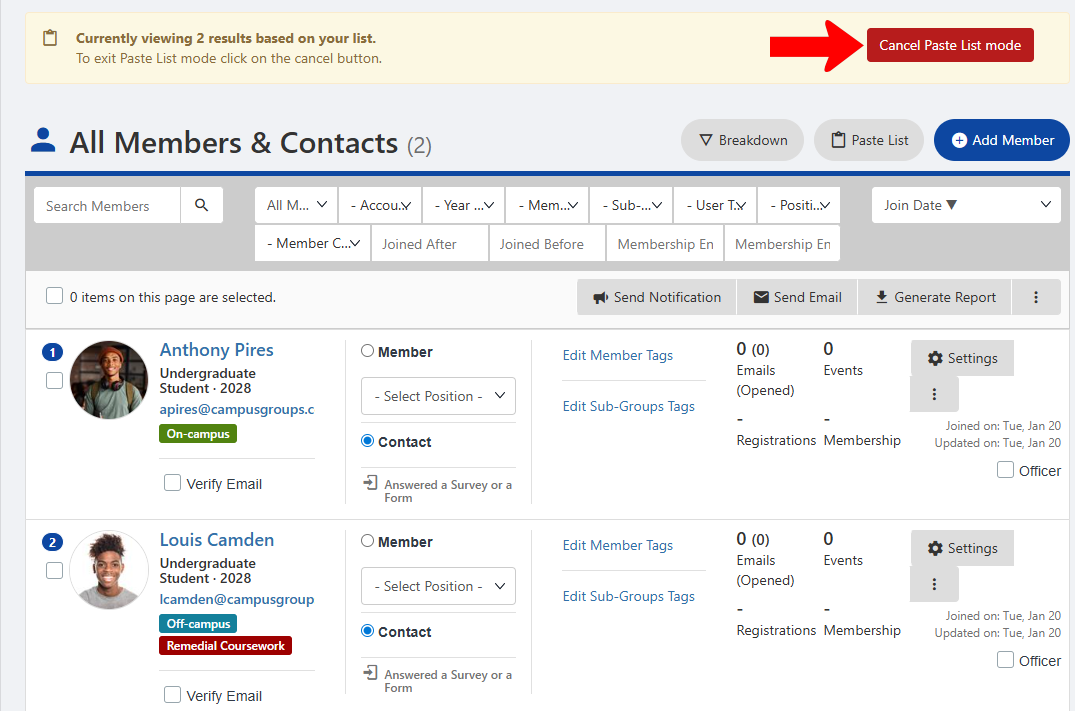
Each new member will be added to the list, as added by a group officer. You can edit each member as needed by opening their Member Dashboard.
