
There are two ways to repeat an event:
Note: You can also create an event and save it as a template. This is done in Advanced Settings.
Start by managing your group Managing Your Group, Group Dashboard.
Duplicating an Event
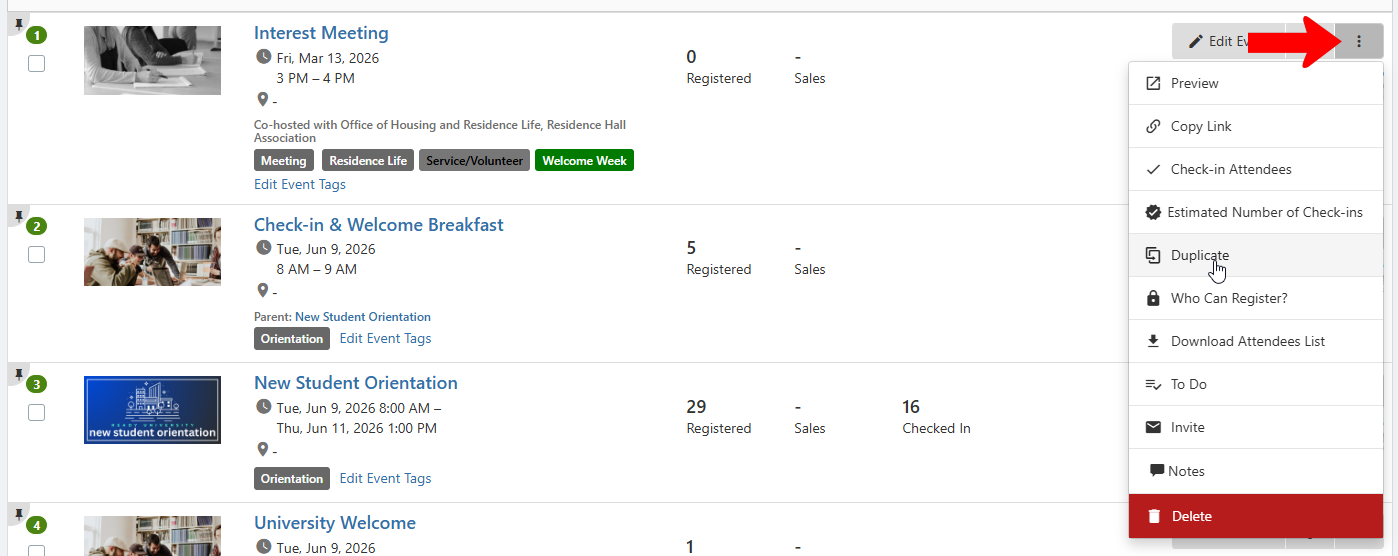
To duplicate an existing event, find the event in the Events list, or the list of Past Events or Drafts. Click the event’s More icon and choose Duplicate.
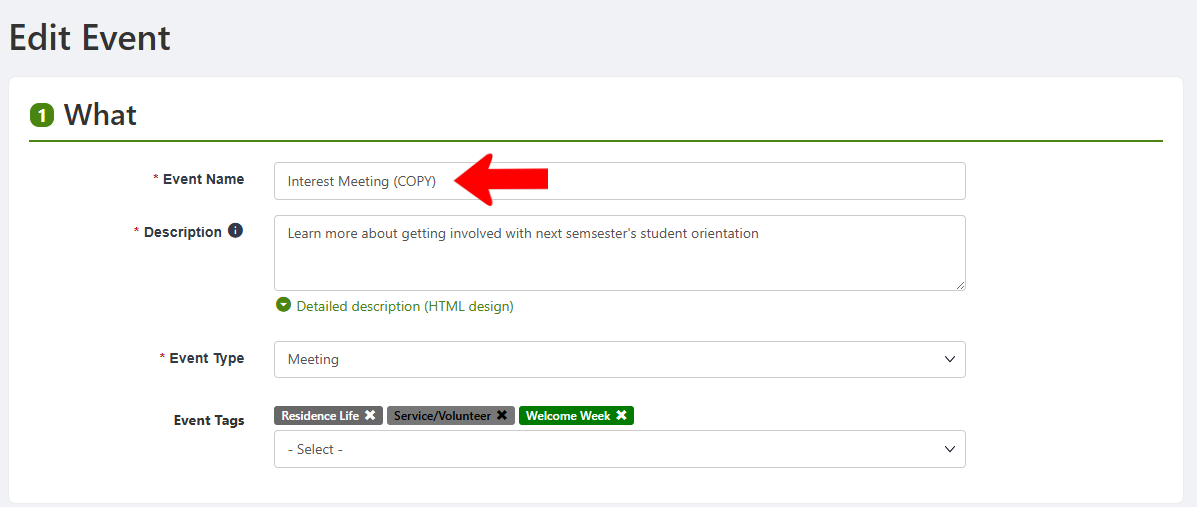
All event details are copied over, with (COPY) added to the event name. Assign a new name, and make other changes as you would when Creating an Event.
Recurring Event
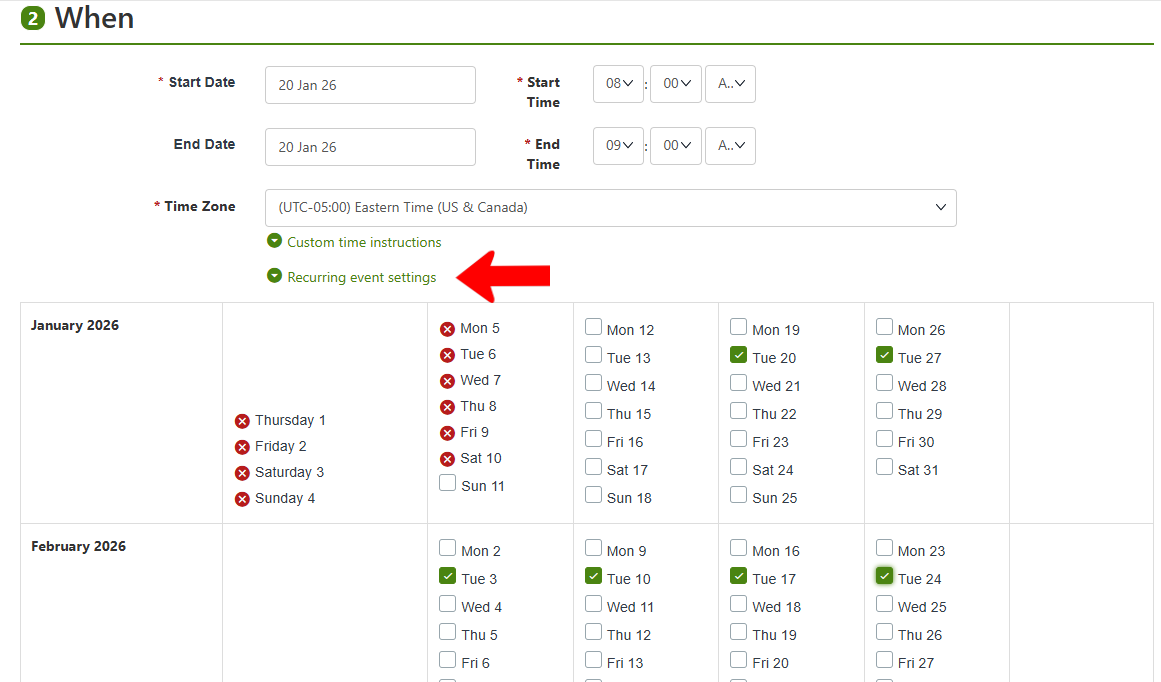
Recurring events are regularly occurring events such as weekly meetings. When Creating an Event, or editing an event from the Events list Creating an Event, recurrence is set in Step 2: When creating an event.
Open Recurring event settings and select each additional date on which the event will occur.
When other details are added and the event is created, each occurrence will be listed in the Upcoming Events list as a recurring event. The first occurrence is listed as the Parent event.
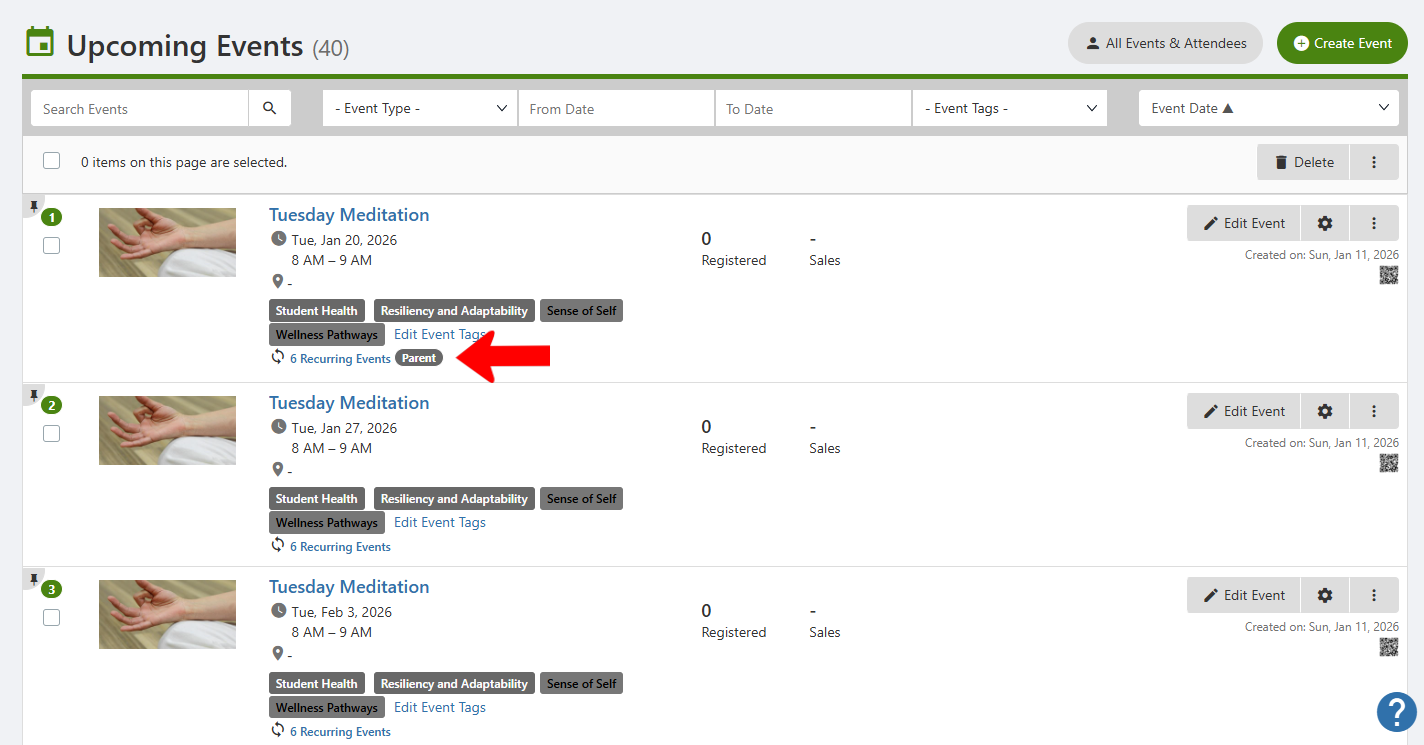
Clicking Recurring Events lists each of these events.
By default, the start and end time of each event is the same, but you can click Edit Event and change as needed.
Note that each event exists independently. If changes are required for the series of events, such as a new day or time, you will have to make these changes to each event individually.