By default, groups are set to not auto-validate any new members. If this is the case for your group, then each user who joins your group will need to be validated manually by an officer.
Note: Group validation settings are found on the Access & Privacy tab of the Settings Group Settings.
This article covers how to validate pending members from the Current Members list. Officers can also receive member validation notifications, and can validate directly from these notifications.
To see users who need to be validated, start by managing your group Managing Your Group, Group Dashboard and open your Current Members list Members List: Managing Group Members.
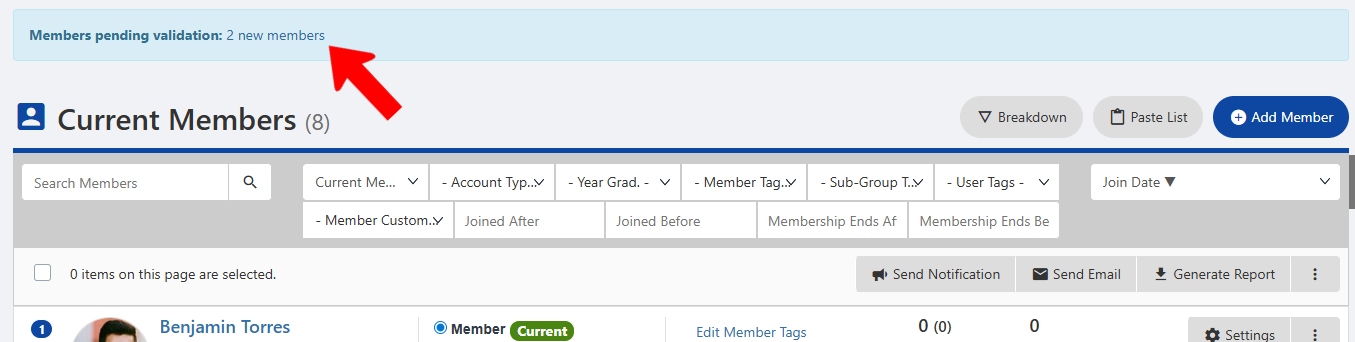
Any pending validations will be listed along the top. Click the number of new members.
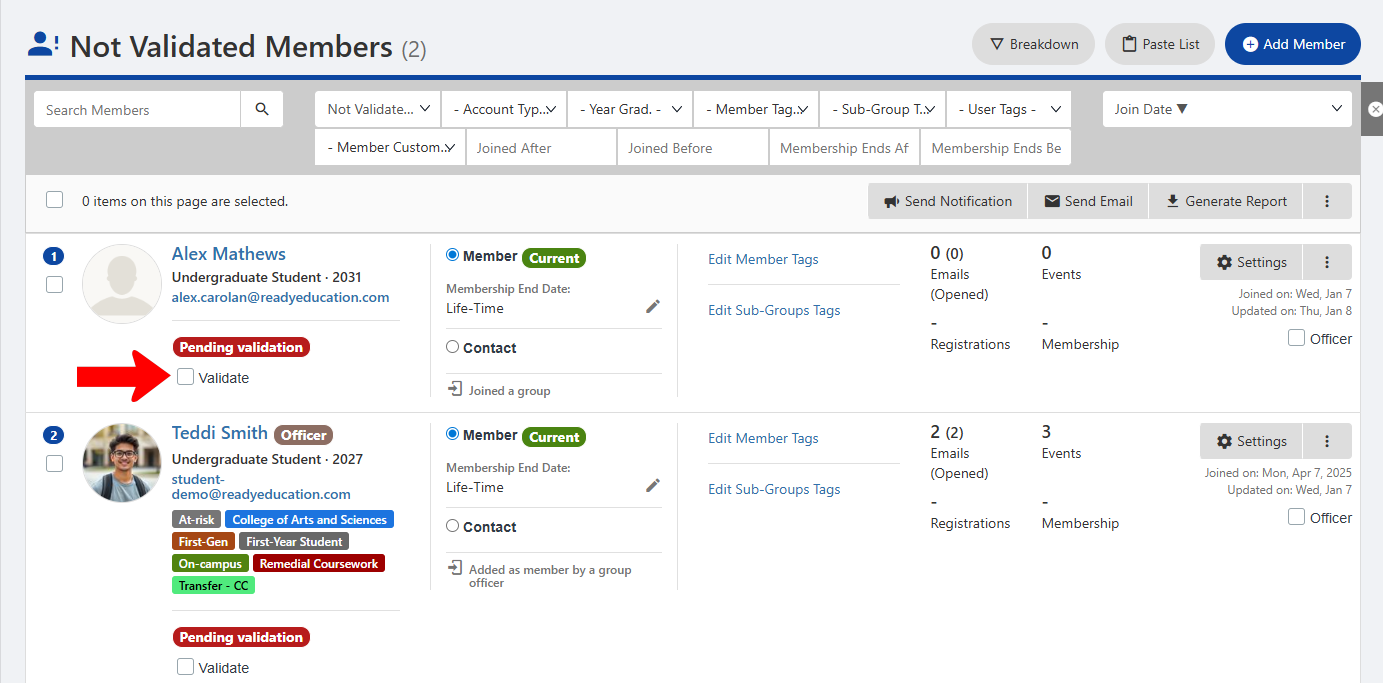
Each user will be listed as pending validation, and you can click a user name to see their member profile User Profile and Privacy and learn more.
To validate a single user, simply click their Validate box.
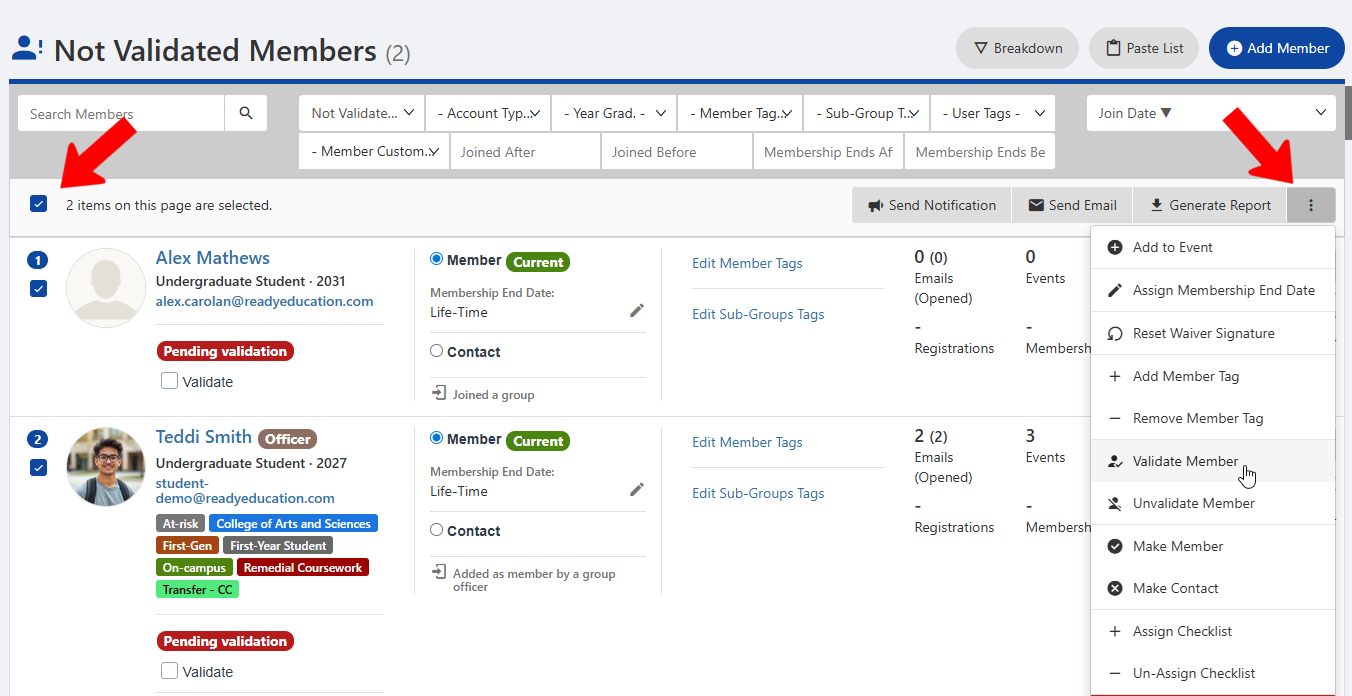
To validate multiple users, select one or more users, then click the More icon and choose Validate Member.