
While sessions can be added manually to an Event Hub Creating Event Hub Sessions, many users prefer to upload a session list. This is particularly handy for larger hubs with multiple events and tracks.
Keep in mind: If your Event Hub includes tracks Creating Event Hub Tracks, all tracks should be set up before uploading sessions.
In this example, several sessions will be uploaded into a hub for an engineering careers workshop. Tracks are already created for chemical, mechanical, and electrical engineering majors.
To start the upload process, click the Edit icon for the Agenda menu.
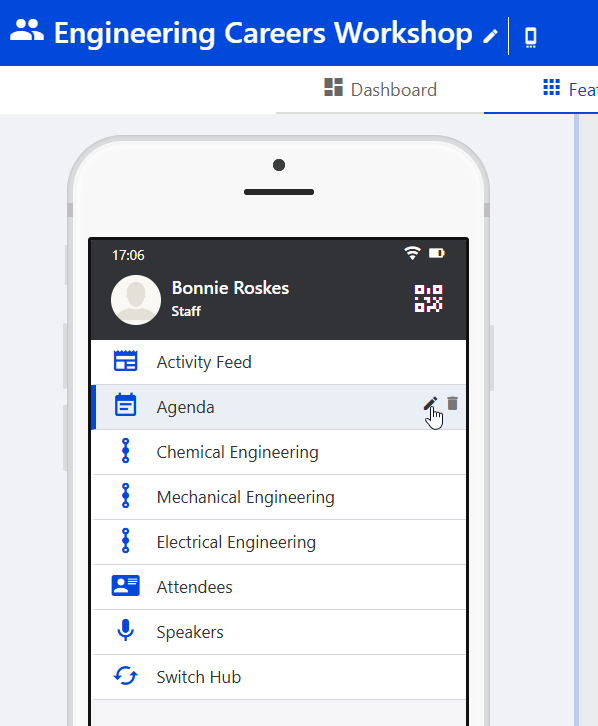
Click Manage Sessions.

In the Sessions flyout, click Upload Sessions.

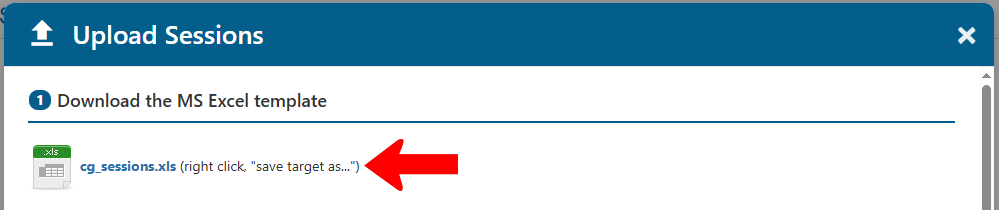
In the Upload Sessions popup, in Step 1, download the sessions template.
Read carefully all instructions in Step 2.

Important points:
- Do not remove or rename any columns, even if some columns have no data.
- The worksheet containing the data must be named "sessions."
- You must enter data in all orange fields.
- Event Type is mandatory, and available Event Type options are presented in a list. (These are Custom Values for events, created by platform admins.)
- If you are using tracks, enter their exact names. Multiple tracks can be separated by commas.
In this example, there are five events. The first two are for all types of engineering students, and all tracks are included. The last three events are tracked separately.

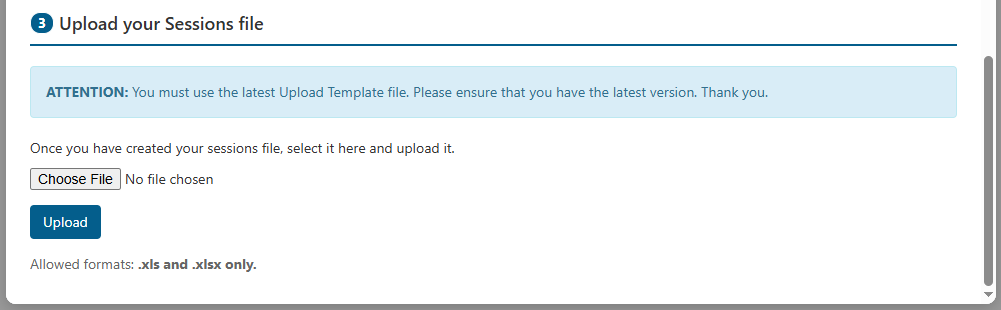
In Step 3, upload your saved sessions file.
The Sessions list populates with the uploaded sessions, including each session’s tracks.
