
The directory is a comprehensive listing of all users in your platform, making it easy to find and connect with classmates, staff, and other members of your community. Note that, like with social media platforms, connections must be mutual. If you send a request, the other user must accept the request before you will be connected.
You can access the directory on the web version or on the mobile app.
Note: Your campus may have given the Directory a different name, such as “Users” or “Make Connections.”
Accessing the Directory on Web
To open the directory on the web version, open Directory on the left menu.

By default, the directory is sorted by the most active users, but you can change this to first or last name, account type, or graduation year.

Each user has a button below their name, depending on your relationship with that person.
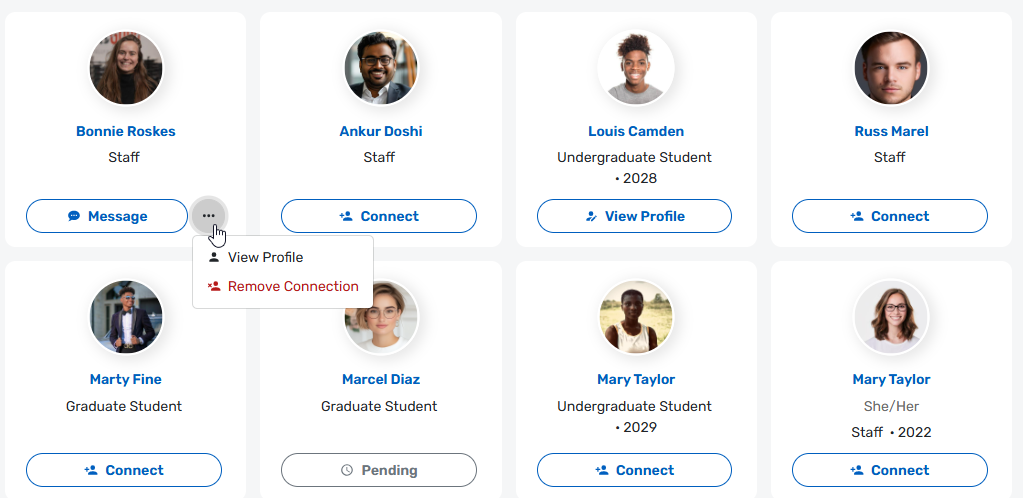
- Connect: You are not connected; click this button to send a connection request.
- Pending: Your connection request has not yet been accepted.
- Message: You are connected with this person, and can message them, view their User Profile, or remove the connection.
- View Profile: Appears under your own name. Click View Profile to see and edit your own User Profile User Profile and Privacy.
Clicking a user name opens a popup. If you are connected, you will see their User Profile (including groups, interests, etc.) and a Message option. If you are not connected, you will see only their email and a Contact button.
Along the left are options to search for a specific user, and to filter the list.
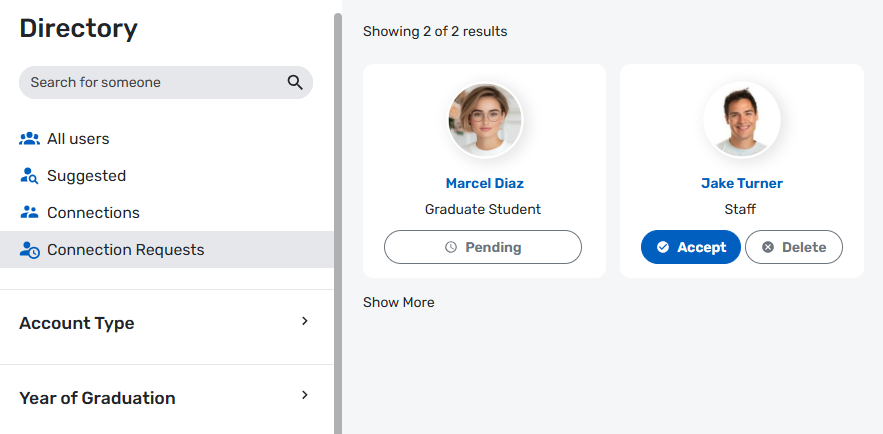
- Suggested: Users with whom you may want to connect, based on shared profile elements: interests, sports, languages, etc.
- Connections: Users with whom you have connected.
- Connection Requests: Users who have sent you a connection request, and users to whom you have sent a request.
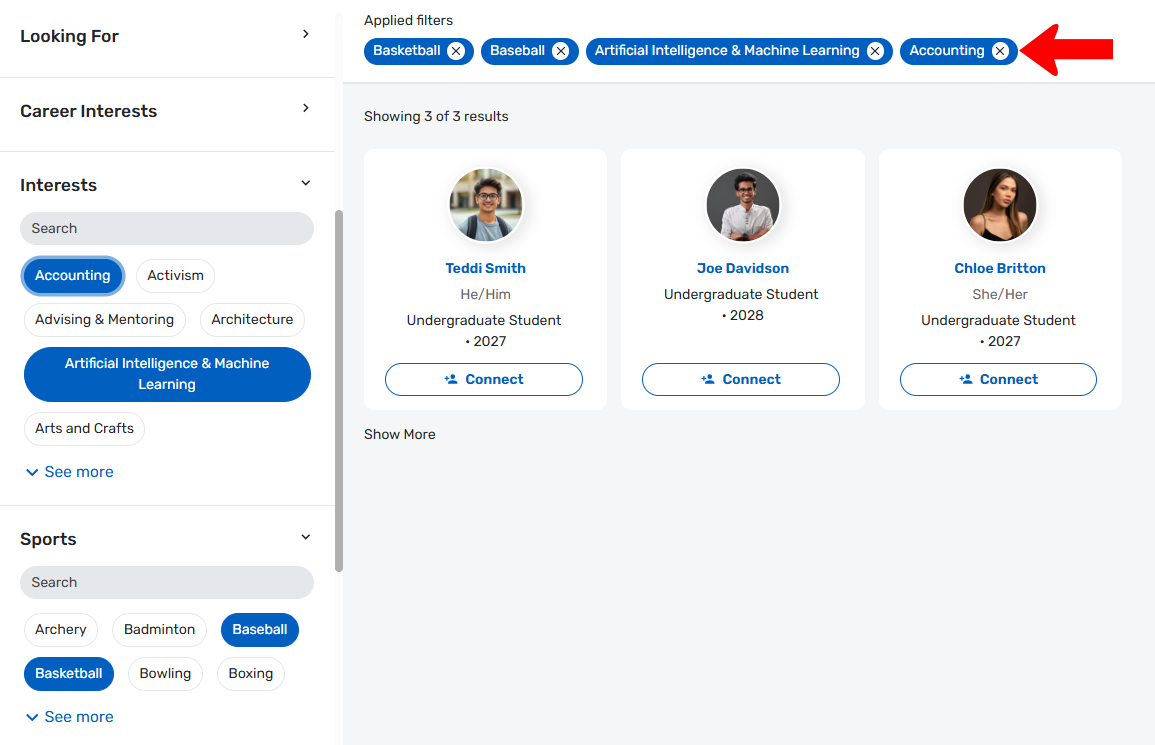
Additional filter options on the left enable you to narrow the directory to find specific users. In this example, the directory has identified users interested in accounting or AI, who also follow baseball or basketball.
Accessing the Directory on Mobile
To open the directory on the mobile app, tap More along the bottom, then tap Directory.

By default, the directory shows all users, sorted by the most active. You can change the sort type to name, account type, or graduation year. There is also a Search icon to find a specific user, filter options, and an option to view your incoming and outgoing connection requests.

Each user has a button to the right.
- Connect means you are not yet connected to the user, but can tap Connect to send a request.
- Cancel means a request was sent but not yet accepted.
- View means you are connected, and tapping View displays their User Profile.
Tapping a user name opens user details. If you are already connected, you can message the user. If you are not connected, you can send a connection request.
To narrow the list, you can filter to show only suggested users, connections, or connection requests. You can also filter by specific account types, graduation years, interests, sports, etc.
