
While a simple budget Creating a Simple Budget allocates a specific amount to selected groups, an advanced budget allocates funds to a group based on their Budget Requests. These requests include detailed line items, with each item approved separately.
An Advanced Budget comes with a default set of budget process steps that include budget request and approvals, payment requests and approvals, and budget closing. These steps can be customized, including combining steps to accept rolling requests, approvals, and payments.
Note: Before Payment Requests can be created, you will need to have Payment Request Approval Processes in place for the groups included in the budget.
To get started, start in your Budgets List Managing Budgets: Budgets List and click Create Budget.

Most fields on the Create / Edit a Budget popup are identical to those found in a simple budget Creating a Simple Budget. When Budget Type is set to Advanced Budget, several additional fields become available.

Fields for Advanced Budgets include:
- Budget Administrators: The user(s) who can approve payment requests, who will also receive approval notifications. A budget admin is often a non-admin staff member, such as a Student Life staff member. Different budget admins can be assigned to different groups. (Note that admins with the Money permission also have the right to approve and administer all budgets, but will not receive notifications.)
- Send notifications each time a new budget request is created: If enabled, notifications will be sent to all designated budget admins, and to all admins with the Money permission.
- Add confirmation for approval of a new budget request: If enabled (which we recommend), a Done checkbox will appear in the budget approval process. Checking Done will finalize and lock the approved amounts, and send a notification to group officers. If disabled, admins may opt to email approved groups, and group officers can always check their budgets for approval status.
- Overall Budget Instructions: General instructions that appear at the top of the Budget page, such as “Please complete the following steps.”
Budget Request Instructions Step 1 / 2: Instructions relating to the reason for the fund request. This text appears on the first popup screen of budget details and required fields. - Budget Request Instructions Step 2 / 2: Instructions regarding amounts requested, which appear on the popup where line item requests are entered.
- Payment Request Instructions: Once funds are approved, these instructions cover how to request payment
- Allowed Budget Item Types: Choose the types of purchases allowed for this budget. For example, student clubs putting on events may be allowed only food / drink and marketing material expenses. Athletic clubs may be allowed only travel or supplies expenses. Budget Item Types are set in Custom Values. If none are selected, all budget items will be available for selection during the process.
- Budget request form survey: The optional form request created for groups when requesting a budget form. This is how you can ask specific questions, such as whether alcohol will be served, or request price quotes, a signature, etc. If a form is selected, officers will complete the form after the standard steps of submitting request description and funding amounts. If no form is selected, the request will go directly to the approvers.
- Payment request approval form / survey: If left blank, all payment requests will go through the default payment approval process for the requesting group. Selecting a form will override the default payment approval process.
Once saved, the budget appears in the Budgets list Managing Budgets: Budgets List. The next step is to define the budget status for all included groups. Click the budget’s Settings icon.

The new field that appears now is Budget status. The drop-down options include the four standard budget approval steps, starting with Budget Submission. This is the default starting status for each group.
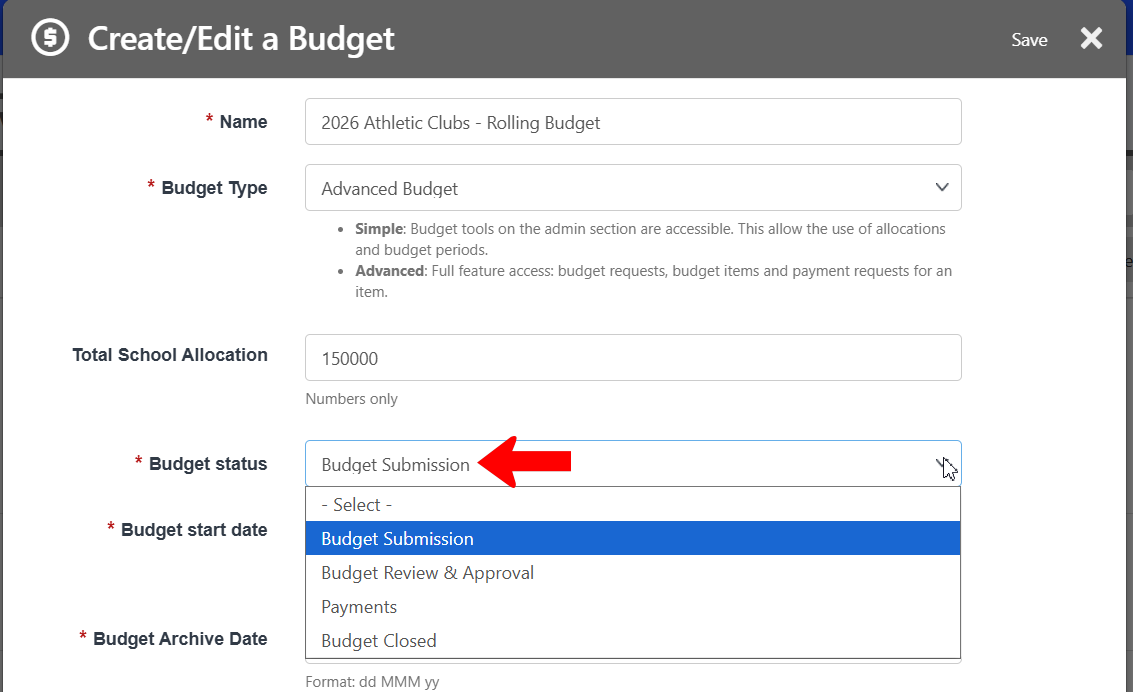
Note: When Budget status is changed, all included groups have the new status. Therefore, many schools prefer to customize these steps Customizing Budget Steps and Rolling Budgets to accommodate rolling (combined steps) funding and payment processes.
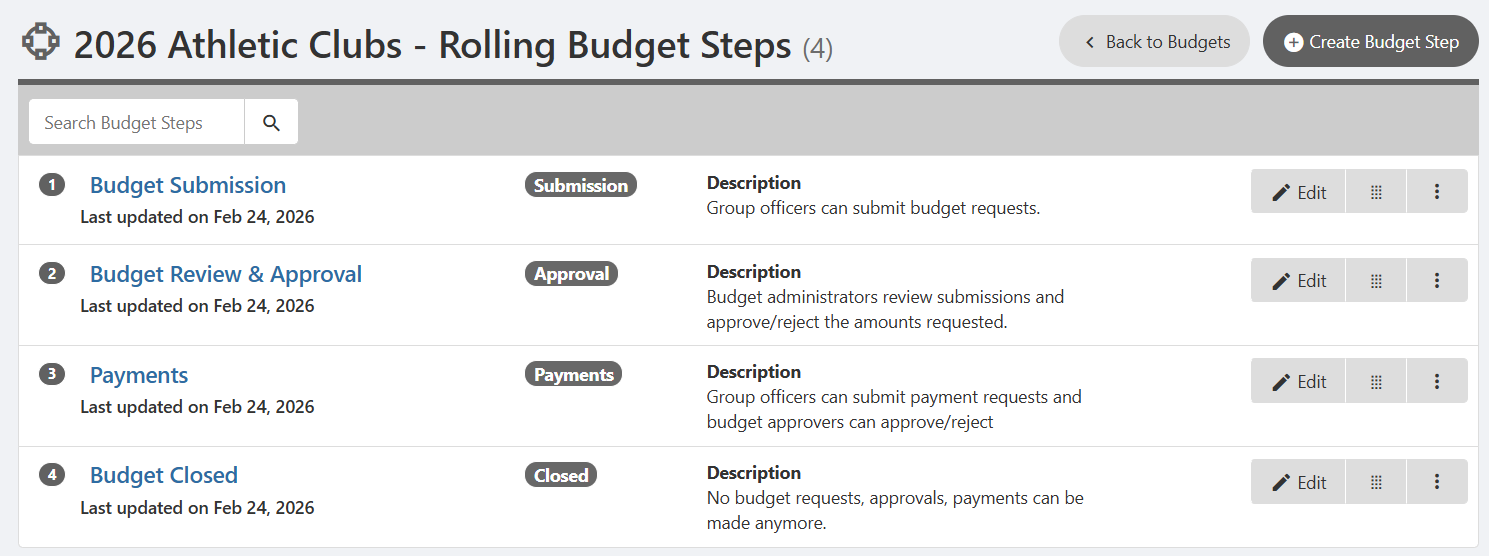
To see details on budget steps, click the budget’s More icon and choose Budget Steps.

Each step is listed with its type: Submission, Approval, etc., and the entire list of steps can be customized Customizing Budget Steps and Rolling Budgets.
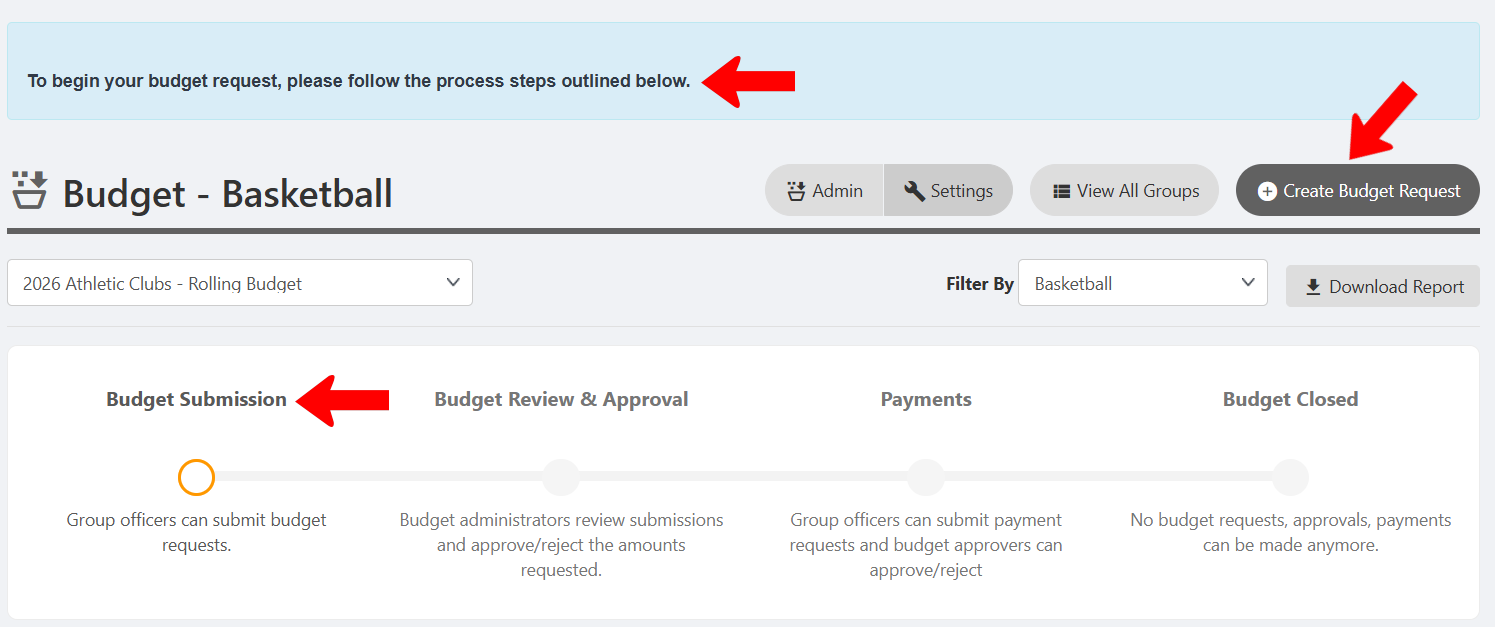
These steps can be seen at the group level as well. Click the budget name in the Budgets list, which lists each group included in the budget. Then click any group name.

At the top you’ll see any custom instructions entered in the Overall Budget Instructions field. Each group starts at the first step: Budget Submission, where their only option is Create Budget Request Creating a Budget Request: Advanced Budget.
As budget requests come in, you can complete the budget approval process Approval Workflow Process.