
Tracks, and the checklists Creating a Track they contain, enable officers and platform admins to assign to-do items to users. This is a great way to increase group engagement and learning.
Examples of these structured pathways could include:
- New student orientation checklist
- Training modules
- Skills development
- Assignments to register for events or take a quiz
Note: A checklist does not have to be included in a track; it can stand alone. The advantage of a track is that it can include multiple checklists to complete at once.
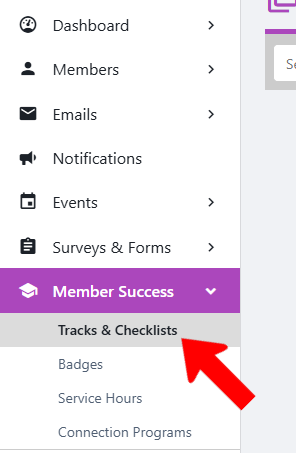
Start by managing your group Managing Your Group, Group Dashboard. Open Member Success on the left and choose Tracks & Checklists.
Note: You will need the Manage Tracks & Checklists officer permission Managing Officer Permissions.
Click Create Track.

In the Create Track popup, assign a name and optional description, color and icon, and set Access Rights to define the assignees. You can also set a start date, or keep the track invisible until it is ready to be viewed.
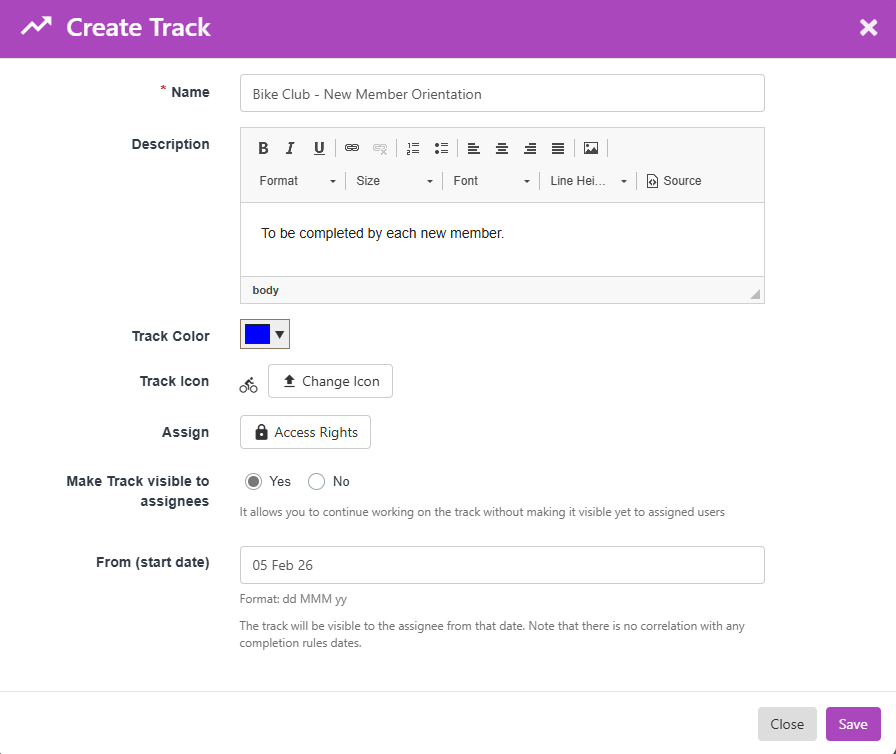
Note: An assigned track appears in a user’s My Checklist section (if made visible to assignees).
Once created, the track appears in the Tracks & Checklists list. You can see how many assignees there are, and whether the track is visible to them.

There are options on the right to edit and preview the track. Clicking the More icon opens a menu with options to copy the track link, copy the track to another group, add a checklist, duplicate, assign / unassign, archive, or delete.
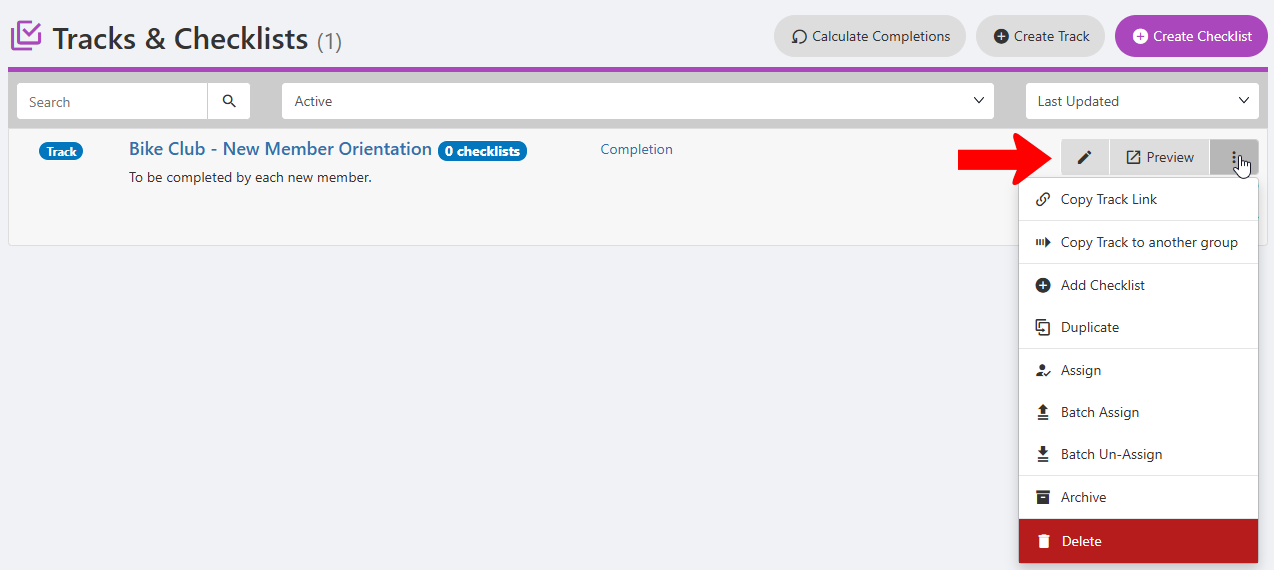
Note: The default assignees are set via Assign / Access Rights when creating the track. The Assign options in the menu above can be used to change assignees. Batch Assign works differently. If you use this option, and paste in a list of email addresses or IDs (of users already in the system), these assignees will override those set via Assign / Access Rights.