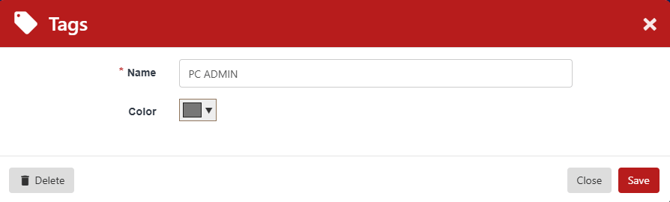
Tags are used throughout the CampusGroups UI, to assign one or more categories or descriptions to a user, event, group, or other item.
Notes:
- To learn how tags work, read the article on tags for group officers Tags. This article covers admin-only tags.
- While tags are similar to Custom Values Tags, only one custom value can be assigned at a time (such as Account Type or Event Type), whereas multiple tags can be applied
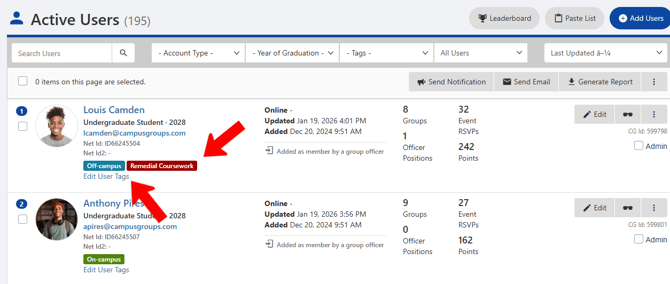
For example, in the Active Users list Tags, users can be assigned one or more User Tags. Where tags can be assigned, there is an Edit Tags link.
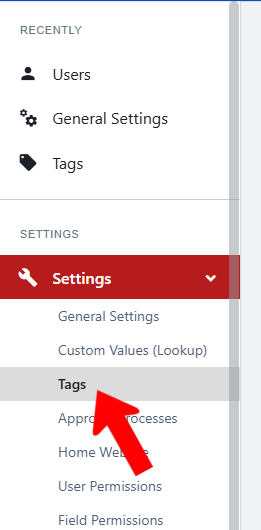
To manage admin tags, switch to Admin mode Tags if needed. Open Settings along the left and choose Tags.
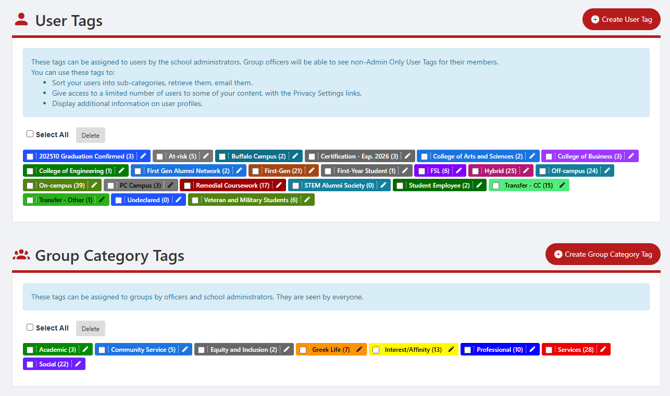
All items for which you can create tags appear here: Users, Group Categories, Events, etc. Any existing tags will be listed, and can be edited or deleted.
It’s useful to look over the definitions of each tag, to see how they can be used. For example:
- User Tags are assigned to users by admins only. Officers can see (but not assign) any User Tags that are marked as non-admin. Non-officers users do not see these tags.
- Group Category Tags and Event Tags can be assigned by admins or officers, and are visible to everyone.
- Interest Tags and Sport Tags can be viewed and self-assigned by users (unless a tag is marked as admin-only).
Note: By default, users cannot create their own tags for sports and interests, as tag lists can grow unwieldy. But to enable users to create these tags, go to the Directory tab of the General Settings Tags. Also by default, officers cannot create event tags, but you can enable this in the Events tab of the General Settings. We typically recommend leaving all of these tags as admin-only.
To create a tag, find the tag type and click its Create button.
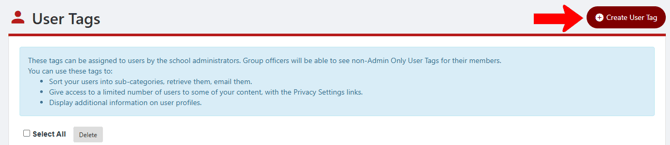
Assign a name, color, and specify whether the tag is admin-only (not available for non-admins).
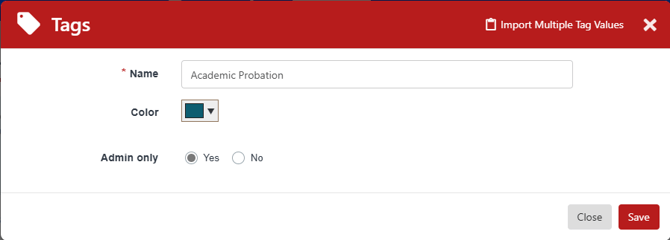
You also click Import Multiple Tag Values to enter a comma-separated list of tags. Imported tags are admin-only by default and are assigned a gray color, but can be edited.
To delete a tag, click its selection box and click Delete. To set tag properties, click its Edit icon.

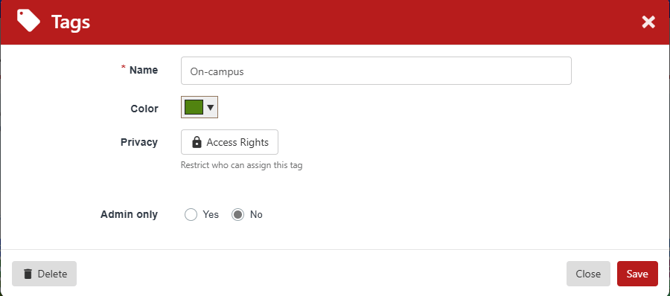
Different tags have different properties to edit. As an example, for a User Tag, you can change its name or color, set Access Rights (who can assign the tag), and set Admin only (only admins can view this tag).
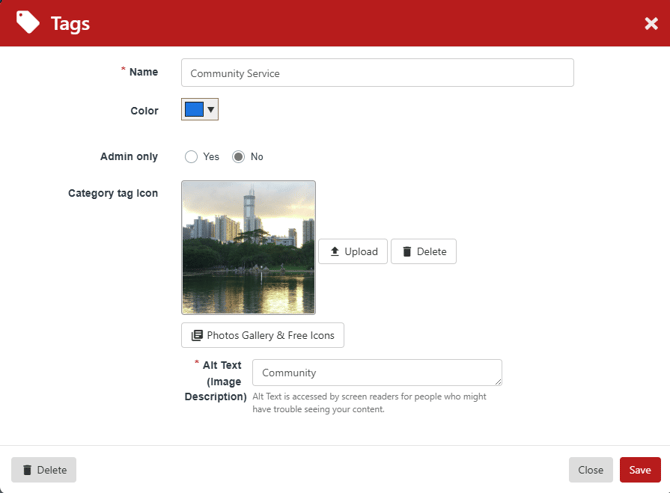
For a group category tag, you can attach an image or icon.
Tags that are only available to admins (such as administrator event tags) do not have (nor need) an admin-only option.