Throughout the CampusGroups interface, you will see many lists, such as members, events, forms, documents, etc.
Above each list are several list features that make it easy to find just what you’re looking for:
Searching and Paste List
To find a specific person or item, enter one or more characters in the Search field and press Enter.
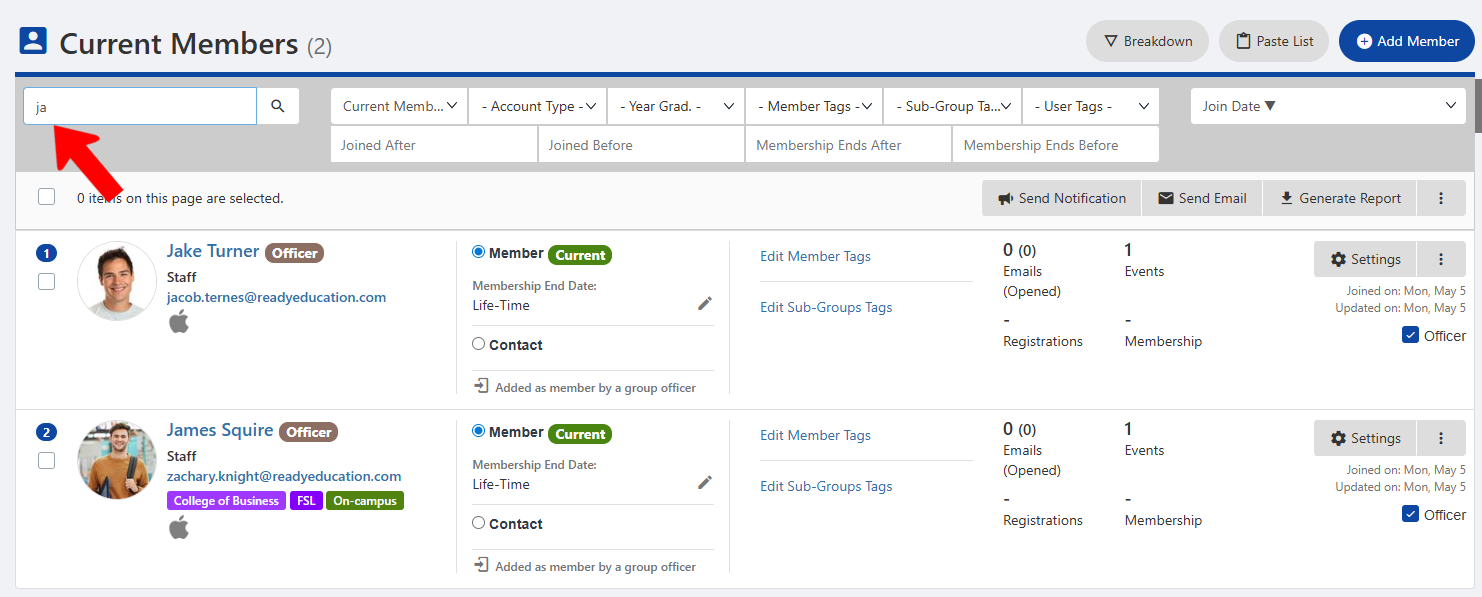
To clear a search, delete the characters and press Enter again.
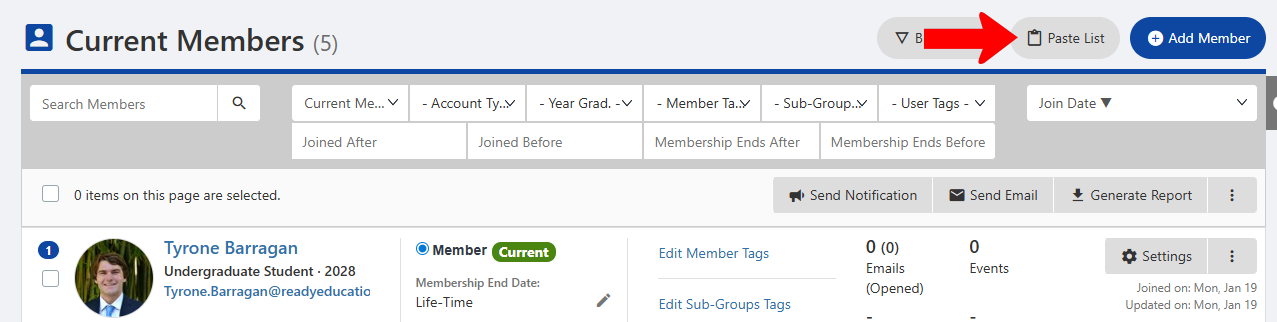
If you have a list of emails or IDs to search for, click Paste List above the table.
At the top, choose what you’re searching for: Emails, NetID, etc. Then paste in the list, separated by commas or lines, and click Search.
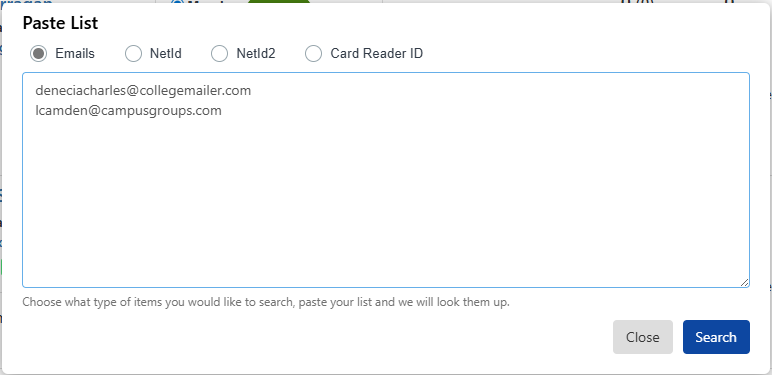
This narrows the list to show only the members included in the search.
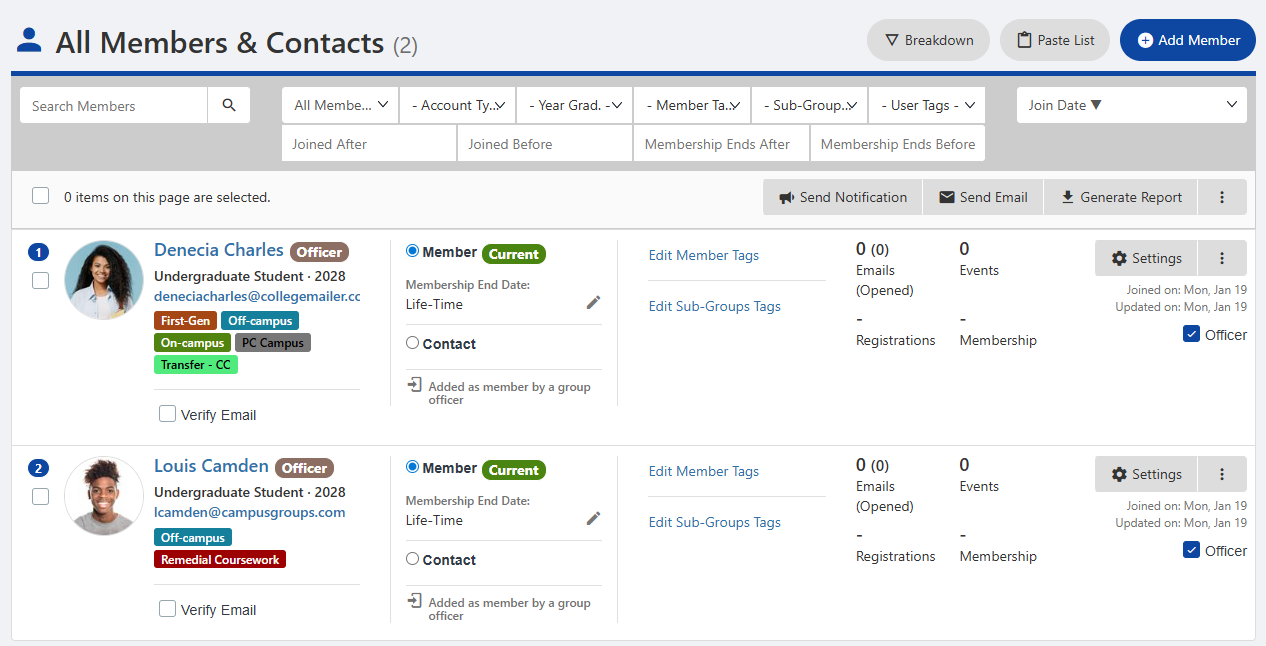
Filtering
Each list also has a set of relevant filters. In this example, the Current Members list can be filtered by member type, Account Type, User Tags, join dates, membership dates, etc.
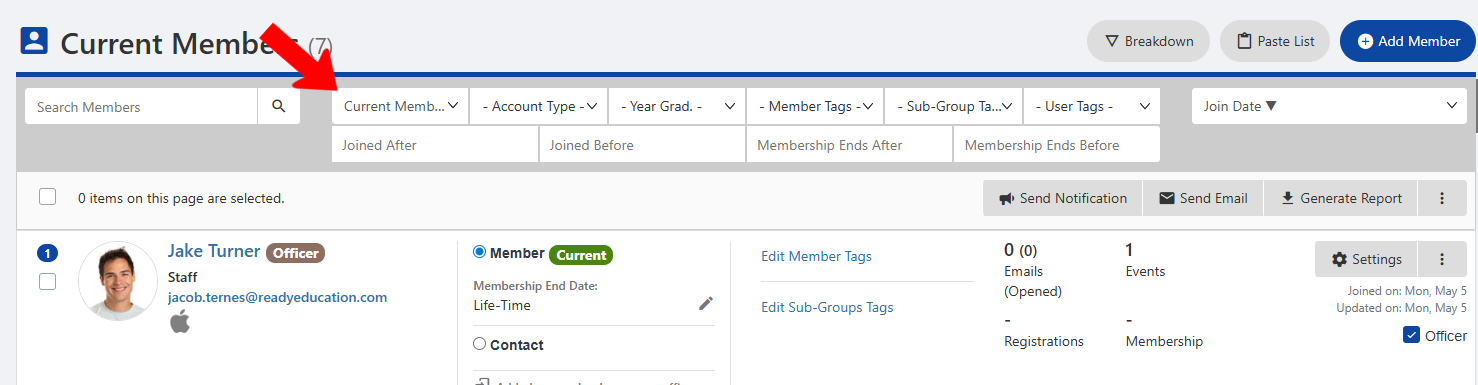
Officers can create several types of Tags to use as list filters.
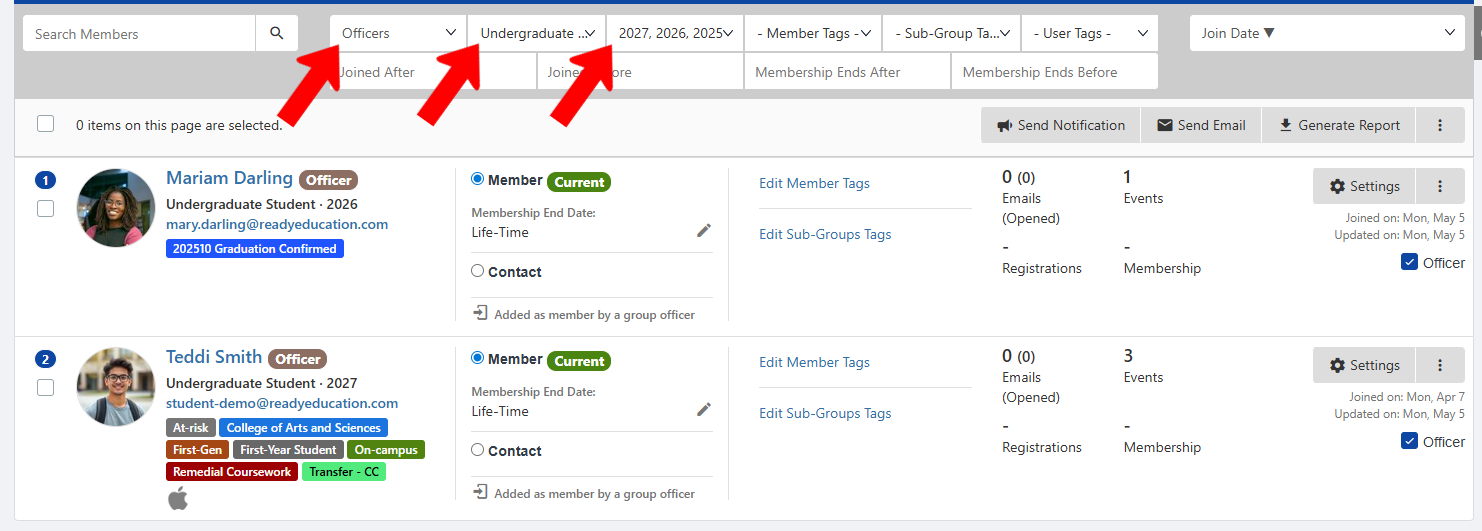
Apply one or more filters to narrow the list. In this example, the list includes members who are officers, and are also undergraduates, and have graduation years in 2025, 2026, or 2027.
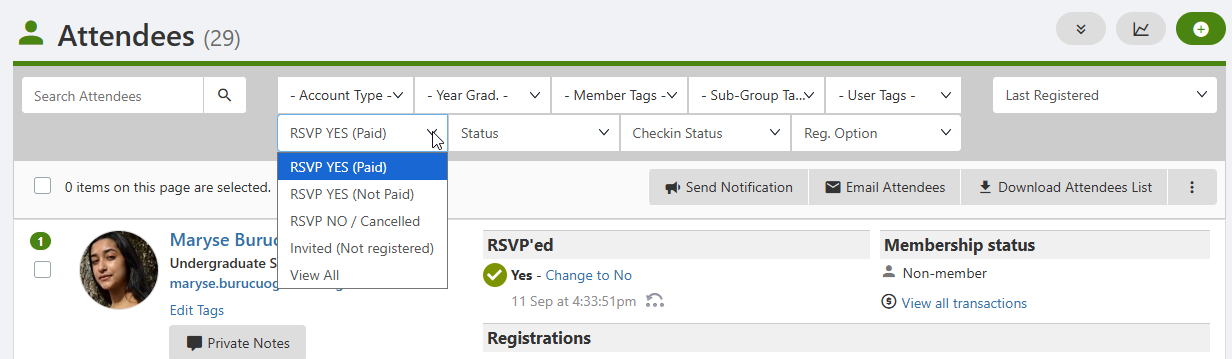
The available filters depend on the type of list. For example, event attendees can be filtered by RSVP status, or whether they are invited but not registered. Or you can filter by check-in status.
To bring back the entire list, you will need to clear all filters.
Sorting
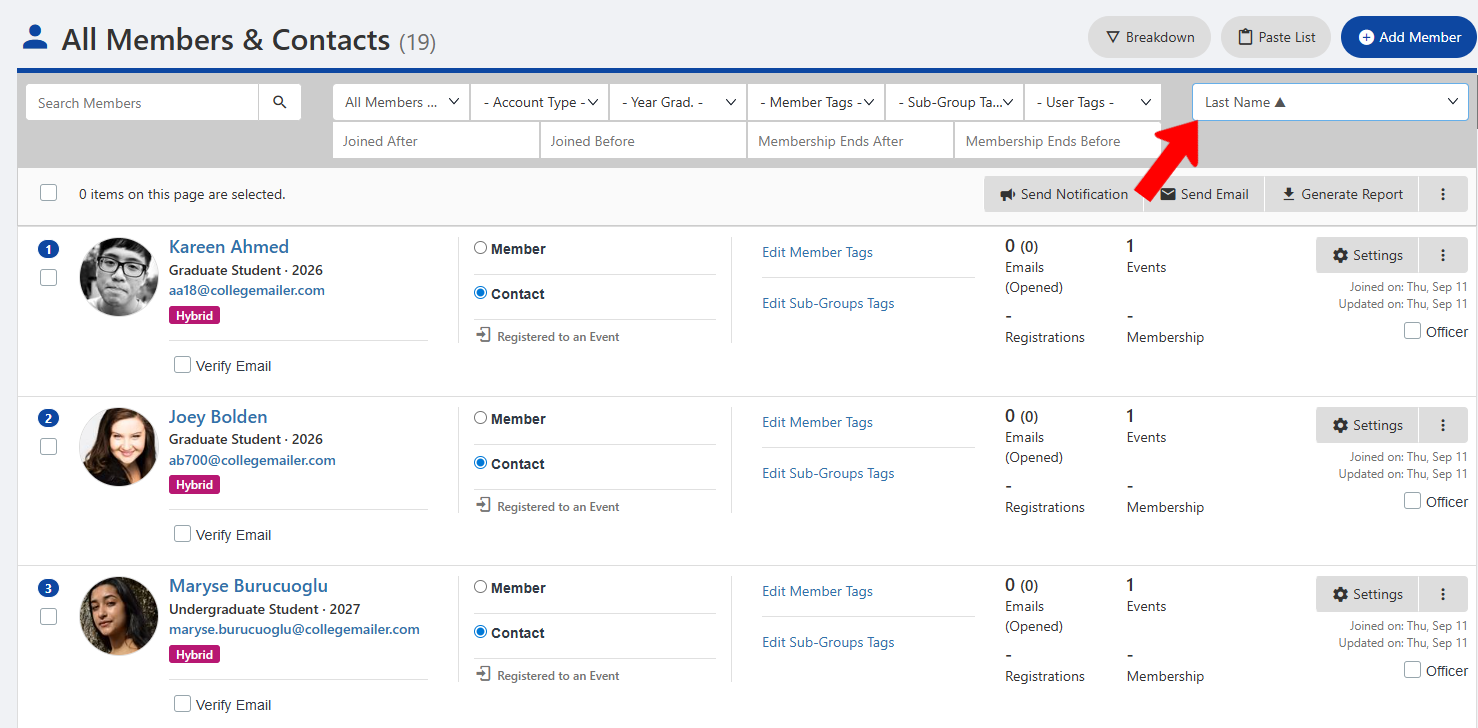
The last field above each table is for sorting. In this example, members are sorted by last name in ascending order.