
Documents and photos that you want to appear on your Group Page The Group Website or group Website The Group Website can be uploaded in their page sections. These files can also be mangaed in the Files page.
Note: Videos (specifically, video links) must first be added to the Videos page Videos.
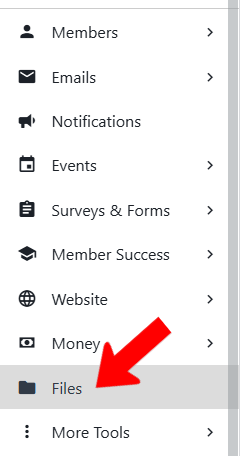
Start by managing your group, then open Files along the left.
Note: If you’ll be using images for your group, be sure to read our Image Sizing Guide.
There are several folders provided by default, and you can click New Folder to create more as needed. Use the Upload button to add files, and you can move files into folders. Images added within the platform, such as logos or event images, will be automatically added to the top level of this page.
The following file types are supported: doc, docx, ppt, pptx, xls, xlsx, csv, pdf, txt, png, gif, jpg, jpeg, bmp, mp3, mp4, zip, and pub.
File visibility is set for folders, rather than individual files. Each folder has a Share Link button and an icon for reordering. Clicking the Move icon opens options that include Privacy.
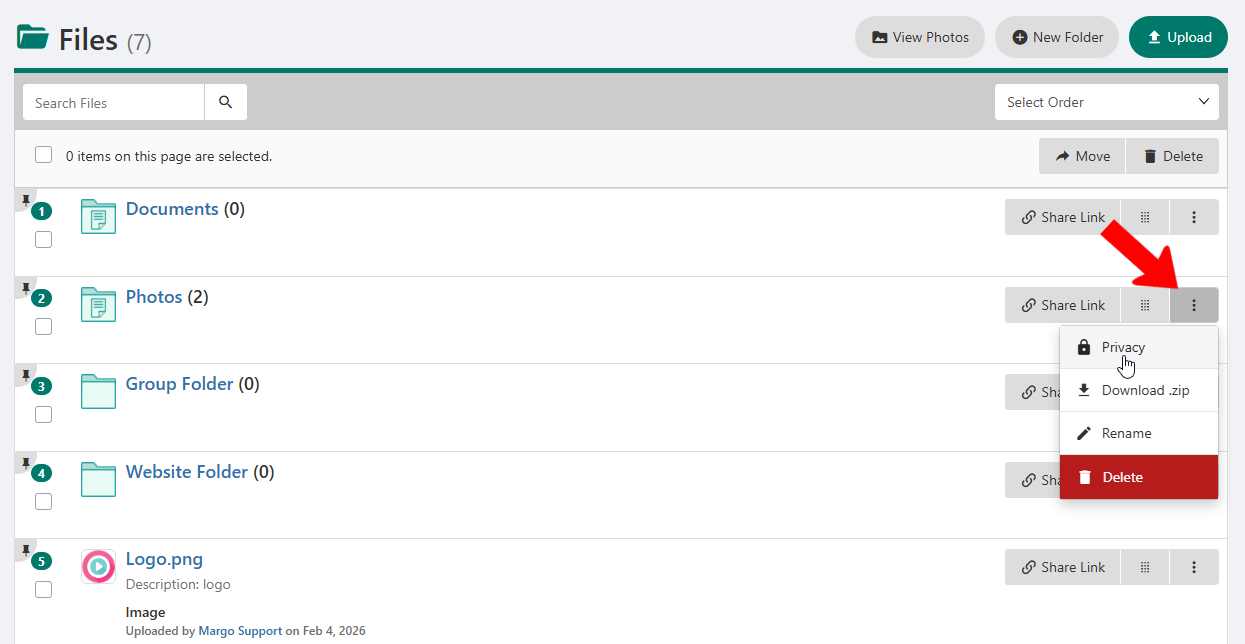
Clicking Privacy opens the Access Rights popup. In addition to visibility, This is also where you can define whether the folder contents will be displayed on the Group Page and / or group Website.
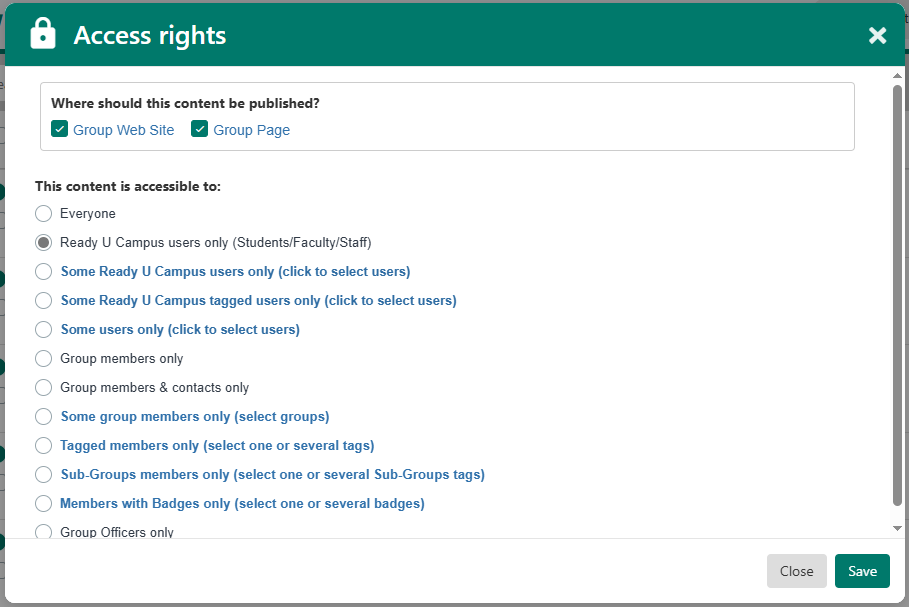
Note: By default, only group members can access the Photos and Documents section of the Group Page. However, if the group is defined as a department Groups and Departments, these sections will be visible to all users.