
Note: Before inviting users to complete and submit your form, be sure to go over all of the Form Settings.
There are several ways to share your form with users.
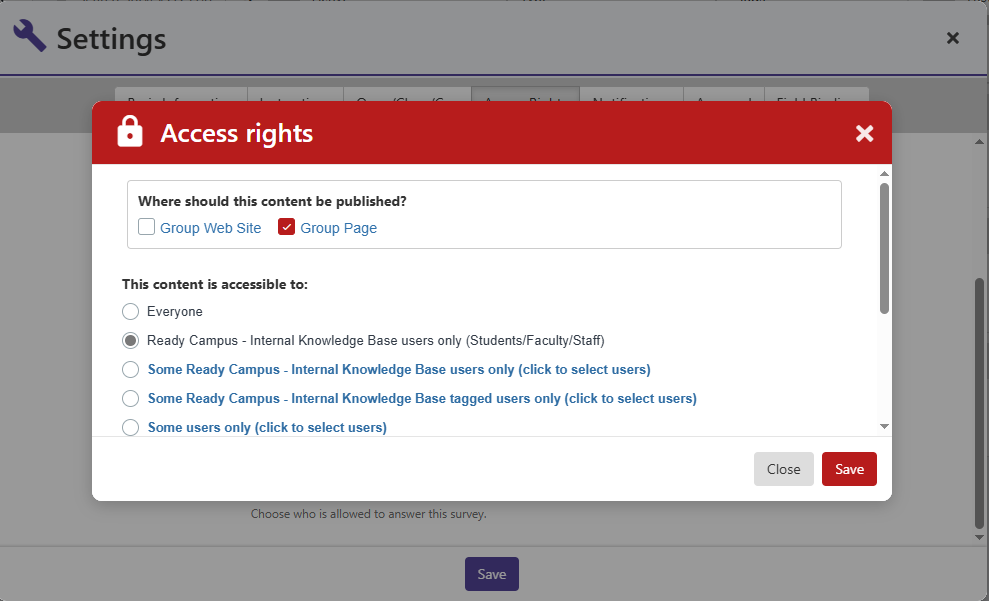
If you want your form to appear on the Surveys section of your group page Form Settings, or on your group website The Group Website, open the Form Settings.
On the Access Rights tab, click Privacy, and check Group Web Site and / or Group Page.
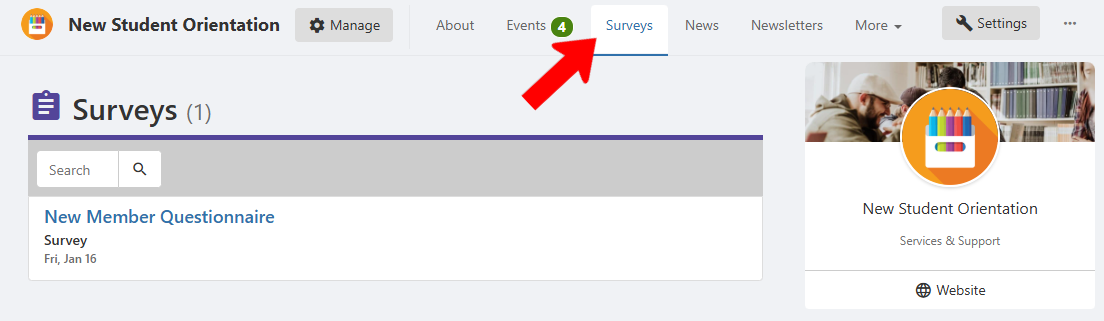
On the group page, the form will appear on the Surveys section (or whatever this section is called in the page Settings Surveys & Forms list).
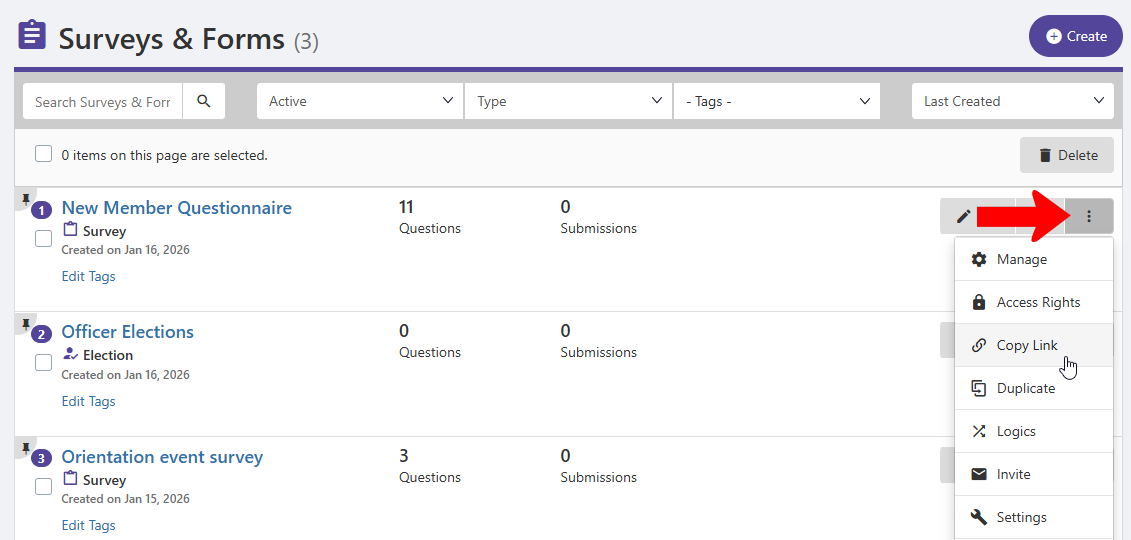
There are also sharing options available in the Surveys & Forms list Surveys and Forms List. Click a form’s More icon, and choose Copy Link to share the form URL, or click Invite.
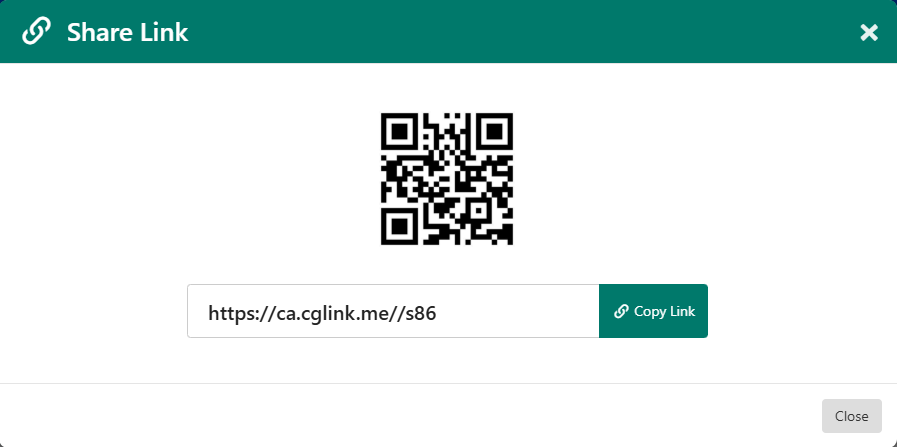
Inviting uses the email feature, Using Email Composer or Email Builder Using Email Composer. Copying the link produces both the URL and QR code.
Note: Copy Link and Invite also available when managing your form Inviting Users to a Form.