
There are several ways you can handle an event that must be canceled or rescheduled.
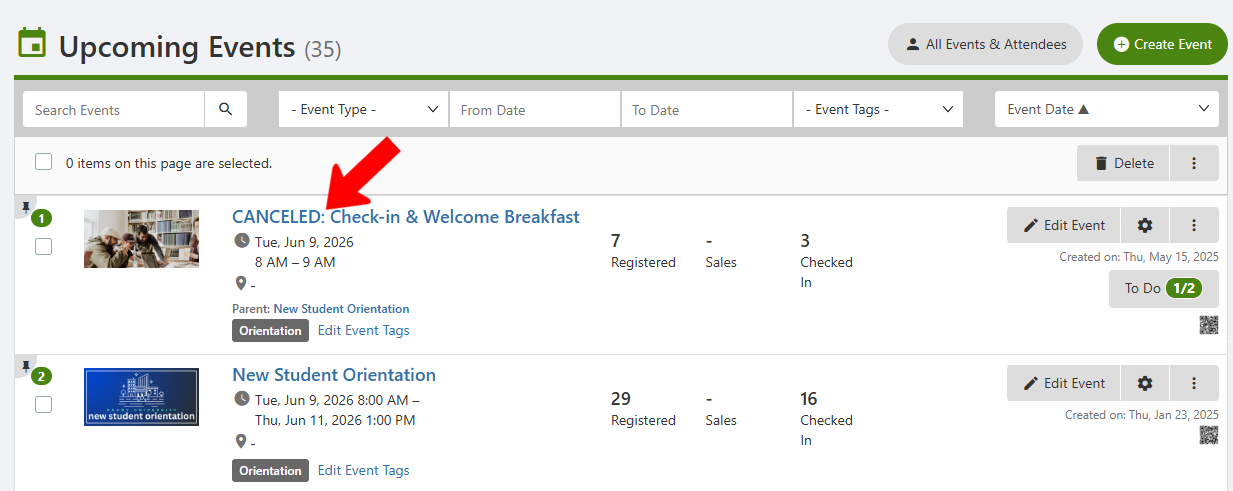
Find the event in the Events list and click Edit Event. Change the event name to reflect its updated status. This will alert users who have not yet registered, and current attendees will see the status in their list of events.
If the event is to have a new date and / or time, edit the event and enter updated steps in the When step.
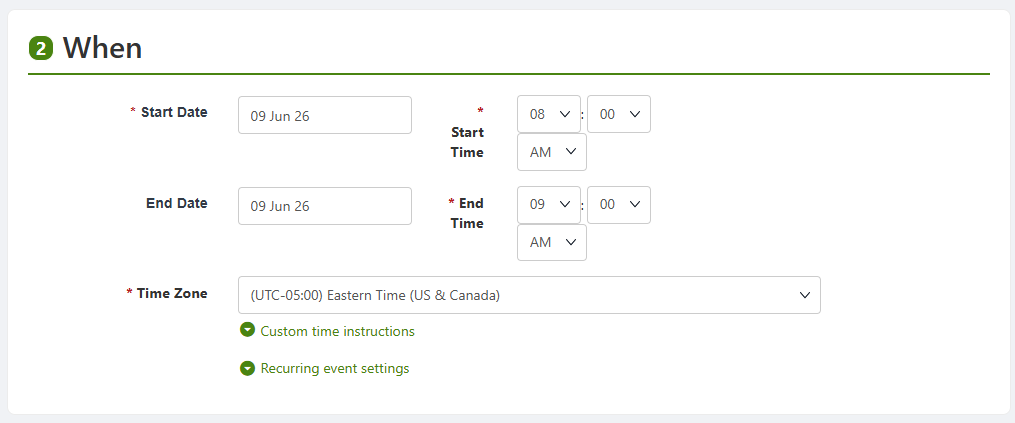
Note: If the event requires approval Event Approval Process, and was already approved or is pending approval, changing the event name, description, date, and / or time will restart the approval process.
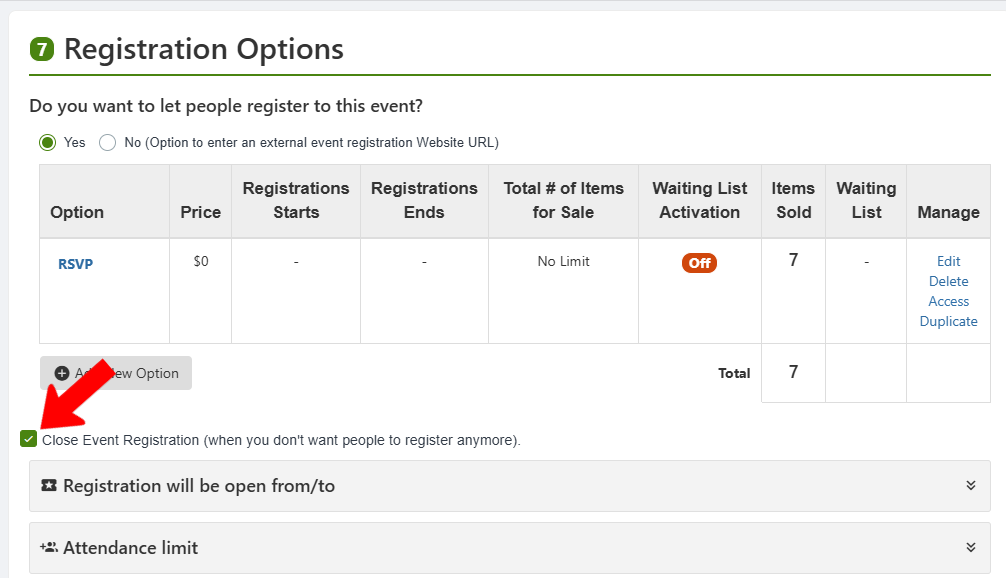
To prevent new registrations, edit the event and scroll down to Registration Options. Check Close Event Registration.
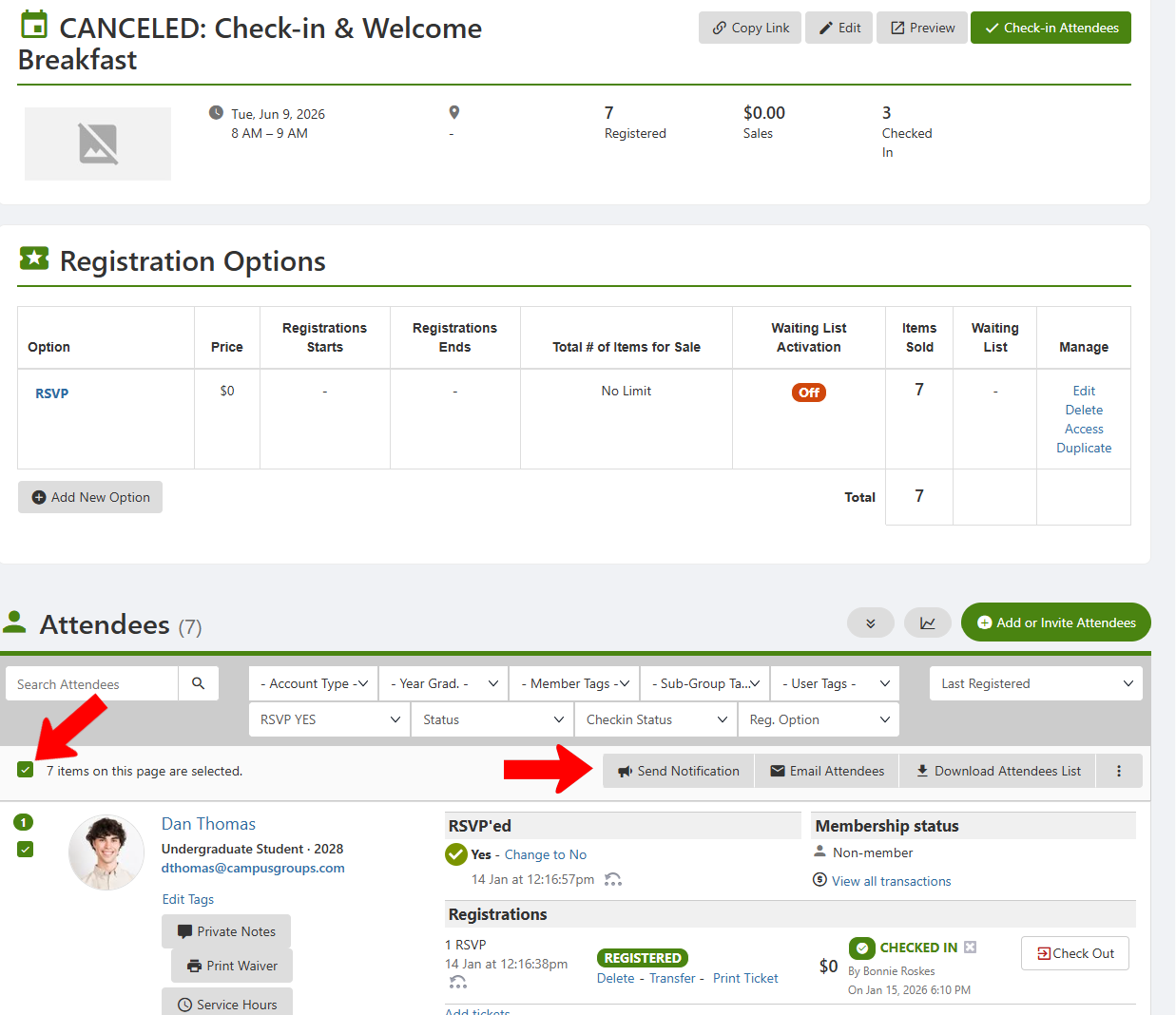
To notify users who have already registered, open the Attendees list for the event, and select all attendees. Then click Send Notification and / or Email Attendees.
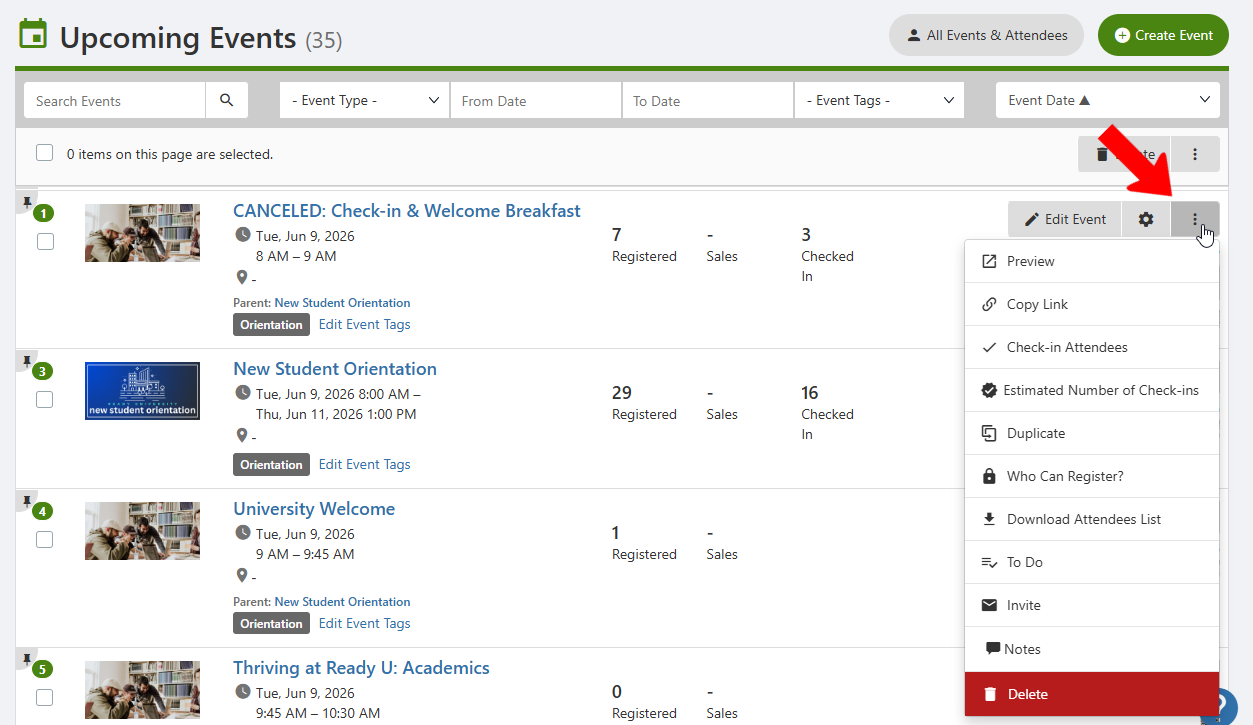
When all attendees are notified, you can delete the event. Find the event in the Events list, click its More icon, and choose Delete.
Finally, if tickets to a canceled event were already sold, request that a platform admin refund refund requests all tickets.