
While users can edit their own user profile User Profile and Privacy, and add a profile and / or resume, admins may choose to upload one or both files directly into user accounts. There are several file naming options, which are covered farther on.
- Photos must be in JPG format, with size 320px by 320px or less. Larger images will be cropped.
- Resumes must be in PDF format.
- If you have over 1,000 files, upload in batches of 1,000 maximum.
Notes:
- If you want to prevent users from changing their profile photo, open Field Permissions. In the Read-Only Fields column, scroll down and check Profile Photo.
- Uploads photos count towards your data storage cap, though this is very rarely reached.
- Files can also be uploaded through a FTPS server. This occurs daily at 7AM EST. If interested, contact your CampusGroups Client Success Manager.
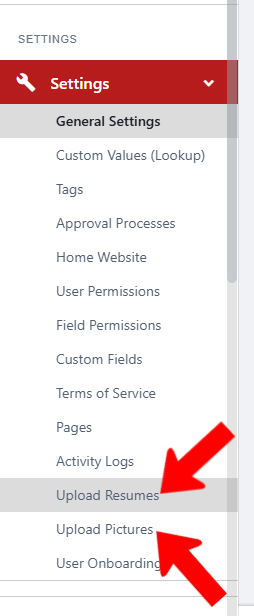
To upload photos or resumes, switch to Admin mode if needed. Open Settings on the left, and choose Upload Pictures or Upload Resumes.
Choose the naming convention for the files: NetID, FirstName_LastName, etc. If you use email addresses as file names, be sure to replace each @ symbol with three underscores.

There is an option to overwrite existing profile files- use caution as this cannot be undone.

After clicking Next, drag the photos or resumes into the Upload Profile Pictures popup. Do not import more than 1000 files at a time. then click Done.
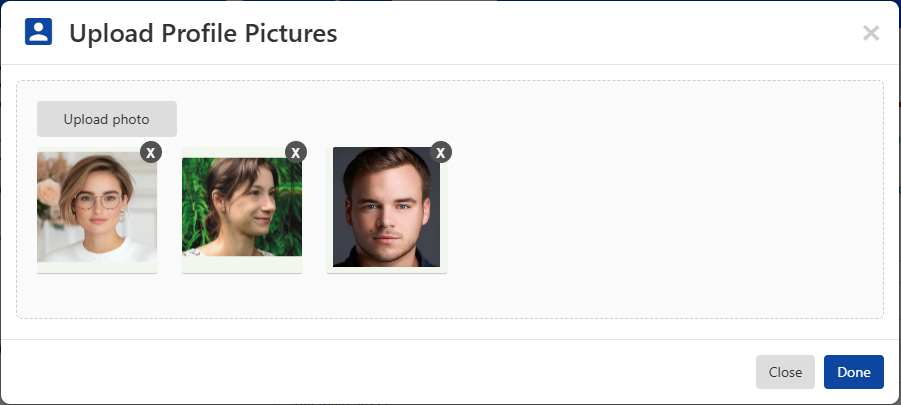
After processing, the photos or resumes are added to user accounts.
