The Stores feature enables your group to offer items to platform users, for free or for purchase. For example, you can sell T-shirts or hats, or offer food pantries or other donated items that users can claim.
Users can browse, and pay with a credit card, PayPal account (if enabled), or school account.
To create a store, start by managing your group Managing Your Group, Group Dashboard. Open Money on the left, and choose Stores.

Click Create Store.

Assign a store name, and an optional banner and instructions.

Other fields include:
- Custom notification message: The text that appears in the purchase notification, below the purchase details
- Payment methods: Choose methods for sellers (cash, check, etc.) and for buyers who access the store from their platform (credit card or school account)
- Cost center code: Enables you to specify a payment account or cost center code other than your group's account (which is entered in the Payments tab of the Group Settings).
To add an item to your store, click its More icon and choose Add Product.

Enter a product name and price, and add an optional photo and description. The price can be zero for donated items. If your admin has created Item Category Custom Values, you can choose the correct one in the Category list.
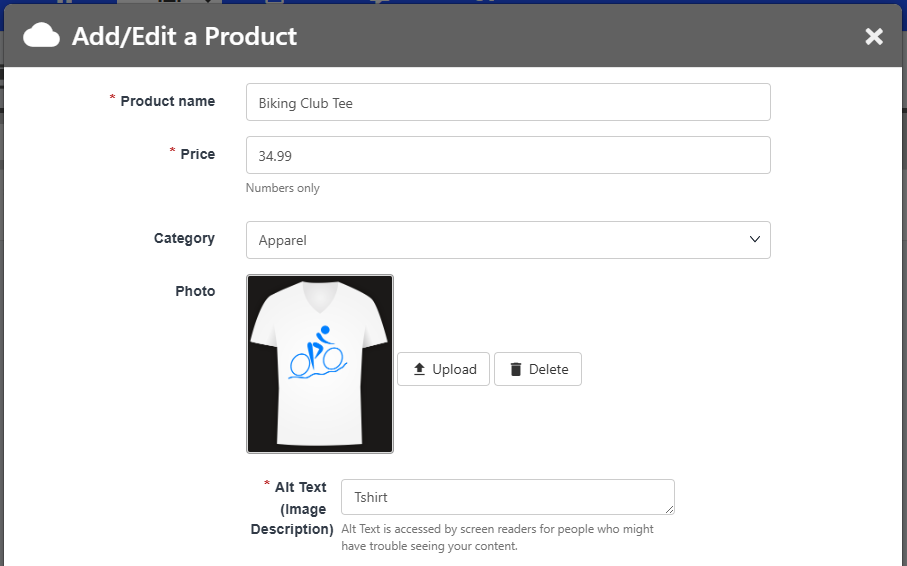
Other fields include:
- Quantity available: If the item has no limit, enter a value higher than you expect to sell / donate.
- Min, Max per order
- Enter custom questions: Use this field to request user input, such as size or color.
- Tax included: (For schools in VAT countries.) If enabled, buyers will see on their receipt the tax amount of the total price.
To see how your store will look to users, click its name or click the More icon and choose View Store.
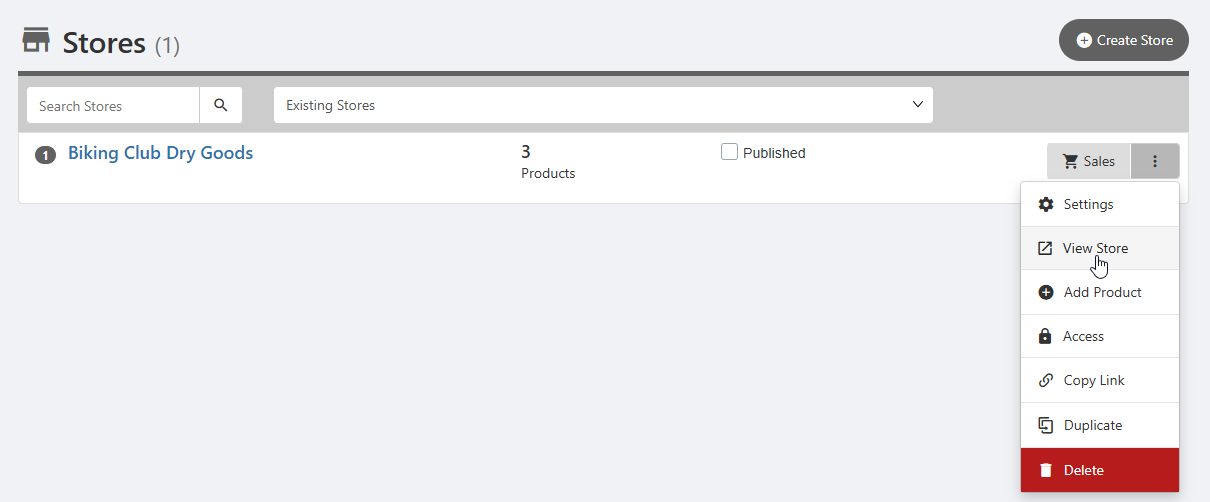
These options also include Access Access Rights, to control who can access the store, and Copy Link for sending to group members and potential store users. Note that the store will have to be published.
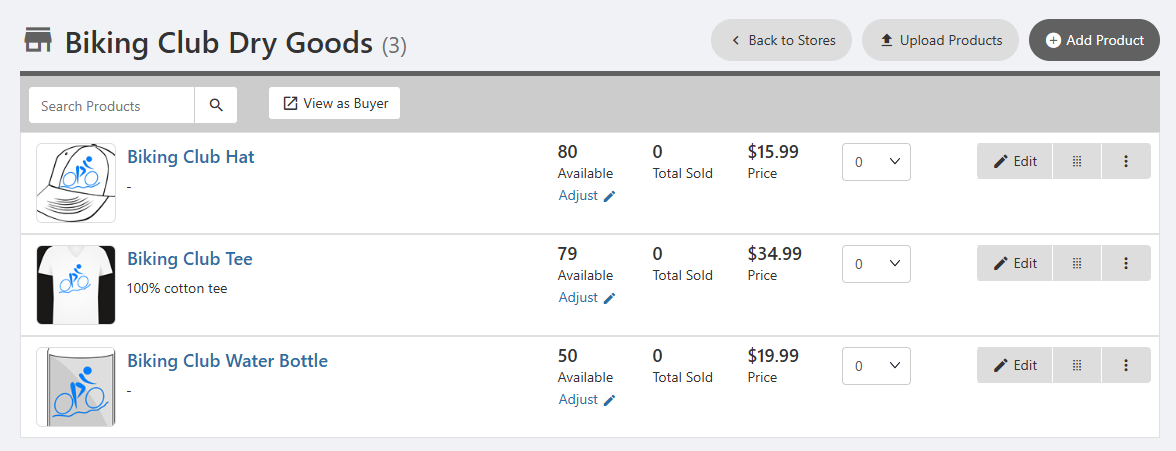
If at least one category was assigned, the items appear under category drop-downs. Items not assigned a category will appear under “Uncategorized.” In this view, you can edit items, adjust quantities, or reorder.

If categories are not assigned, all items will appear in one list.
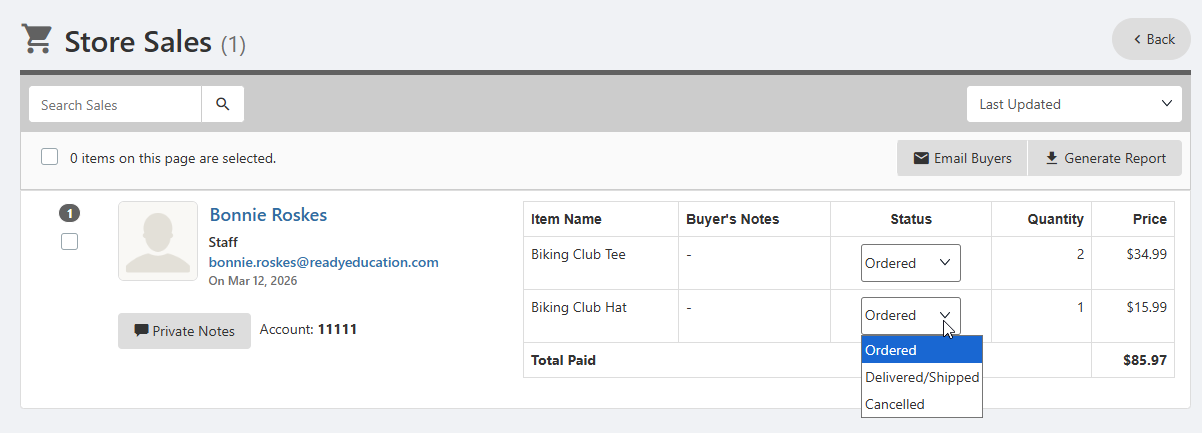
To track items purchased or claimed, click Sales.

This shows a list of users and their orders. You can change item Status as needed.