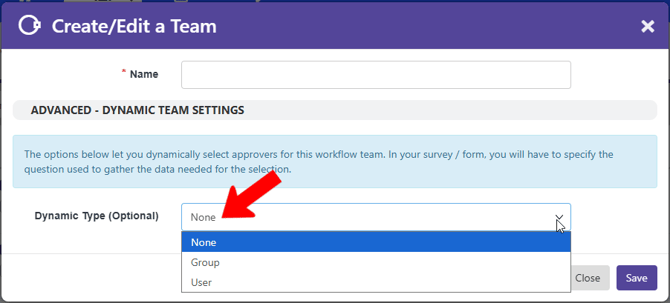
When Creating an Approval Workflow, the workflow teams can consist of specific users. But for added flexibility, you can create a team with the Dynamic Type of Group.
Notes:
- The other Dynamic Type is User Dynamic Workflow Teams: Dynamic User. This enables you to define a workflow team member based on a user selected in the form..
- A form can use a maximum of one Dynamic Group and / or one Dynamic User.
Dynamic group enables you to define an approval team based on officer roles for the selected group. Because group officers may change with time, a dynamic group enables current role-holders to grant approvals.
A dynamic group works in conjunction with the Group List question type, as will be shown in the example.
In this example, the Student Engagement group runs a weekly podcast featuring a selected group. Users can submit a form to appear on this podcast representing their group.
There are two workflow teams needed for this approval:
- The president or vice-president of the group being represented
- A staff member from Student Engagement
The first team is “Group Pres or VP.” It is a dynamic group that includes officers with president or vice-president roles.

Note: If you add other users to a dynamic group team, they will also be included in the approval workflow.
The second team is “Student Engagement,” with two non-dynamic members.

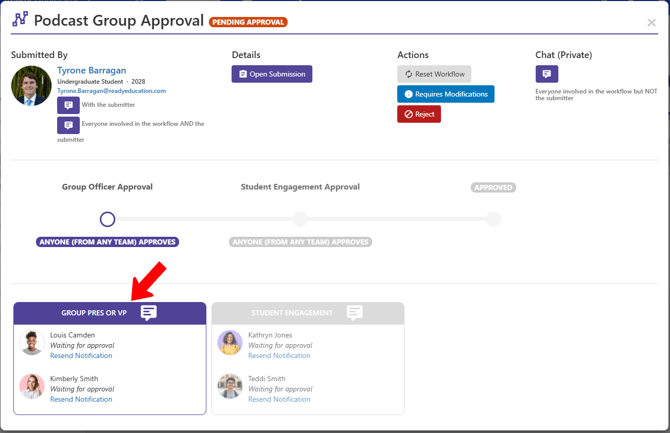
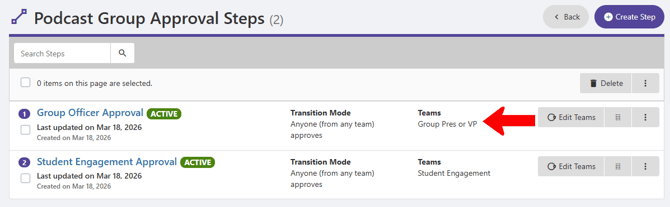
The workflow that uses these teams is Podcast Group Approval. The dynamic group, “Group Pres or VP,” is the approver in the first step: Group Officer Approval.
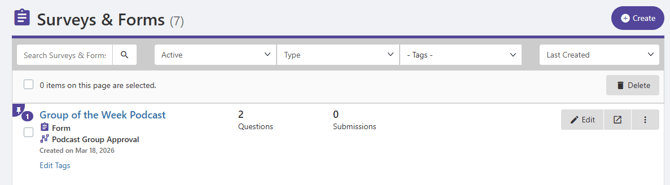
The form that uses the Podcast Group Approval workflow is Group of the Week Podcast.
Note: A workflow is linked to a form in the Basic Information tab of the form’s Settings. The workflow must be linked to the form before creating a question that uses a dynamic field.
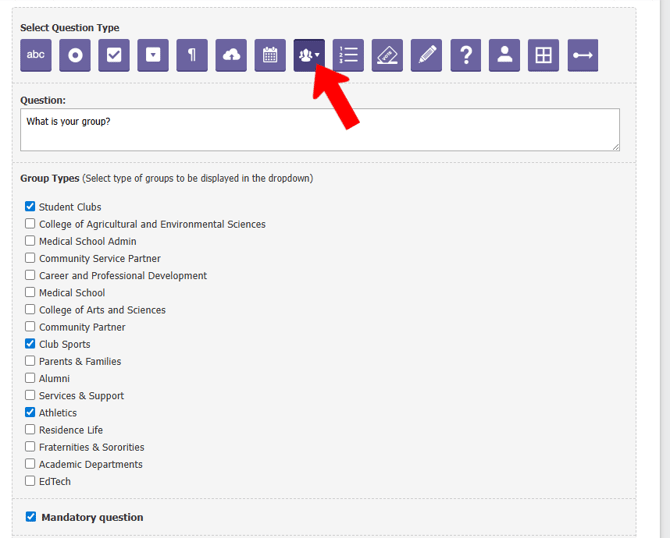
The Group of the Week Podcast form has two questions. Question 1 asks about the user’s group.

This is a Group List question. The user will be able to select their group from the selected Group Types.
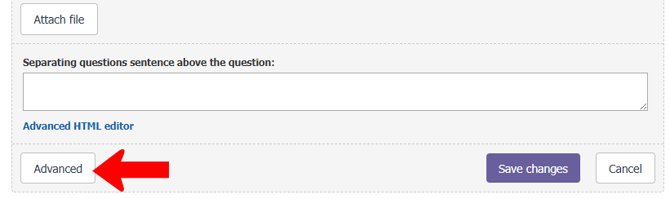
To link the dynamic group to this question, scroll down and click Advanced.
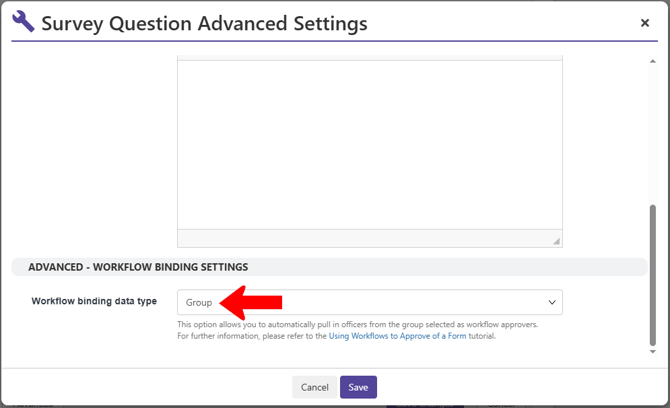
In the Advanced Settings, set Workflow binding data type to Group.
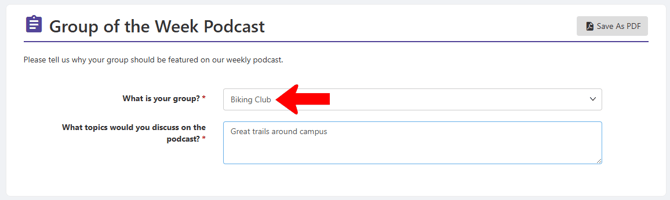
When a user completes this form, they must select their group in Question 1 - the Biking Club in this example.
On the officer side, to see the approval workflow for a submission, click See Workflow.
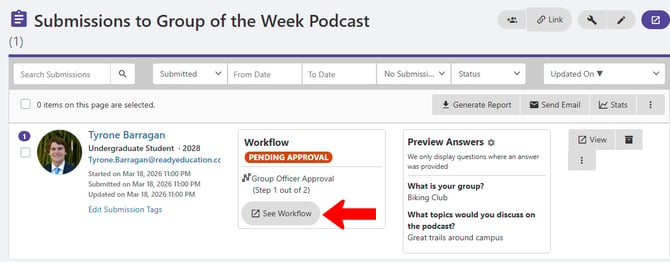
The Step 1 approval team is the president and vice-president of the Biking Club.