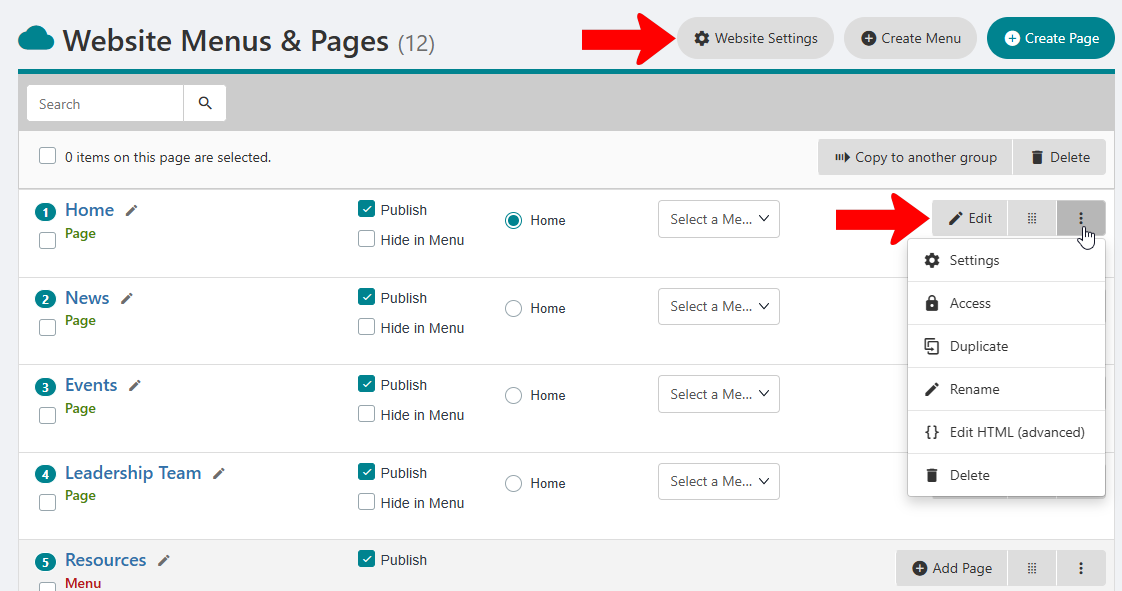
Your group website comes with several pre-configured pages. These are designed to get you started with a ready-made website that needs few changes, but you can customize all aspects of the site.
Note: You can also configure Settings for the entire website, and for individual Pages.
To manage webpages, or add new ones, start by managing your group Pages, and open Website along the left.
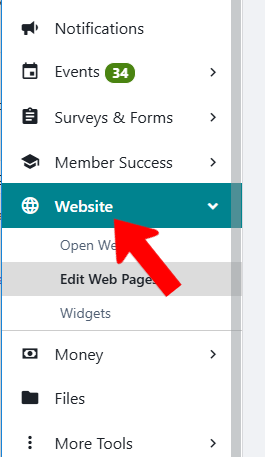
This opens the Website Menu & Pages list.
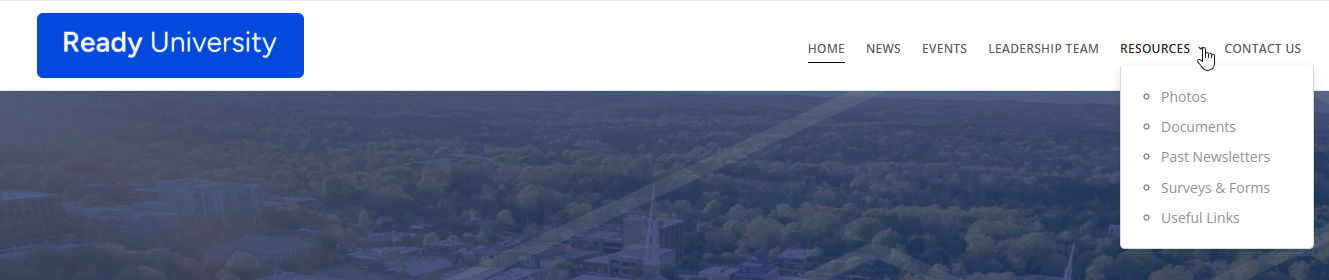
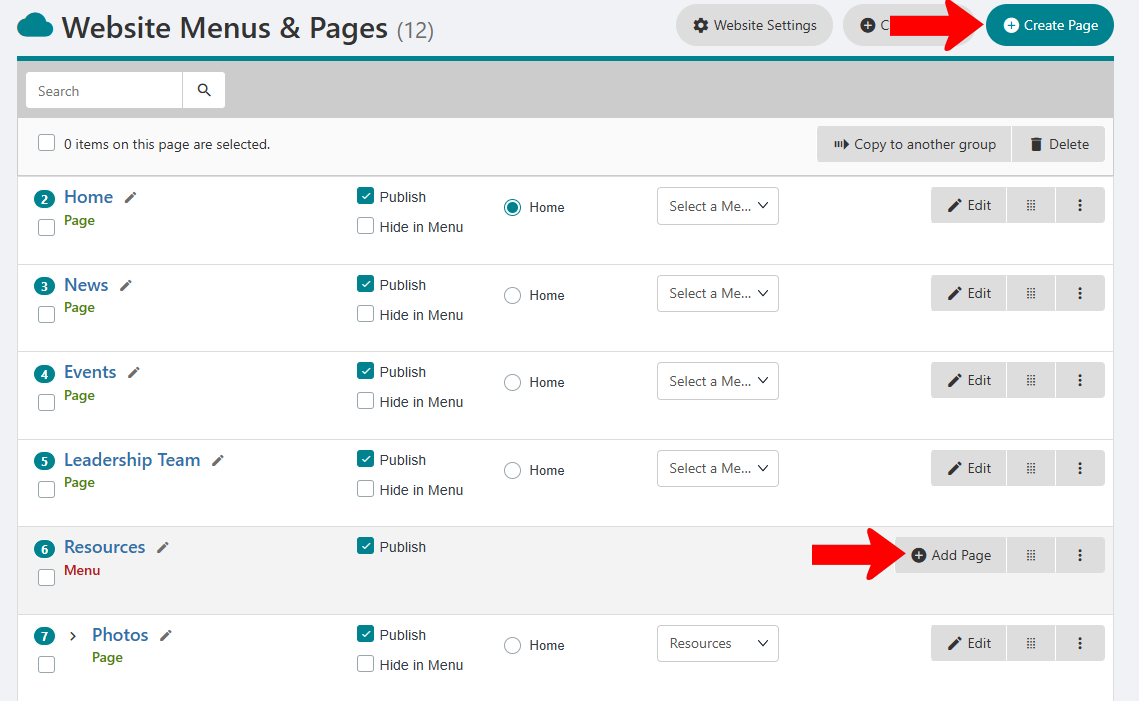
The default pages are configured so that Home, News, Events, and Leadership Team have their own links along the top of the site (these pages are not within a menu). After those page links is a menu called Resources, containing several pages including Photos, Documents, etc.
Each webpage can be renamed (Pencil icon) or edited Editing a Webpage.
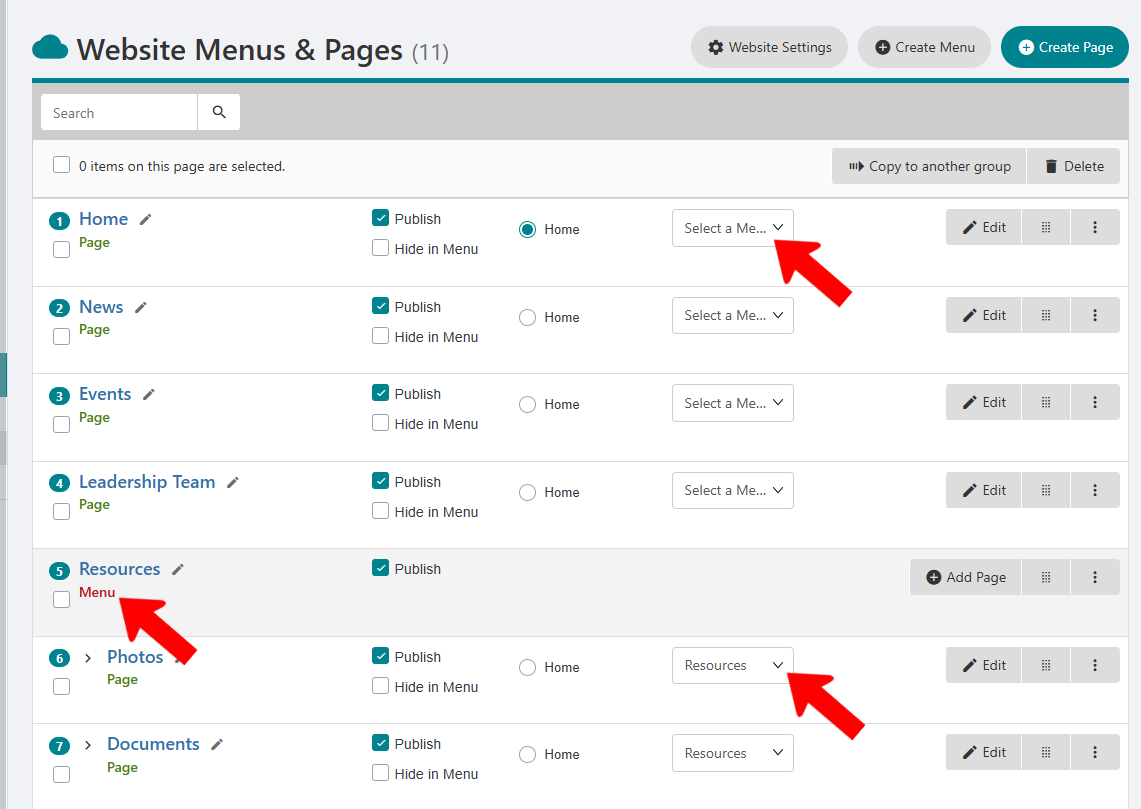
Each page is published by default, but you can uncheck Publish as needed. Checking Hide in Menu removes the page’s menu link, but keeps the page active. Only one page can be designated as Home - the website’s landing page.
As shown above, each page also has a menu drop-down. You can easily move pages in and out of menus, and the Create Menu button above the table enables you to create a new menu.
To see the current configuration of pages and menus, choose Open Website from the left menu. (Opening the site in a separate tab makes it easier to go back and forth).
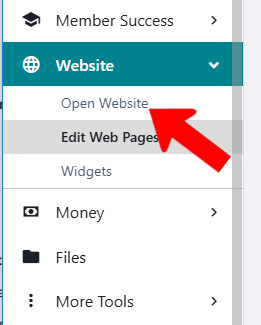
With the default pages and menu, the links at the top right mirror the configuration in the Website Menu & Pages list.
To create a new page, click Create Page above the table. Or, to create a new page directly inside a menu, find the menu and click Add Page.
Each page can be edited or reordered (12-dot icon). Clicking the More (three-dot) icon opens a menu with options to edit the page Settings Access Rights: Privacy Settings, manage Access Rights Access Rights: Privacy Settings, duplicate, rename, and delete the page. If you are familiar with HTML, there is an advanced option to edit the page’s base code. To manage settings for the entire site Website and Webpage Settings, click Website Settings at the top.