
To edit a webpage, open the Website Menu & Pages list Pages.
Find the page to edit and click its Edit button.

The edit window has two sections: widgets along the left, and the page itself along the right. The website menu reflects the page and menu order set in the Website Menu & Pages list.

Each section of the page itself is a widget: a ready-made, drag-and-drop webpage building block.
For example, the top widget of the home page has a background image and text. Hovering over any widget displays options at the top to move, duplicate, or delete the widget. Images also have an image icon at the bottom, if you want to replace the image.

When text is selected, the draggable popup toolbar has text creation and editing options, including bullets, URLs, size, etc. You can also add tables, images, and video to a widget.

Many widgets are dynamic, which means their default content comes from elsewhere in the platform. For example, the About Us text is taken from the Mission field, found in the Basics tab of the Group Settings. (Dynamic content can be edited if needed.)

Another dynamic widget is Our Team, which displays the list of group officers Managing Officer Positions.

The list of page widgets appears along the left. To place one on a page, simply drag it from the left to where you want it on the right, reordering if needed. Dynamic widgets are indicated as such.
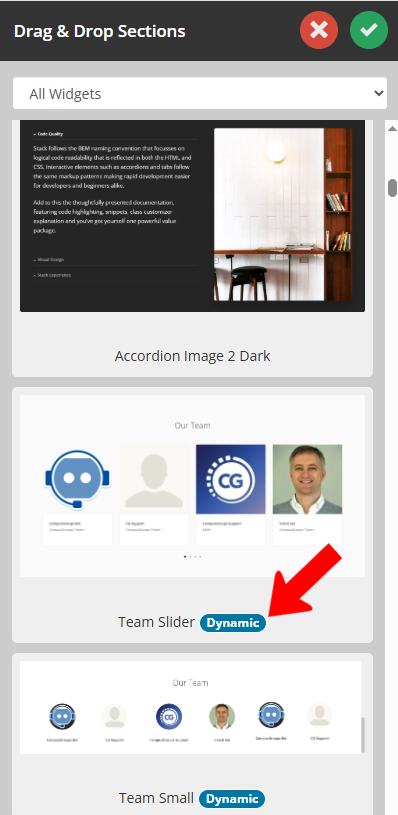
The search field at the top of the widgets list enables you to find just what you’re looking for. For example, there are several widgets that display upcoming events in various formats including grid, timesline, slider, etc.

When your edits are finished, click the check mark above the widgets list.

This displays the website so you can verify changes. Click the Edit icon at the top left to return to editing mode. Or click the orange icon to return to the Website Menu & Pages list.
