
If you are working with an advanced budget, you need to first submit a Budget Request Creating a Budget Request: Advanced Budget and receive budget approval. Once funds are approved, you can submit payment requests.
To get started, open your Accounting Book, and find the advanced budget. (Unlike a simple budget, an advanced budget is hyperlinked). You can see the total allocated budget and balance remaining. Click the budget name.

You can also open the Budgeting page and choose the advanced budget from the drop-down.

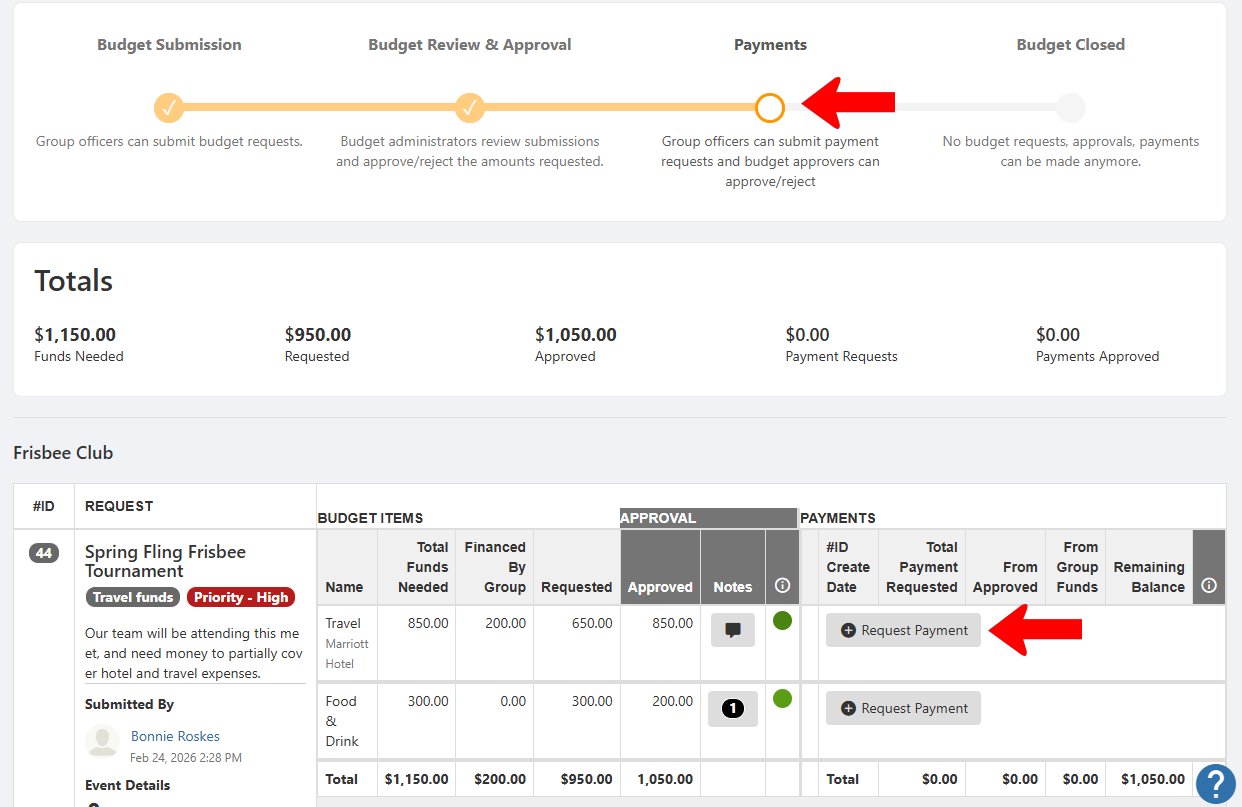
The budget must be in the Payments step. (This step may be named something different by your admin, and you may see a different number of steps). If your admin has not yet advanced the budget status to the correct step, the Request Payment buttons will not be available.
Click Request Payment for each line item for which you need payment.
The total remaining amount is listed at the top. Choose the Transaction Type, add a description, choose Expense, and enter the amount you’re requesting in From Allocated. (If your admin has enabled the Group Funds feature, you can also request payment from that amount.)

Complete the supplemental form (an example of which is shown here - yours will be different), and submit.

Complete this process for each line item for which you want payment. The total payment request amount is listed at the top, and each line item has an orange “Pending Approval” circle.

Note: You can also track approval progress by going to My Activity / My Surveys & Forms and viewing the submitted form.
Once the request(s) are approved, the transaction is listed as such, and budget expenses and balance update accordingly.
