This article covers one-step form approvals. These approvals can be performed by any officer with the correct permissions, or by a platform admin.
Notes:
- Some forms do not require officer approval, such as a survey, election, quiz, etc. To remove the approval interface from the form submission list, open the Form Settings, open the Approval tab, and hide the approval box.
- An approval that requires two or more approval steps, or approval by a non-officer, requires an approval workflow Creating an Approval Workflow.
Start by managing your form Managing Forms. Each submission should have a Form Approval box with four approval options.
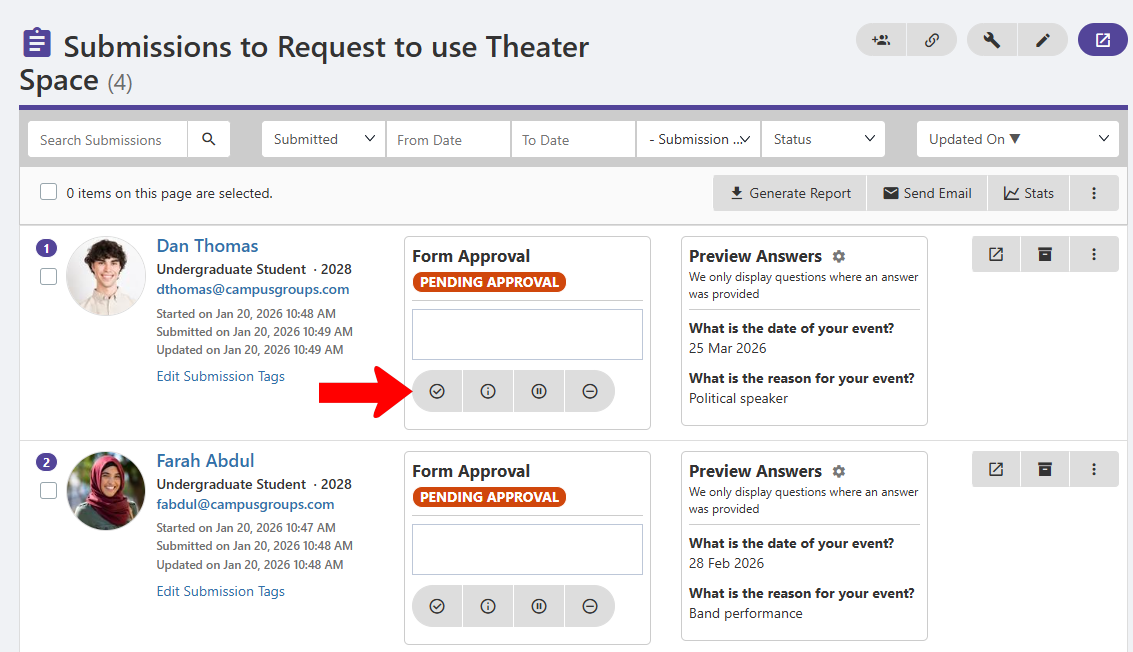
Note: If you don’t see the Form Approval box for each submission, open the Form Settings, open the Approval tab, and display the approval box.
Approval options include:
- Approve
- Needs Modification (submitted can make changes and re-submit)
- On Hold
- Rejected
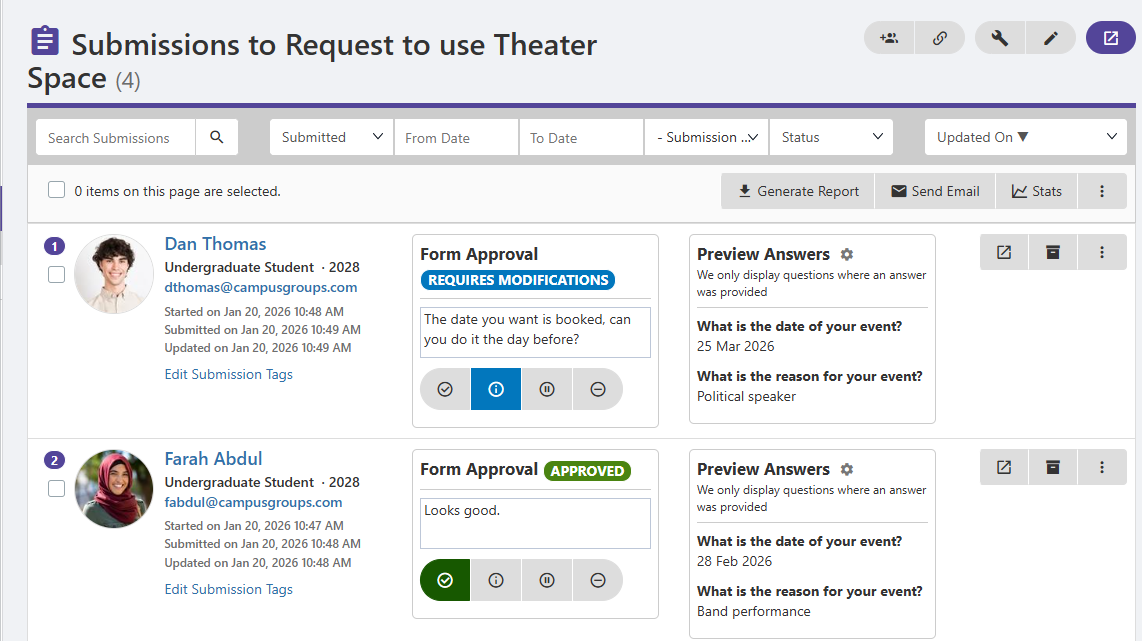
Choosing an option changes the submission status, and you can add an explanatory note for the submitter in the Form Approval box.
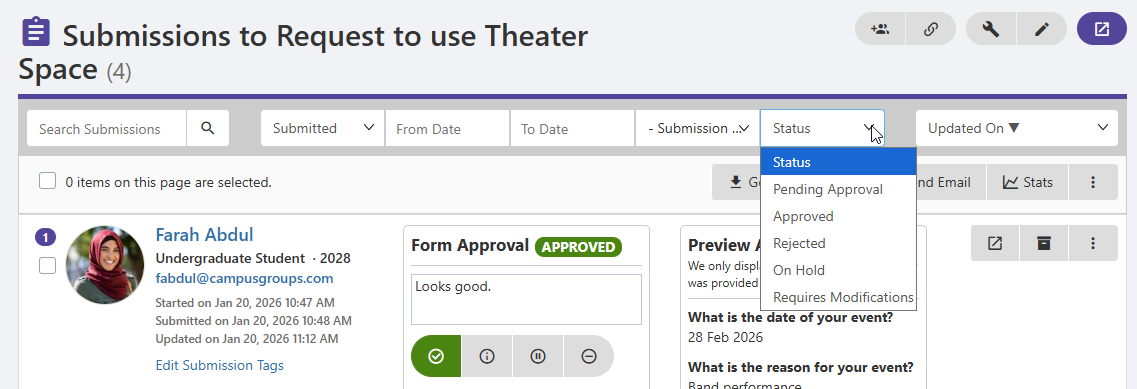
The Status filter enables you to find submissions with a specific approval status, or those still pending approval.
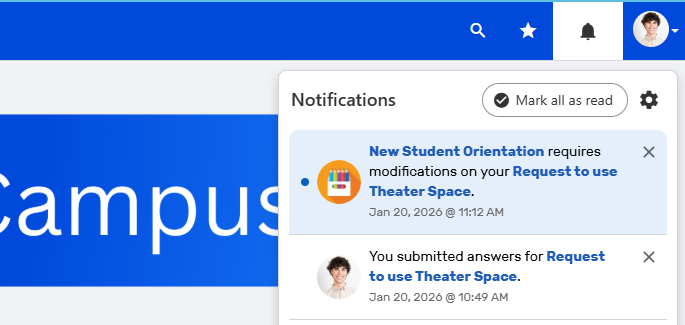
Approval status update is sent automatically to each user, as a notification. If modification is requested, the user can click the form link, make the changes, and re-submit.