
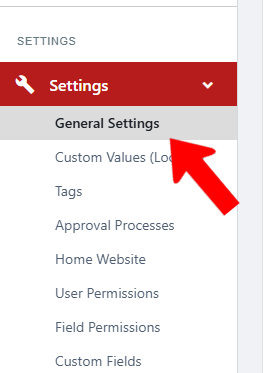
To create the page where users sign into their accounts, switch to Admin mode General Settings if needed and open the General Settings.
Open the Login & SSO tab.
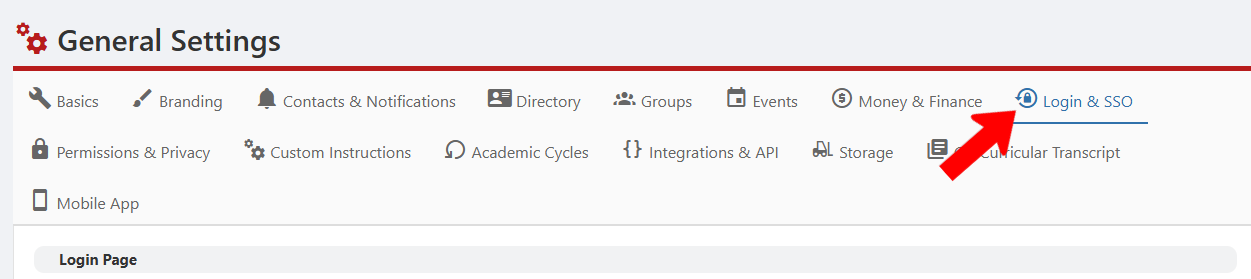
Note: Logo and background image for this page can be set in the Branding page of the General Settings.
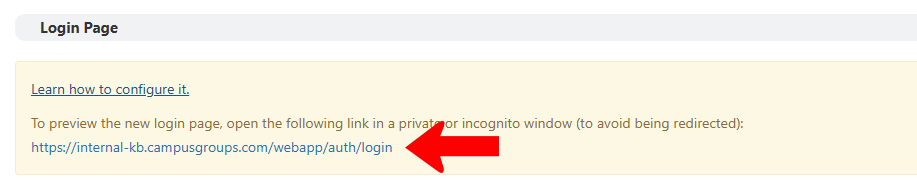
At the top is a link you can use to view the login page. To avoid redirection, open this link in a different window or browser, or in incognito mode.
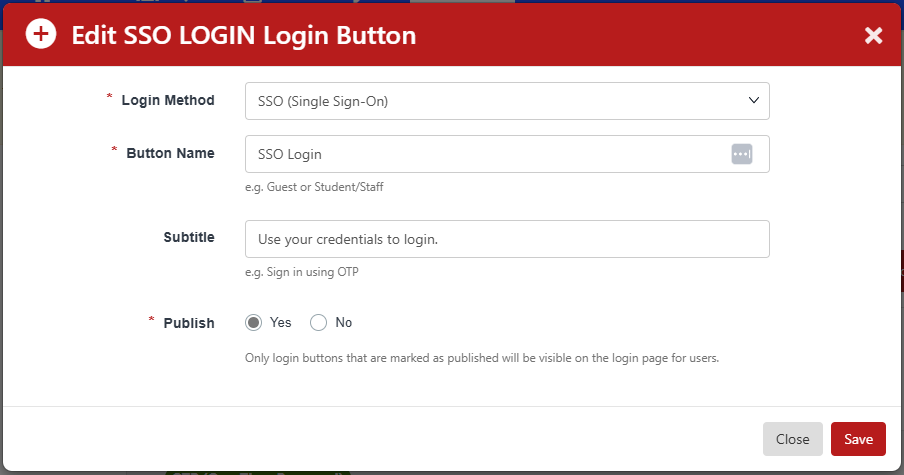
At the top, add a short and clear Login Screen Instruction. Then you can add up to six login options, which can be used for different user types (students, staff, alumni, etc.) Click Add Login Button.

Depending on the options enabled for your campus, there are three types of Login Method: SSO (single sign-on), OTP (one-time password), and Email / Password.
Provide a clear name for the login button, including user type to prevent any confusion. The optional subtitle can provide additional information, such as “Use this option only if you don’t have a campus account.”
A button with Publish enabled will appear to users.
A typical example of different login options may include:
- Students & Staff: Log in with SSO
- Alumni: Log in with Email/Password
- Guests: Log in with OTP
Note: The Account Creation link only appears when a user logs in via OTP or Email / Password. If you want to allow guests to create their own platform accounts, open the Permissions & Privacy tab of the General Settings. Set Guests can join groups to Yes. We recommend disabling this setting if you use SSO with Just-In-Time (JIT) provisioning. If you choose to enable it, clearly label all login buttons and include guidance in the login instructions to ensure students always use the SSO button rather than guest options.
Each login can be edited or deleted, or reordered by dragging the Move icon. The most common login method (typically SSO) should appear first.

Note: If your campus restricts SSO access for specific students, and you also offer a guest login, we recommend using Email / Password for guest login. If guests can use OTP, the restricted students can as well.
Other options include:
- Login Help Instructions: A longer instructional message, providing detailed steps, troubleshooting tips, or instructions for different user types.
- Must be SSO verified
- Must be SSO verified message
- Password message: The message users will see the first time Email / Password users sign in with their email, before they are sent a password change email.