For campuses that have this feature enabled, the Job Board is a centralized platform where users can discover and apply for career opportunities. Job postings are managed within groups, enabling targeted and streamlined opportunities.
Note: There are several ways to publicize jobs.
To add a job, start by managing your group Managing Your Group, Group Dashboard, open More Tools along the left, and click Jobs.

Before creating any jobs, first click Settings.

Determine default job posting privacy (Access Rights Access Rights: Privacy Settings) and whether users can submit their own job postings. If Display jobs on community job board is enabled, jobs will appear in the Jobs hub menu Managing a Community Hub.

Click Create Job.

Note: If you have a prepared list of jobs, click Upload Jobs. Download the spreadsheet template, read over the directions carefully, and create and upload the jobs file.
Required fields include the hosting group and organization, job title, and employment type. (For admins, employment types are set in Custom Values, under Job Type.) Farther down you will also need to specify work authorization and activation dates (when the posting will be active).

You can also include:
- Job description text or upload
- Information about the company / organization
- Details about the role and responsibilities
- Description of the ideal candidate, qualifications and preferred experience
- Salary, benefits, or shifts
There are two ways you can have users apply.
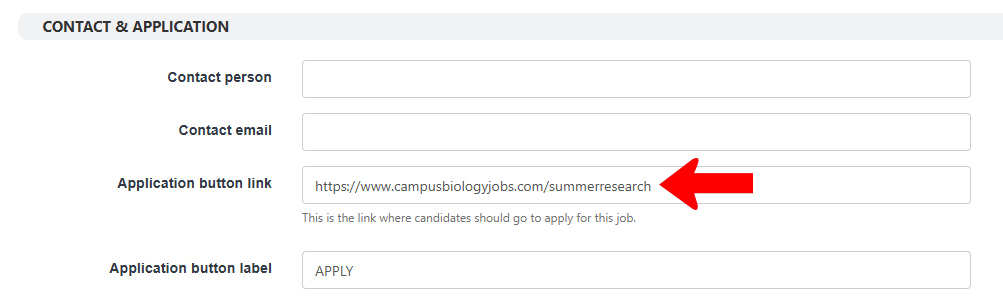
If users apply via a link, enter the URL for Application button link, along with Application button label.
To have users apply internally within CampusGroups, there must be a form What is CampusGroups? set up with the Job type. Choose that form here, and specify the users who will receive submitted applications.

Note: When a form is used, you can also attach a workflow if approvals are needed. Applications are tracked by managing the form Managing Forms.
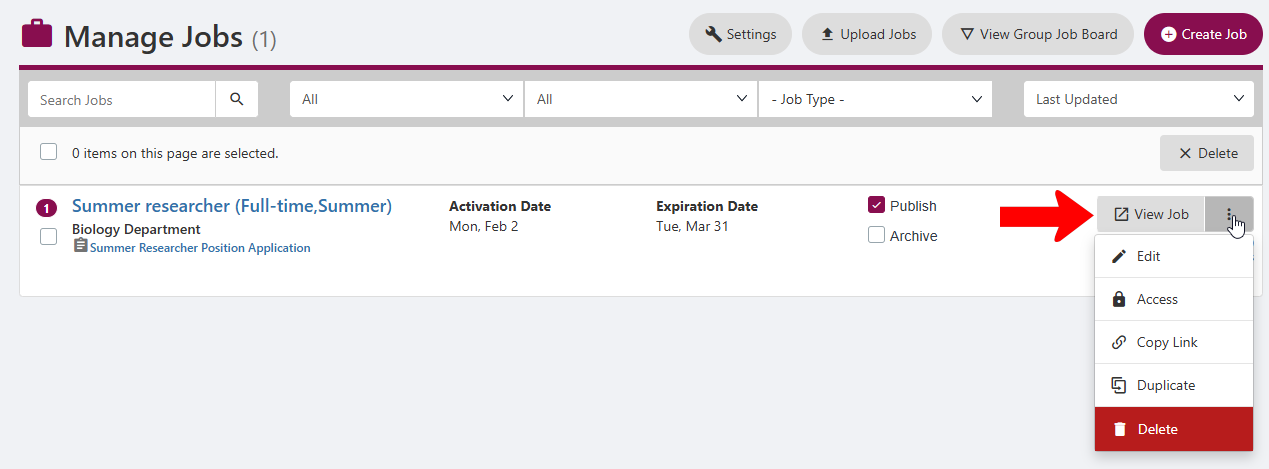
Each posted job is listed with its name and dates. Jobs are published by default but you can unpublish or click Archive. Clicking View Job displays the job posting, and clicking the More (three-dot) icon opens a menu to edit the posting, manage Access Rights, copy the link, duplicate, or delete.