
This financial integration provides students with a visible way to be alerted to any active holds that may impact their status with the school.
We can integrate from these SIS platforms: Ellucian Banner, Peoplesoft, and Anthology Student.
Once integrated, students can:
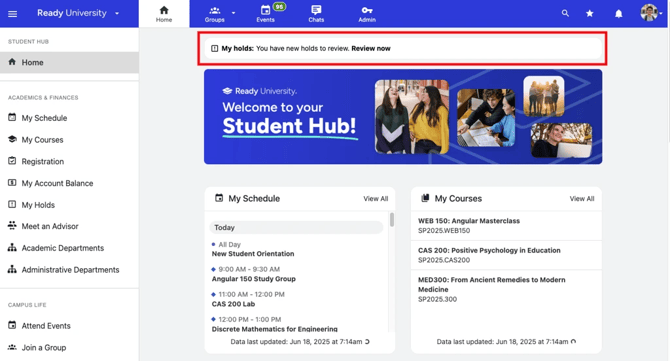
- Get alerted to any active holds on their account, right from their homepage (on web) and home screen (on mobile). If there are no active holds, the alert disappears, ensuring they see only the information they need at any given moment.
- View a clear summary of their active holds, along with the information they need to take action.
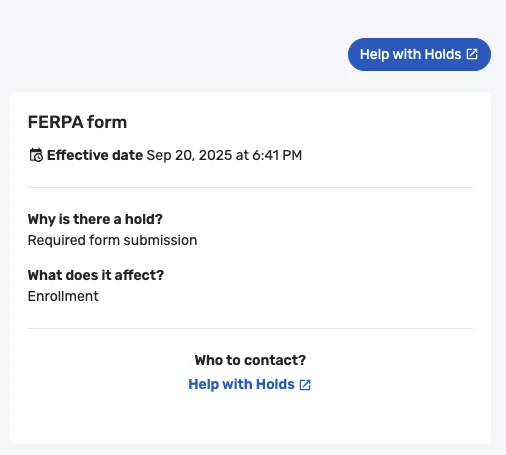
Configuring the integrations is managed by our Implementation Team in partnership with your Academic Tech / IT department.
Note: These integrations are one-directional feeds into CampusGroups. The integrated content is designed to help students manage their account by viewing their holds, academics, and co-curricular activities in one place, but it is not intended to replace your existing platforms. We enable you to provide a link to the source system, to help students manage their account in the system of record.
Timing: Note that we leverage a cache within the Ready Education platform in order to minimize load on your SIS. This means that students may need to allow up to 60 minutes for a cleared hold to reflect in their Ready Campus web/mobile app. We provide the date and timestamp to clarify when the information was last updated, as well as a disclaimer on the page to explain this expected latency.
In order to add My Holds to the platform, The first step is for Ready Education’s Implementation Manager to activate the “My Holds” feature for your instance and configure the integration.
For this we will need:
- The URL to the system where students can see more details about their holds, and manage their payments and charges,.
- The label you will use for the call-to-action button that will appear on the My Holds page. (This label will also be used as a fall-back under “Who to contact,” in case your SIS does not provide more specific contact information for a specific hold.) This is optional. If left blank, no call-to-action button will display.

Once the integration is complete, there are two ways to make My Holds accessible to users:
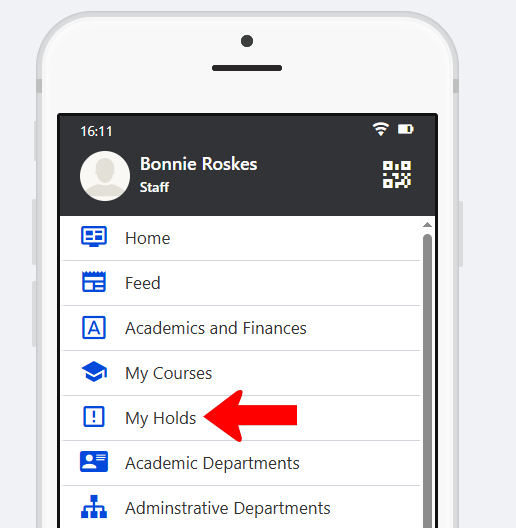
In a Community Hub, include the My Holds hub menu item. You can set this hub menu to appear on web only, mobile only, or both.
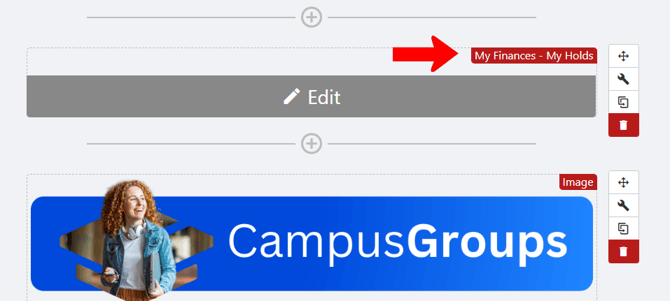
On the hub’s Home Page hub's Home Page, add the My Finances / My Holds widget. This is a conditional widget; users will only see it when they have an active hold. We highly recommend placing this widget in a full-width row, preferably at the top of your homepage.
When placed this way, the widget will be a noticeable alert.
Note: Due to the sensitive nature of finances, when impersonating another user in the system Impersonating Another User, holds are not shown.