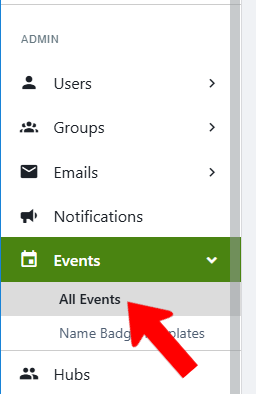
To view all events platform-wide, switch to Admin mode if needed, and choose Events on the left.
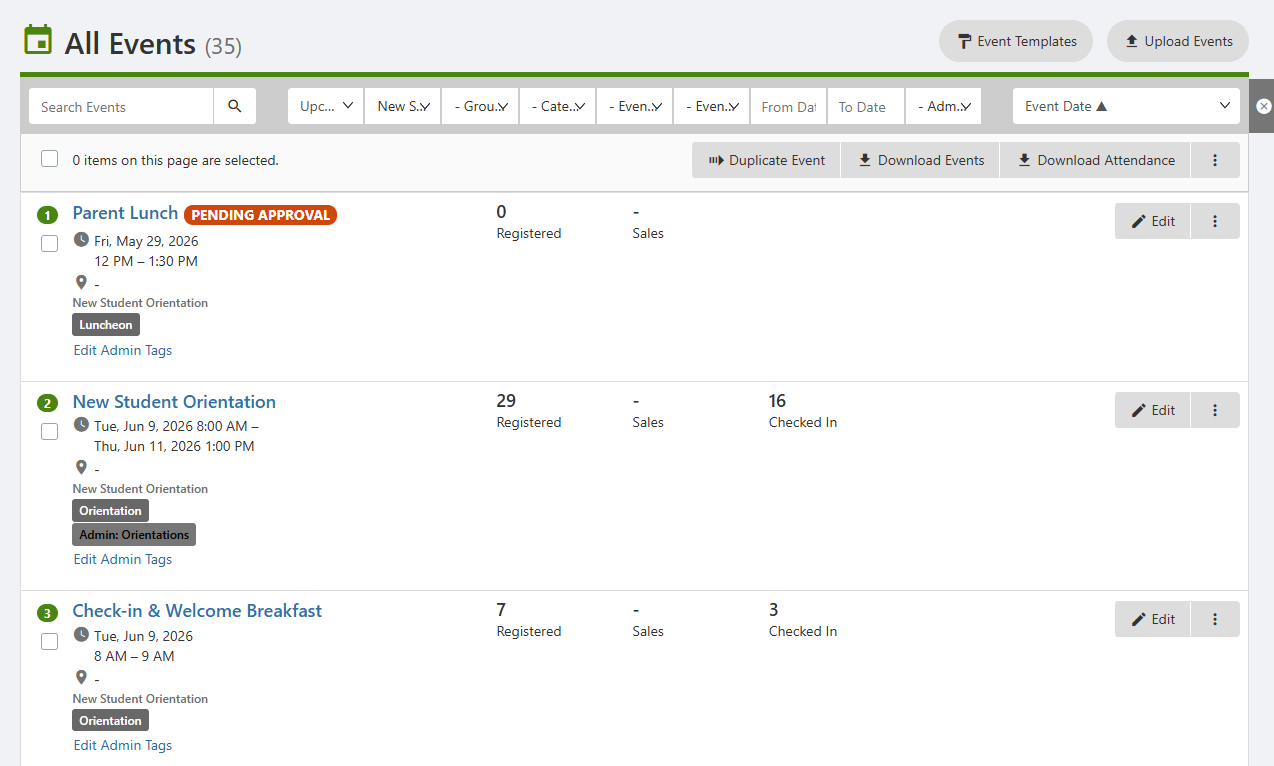
This opens the All Events list, showing events for all groups by default. You can search and filter the list Searching, Filtering, and Sorting Lists, for example to find past events, events hosted by one or or groups or Group Types, events of one or more Event Types, etc. For events that require approval, approval status will be listed as well.
Above the list are buttons to view Event Templates and Upload Events Event Templates.
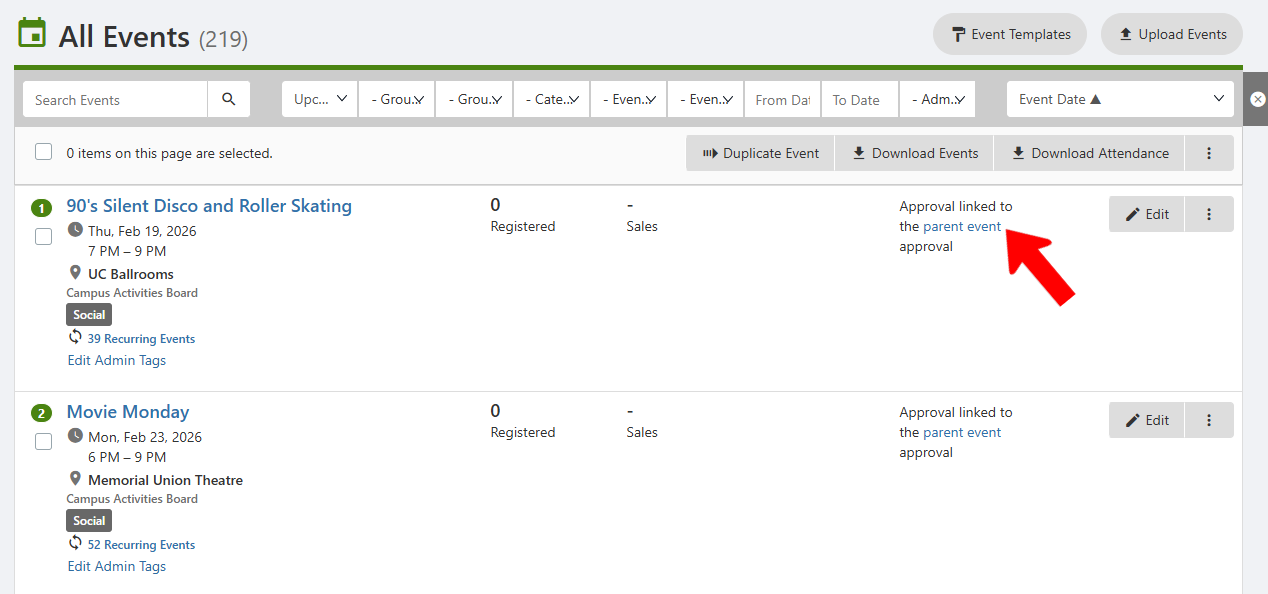
For an event whose approval is linked to the approval of their parent event Event Approval Process, you can click to open details on the parent event.
Each event has an Edit button, and clicking its More (three-dot) icon opens additional options.

- Manage registration options: View registration options attendees and attendees Event Page, and check-in attendees Event Page
- Preview Event: View the Event Page.
- Download Waivers: If relevant, download waivers check-in attendees signed by attendees
- Dashboard Event Page: View statistics and demographics on registrations, attendees, and check-ins.
- To Do: Create an event to-do list
- Private Note: Enter an event-related note about the event, which can only be seen by other admins.
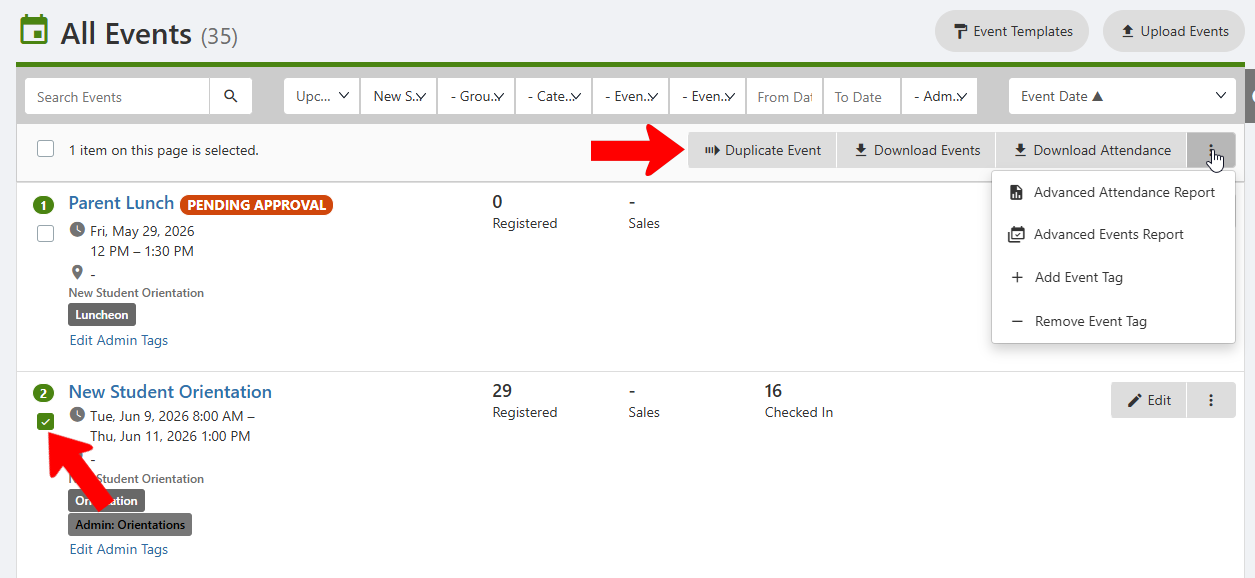
When one or more events are selected, there are options to duplicate the event, and download event or attendance details. Clicking the More icon opens a menu with options to download an advanced attendance report Tags or advanced event report Tags, or add / remove event Tags.
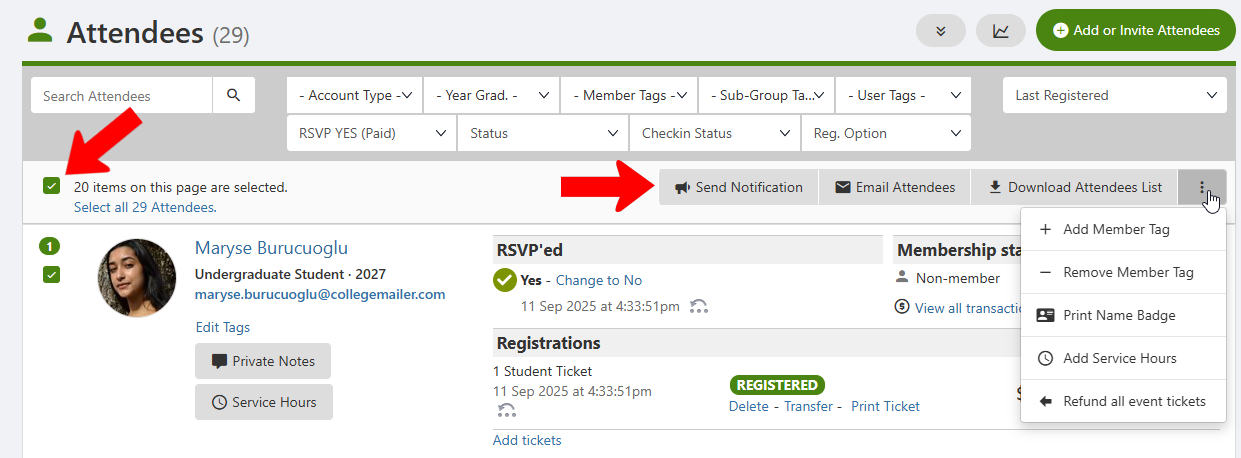
Clicking an event name, or clicking its More icon and choosing Manage, opens the Attendees list. When one or more attendees are selected, you can use options at the top to Send Notification, Email Attendees, or Download Attendees List.
Clicking the More icon opens options to add or remove member tags, print name badges, add service hours Tags, or refund all event tickets.