
Two Hub Menu Items enable you to customize your hub menu:
- Menu Section: Acts as a divider between menu sections
- Group of Menus: Acts as a menu that opens a sub-menu
Note: Similarly, there are also two hub menu items for displaying the My Activity menu. My Activity Section displays this menu with a section header; My Activity Menu displays these menu options in a My Activity sub-menu.
Menu Section
The Menu Section menu item has an “A” icon by default.
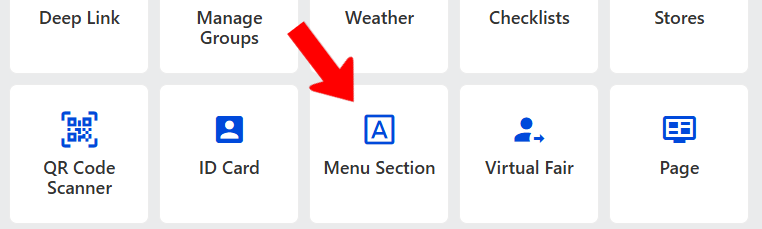
When brought into the hub, you can change its name, as well as its icon if needed.

On the web version, menu sections appear as section dividers.
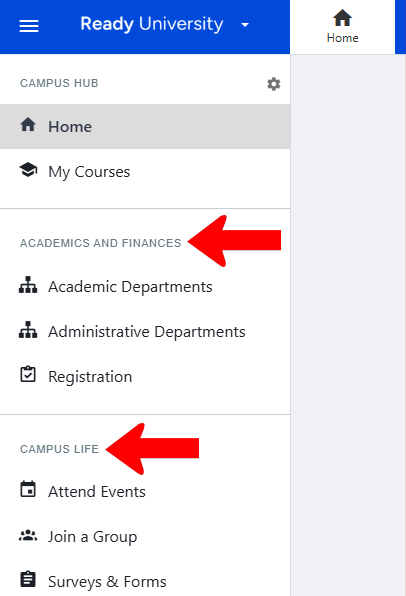
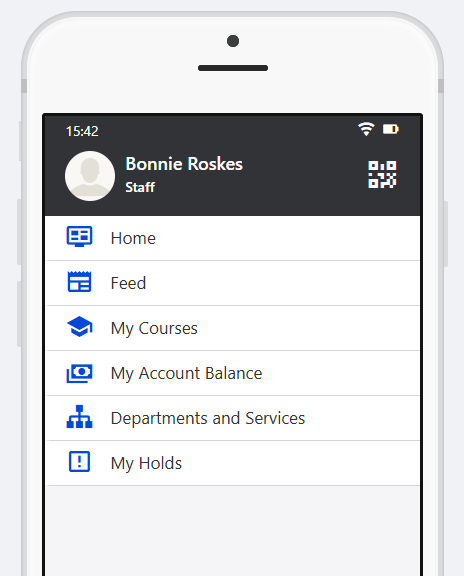
Mobile app menu view (tap More) is similar.

Group of Menus
This menu item is used to create sub-menus. Before adding this item, all menu items you want in the sub-menu must be added first.
The Group of Menus menu item has a sub-menu icon by default.
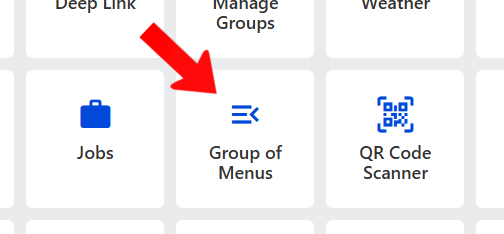
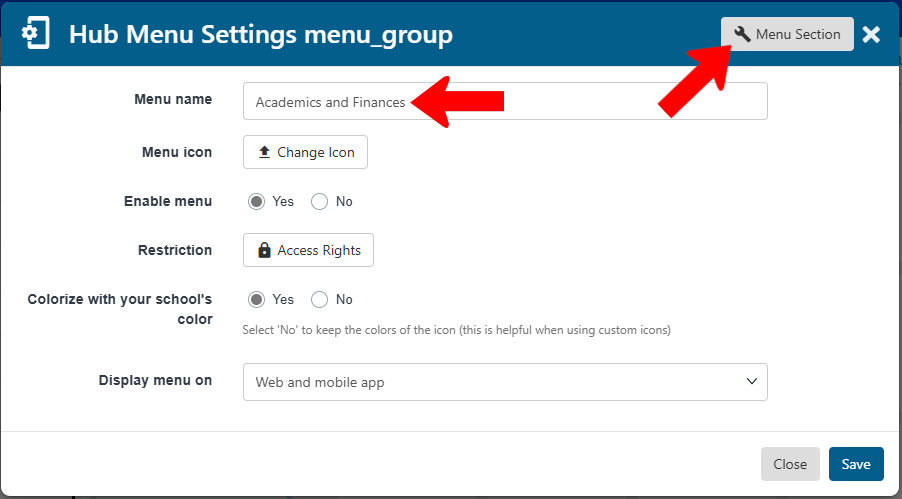
When this menu item is brought in, change its name, then click Menu Section.
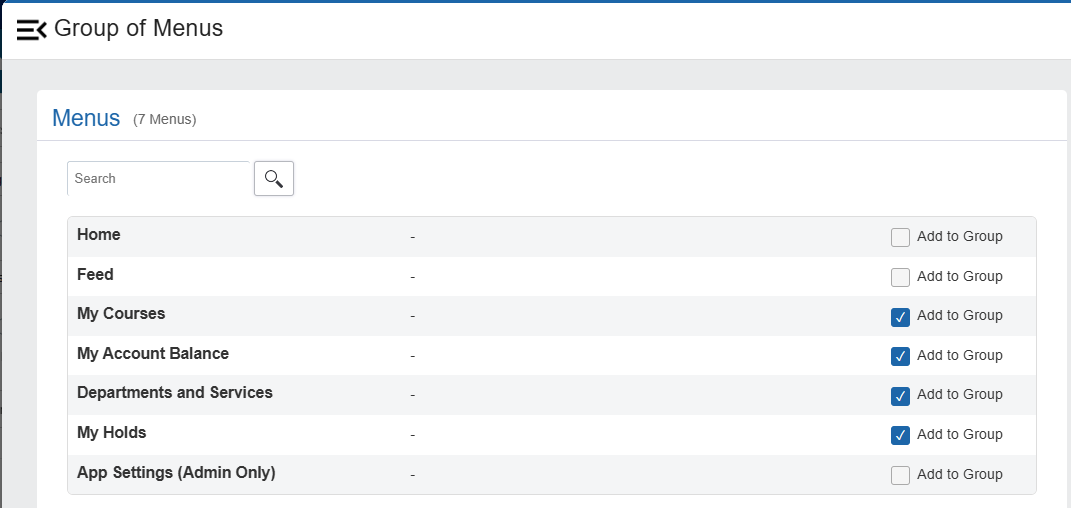
In the Group of Menus flyout, select the menu items to include in the sub-menu.
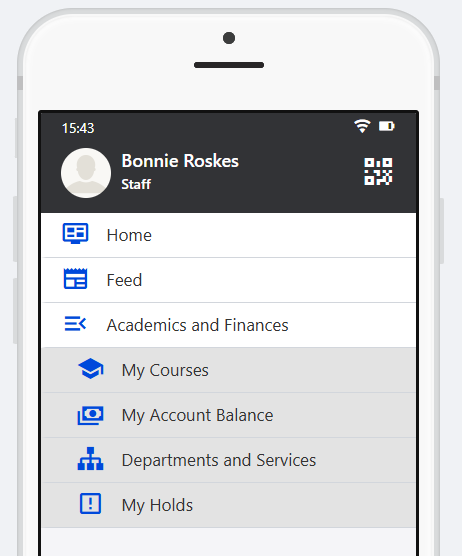
The selected hub menu items now appear within the Group of Menus.
Note: Sub-menu items can be dragged and dropped outside the Group of Menus. If you want to delete a Group of Menus, you must first move or delete all sub-menu items.
On the web and mobile versions, the group of menus is displayed as a menu that must be clicked to expand.

