
The Home Website is where users navigate to initially login to the platform. On the web, this page has menu items along the top.

To customize this site, switch to Admin mode if needed. Open Settings on the left, and choose Home Website.

There are several pages listed by default, and you can edit, add, and publish as needed. To adjust the image(s) that appear on the login screen, click Slideshow.

To choose page elements to display, click the Home page’s Edit button. You can display or hide the slideshow, upcoming events, news, feature groups, and any custom content.

By default, there is one drop-down menu, called Campus Links. You can create additional menus as needed, and pages can be placed under menus via the drop-down.
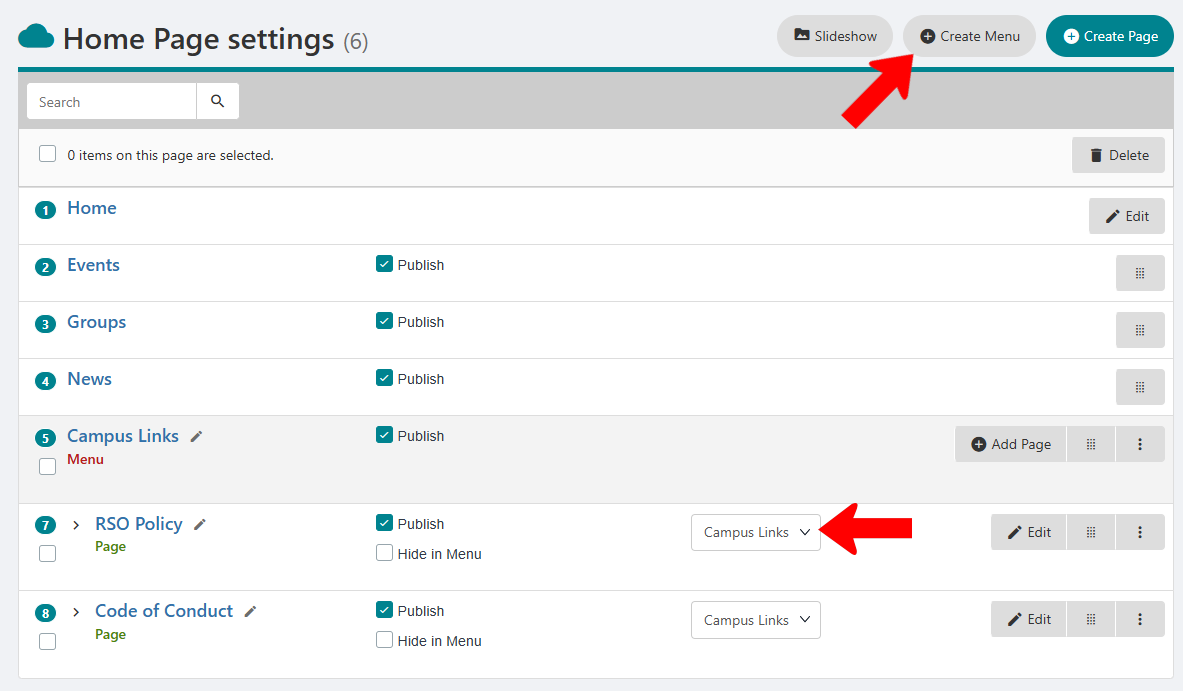
You can also create additional pages, and click Edit to customize.

Note: Web page editing here is the same as for a Group Website The Group Website.