
Nearly everything in CampusGroups is based on groups, and “groups” can include many things. The two main types of groups are groups and departments.
- Groups typically include clubs, interest groups, Greek life, professional organizations, etc. Groups have one or more student officers; some may have faculty advisors.
- Departments typically include academic departments, student life, dining services, admissions, etc. Departments are typically led by staff, not students.
Note: The typical group officer positions include “President,” “Treasurer,” etc. These are not always appropriate for those who run departments. You can create new officer positions, such as “Staff” or “Director” in Custom Values. Positions are assigned when Managing Group Officers.
How Groups and Department Differ
Groups limit some of their Group Page Managing the Group Page content to group members. For example, while the Home and About pages are visible to all, the feed, photos, and event registration may require group membership.
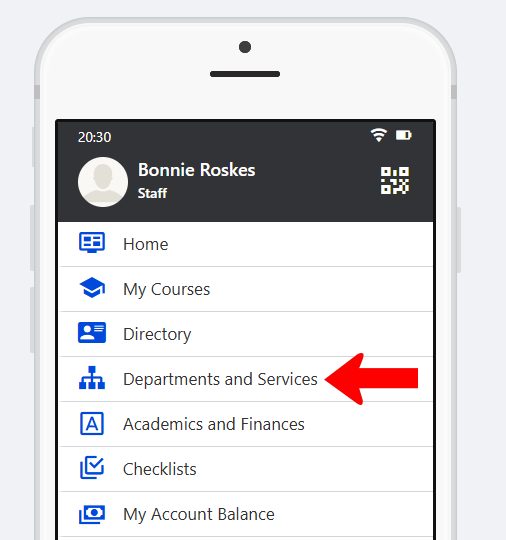
Departments are fully accessible by all users (though admins can control visibility if needed). To maximize department access and visibility, admins can add one or more department directories to a Community Hub What are Community Hubs?. This is done by adding a Departments and Services hub menu item Departments and Services Hub Menu Settings.
Differentiating Groups and Departments
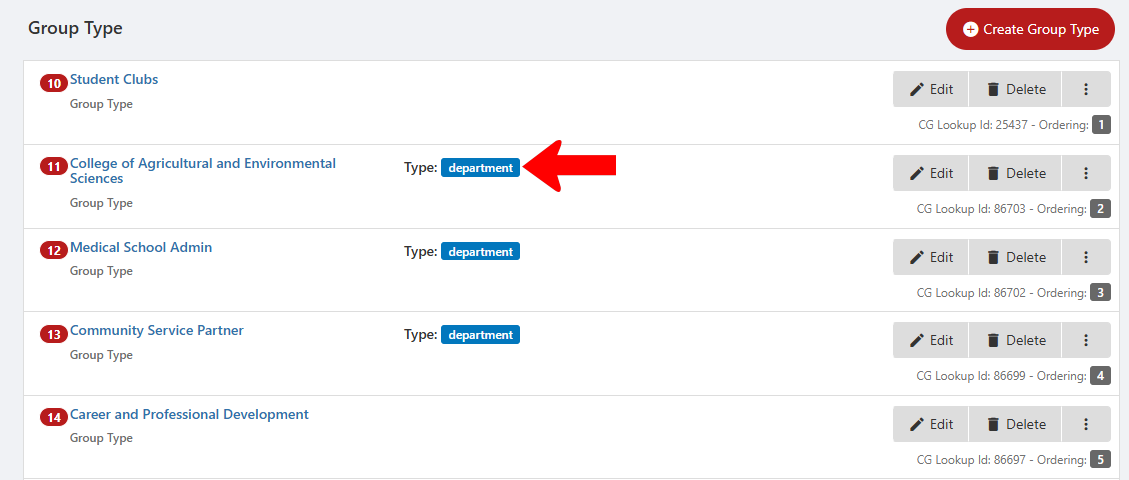
A Department must be assigned a Group Type that has the Department type. Group Types are created in Custom Values, and Department (or Group) is set in the Type field.

In the Group Types list in Custom Values, groups that are departments are indicated as such.
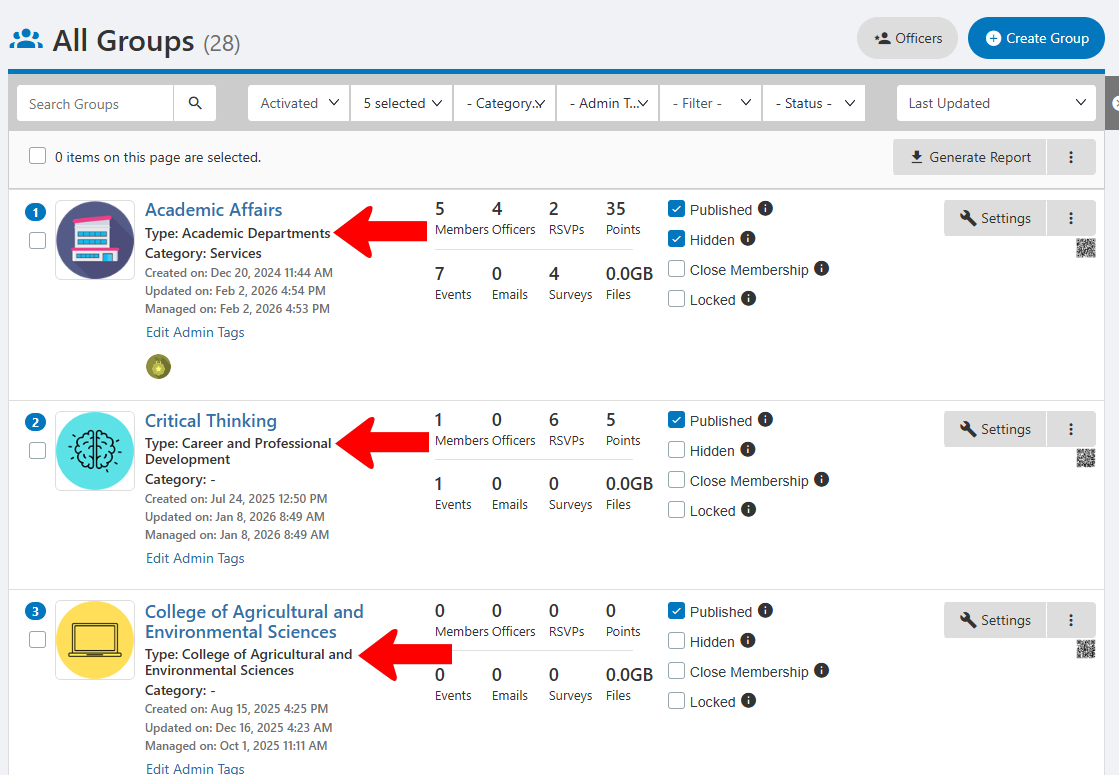
Departments are included in the Groups list All Groups List: Managing Groups. A department is any group assigned a Group Type designated as a department.
Recommended Department Settings
A department typically does not recruit members, and should not appear on the Groups page Group Settings.
To remove a department from the Groups page, open the Group Settings to the Basics tab, and enable Hide from groups list. To prevent users from attempting to join a department, also enable Close membership.

Note: You can also create a department to use as a template for other departments.