Events are scheduled happenings on campus, such as workshops, fairs, and student organization activities. Each event is created within a group, and hosted by that group.
CampusGroups makes it easy to explore what’s happening on campus, and track your event registrations. You can explore events on the web version or on the mobile app.
Note: Events for which you register will appear in My Activity / My Events and My Schedule. This is also where you can find event tickets.
Exploring and Registering for Events on Web
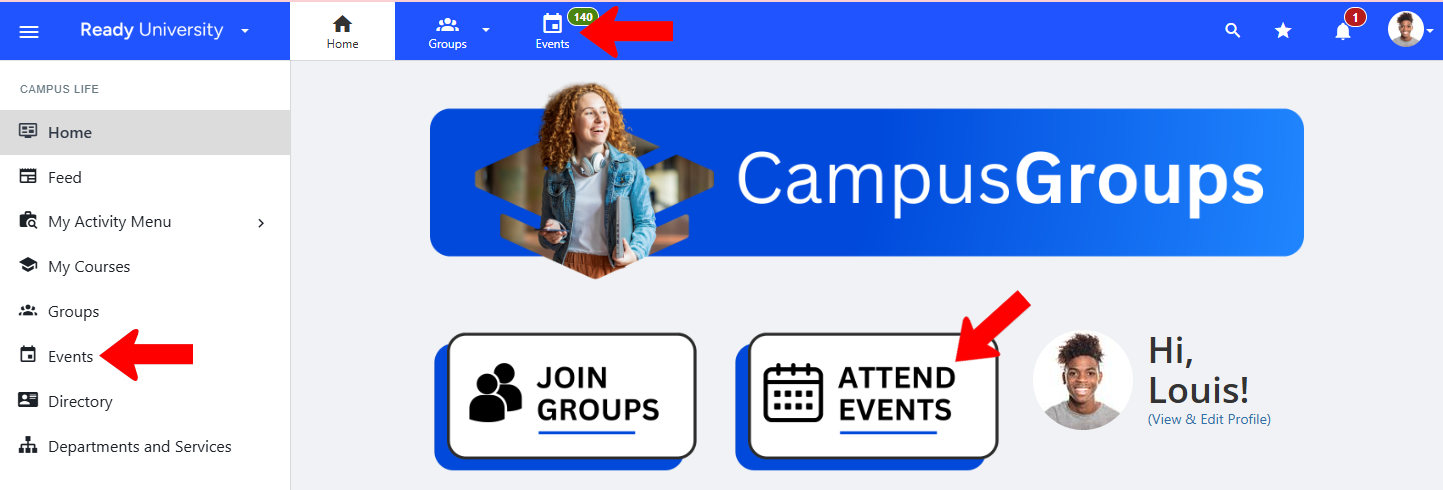
To explore events on the web version, click Events at the top. Depending on how your home page and left menu are configured, you may also see event options in those spots.
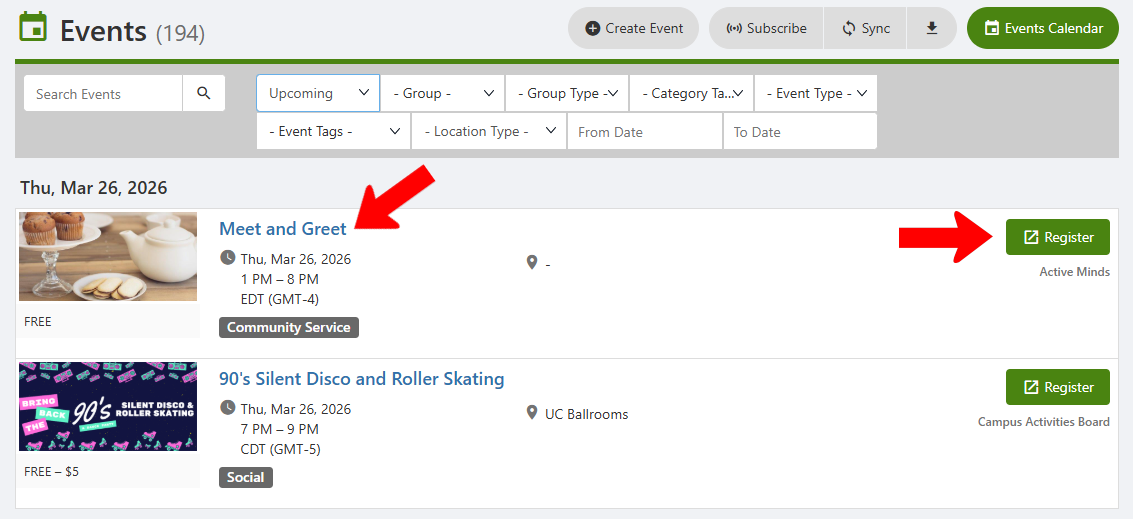
By default, the Events list presents all upcoming events, in chronological order. You can search the list for keywords, or use the filters to narrow the list. Filter options include upcoming vs past events, group name or type or category, event type or tag, location, and date range.
Across the top are options to create an event (if enabled by your campus), subscribe to group event calendars, and sync calendars. Clicking Events Calendar displays the events list in calendar format.

Note: The ability of non-group officers to create events is set by your campus. If you can create an event, you will have to choose the group hosting the event.
Each event is listed with tags, registration fees, and location, if provided. On the right you can see the event group. Clicking the event name, or its Register button, takes you to the Event Details page.
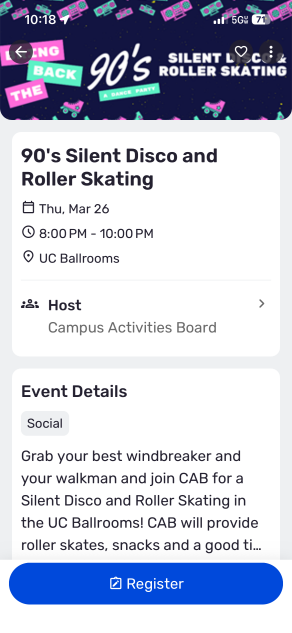
The Event Details page lists registration options and has a Register button. Farther down you’ll see additional details provided by the organizer. These may include links to virtual meetings, lists of other attendees, a Contact button to reach the organizers, etc.

Exploring and Registering for Events on Mobile
On the app, one way to explore groups is to tap More along the bottom and tap the Events menu (if available).

Another option is to tap Events along the bottom. At the top, the default view is Upcoming events. Use the filters to narrow the list by upcoming vs. past, date range, event type, or group types. Events that you “favorite” (Heart icon) will appear in Saved, and events for which you register will appear in My Events.
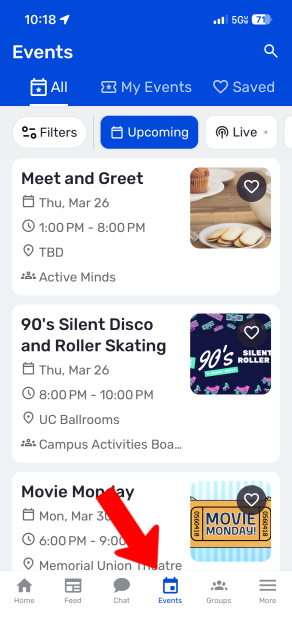
Tapping an event name opens its details page, with a Register button.