
Email templates enable you to create an email once and reuse it as often as needed. For example, a common use of an email template is to send a welcome email to new group members Sending a Welcome Email to New Group Members.
To view the list of templates, start by managing your group Managing Your Group, Group Dashboard. Under Emails on the left, choose Templates.

Note: Assigning template Tags makes it easy to find specific types of templates.
There are several ways to create an email template. The most common method is to create an email Using Email Builder, and save it as a template.
You can also:
- Create an email template from scratch
- Duplicate an existing template Email Templates
Creating an Email Template from Scratch
This quick option is great for creating a simple email, such as a welcome for new group members.
In the Email Templates list, click Create Template.

Assign a template name and subject, and add the email content. You can also add one or more attachments. Click Save.

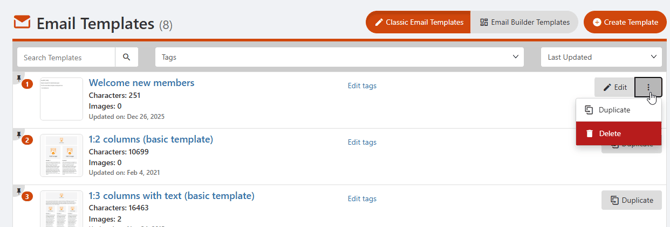
The template is added to the list, with a More icon that opens a menu with options to duplicate or delete the template.
Duplicating an Existing Template
Find the template you want to duplicate. For a standard template, click Duplicate. For a custom template, click its More icon and choose Duplicate.

The duplicated template is added to the list as a copy. Click its Edit button.

Assign a new name and subject, then edit the content to suit the new template.You can also add one or more attachments. Click Save.

The template is added to the list, with a More icon that opens a menu with options to duplicate or delete the template.
