When Creating an Approval Workflow, the workflow teams can consist of specific users. But for added flexibility, you can create a team with the Dynamic Type of User. This enables you to collect a user name in a form, and make that person an approver in the workflow.

Notes:
- The other Dynamic Type is Group. This enables you to define a workflow team based on officer role of a selected group, such as President or Treasurer.
- A form can use a maximum of one Dynamic Group and / or one Dynamic User.
A dynamic user works in conjunction with the User Select question type, as will be shown in the example.
In this example, the Workflow Teams include Advisor, a Dynamic User. No specific users are included in this team - the user in this team will be defined by users’ answer in the form.
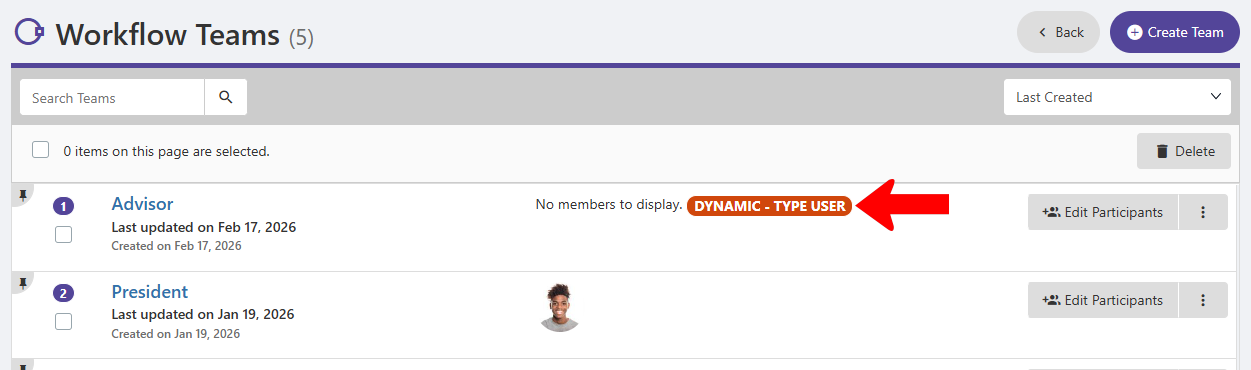
Note: If you add other users to a dynamic user team, they will also be included in the approval workflow.
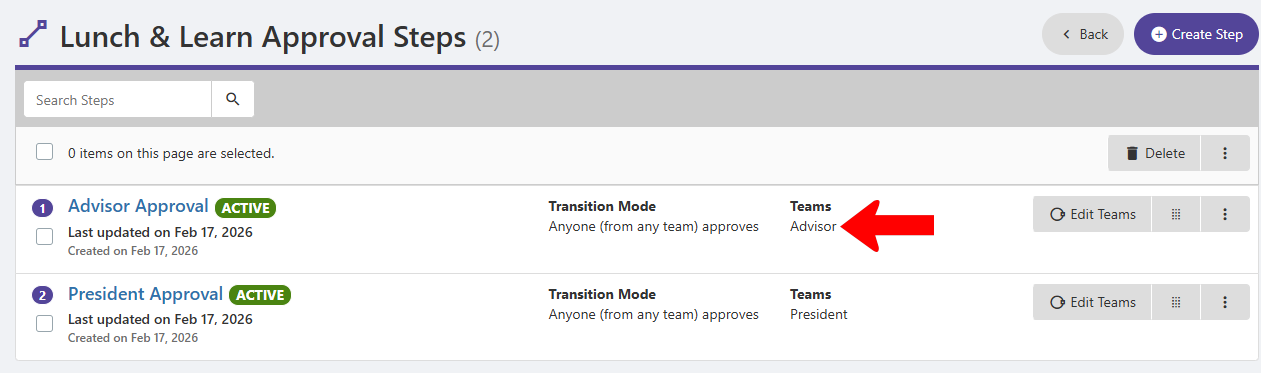
The workflow that uses this dynamic team is Lunch & Learn Approval. The dynamic user, Advisor, is the approver in the first step: Advisor Approval.
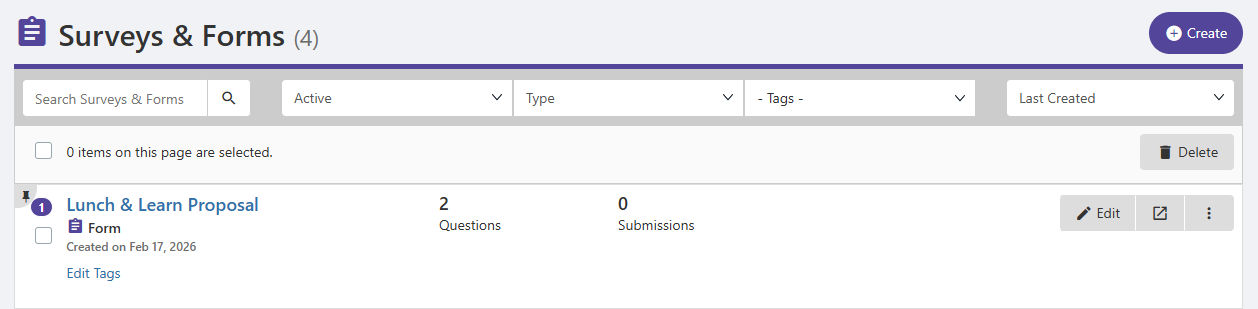
The form that uses the Lunch & Learn Approval workflow is Lunch & Learn Proposal.
Note: A workflow is linked to a form in the Basic Information tab of the form’s Settings. The workflow must be linked to the form before creating a question that uses a dynamic field.
The Lunch & Learn Proposal form has two questions. Question 2 asks about the advisor.
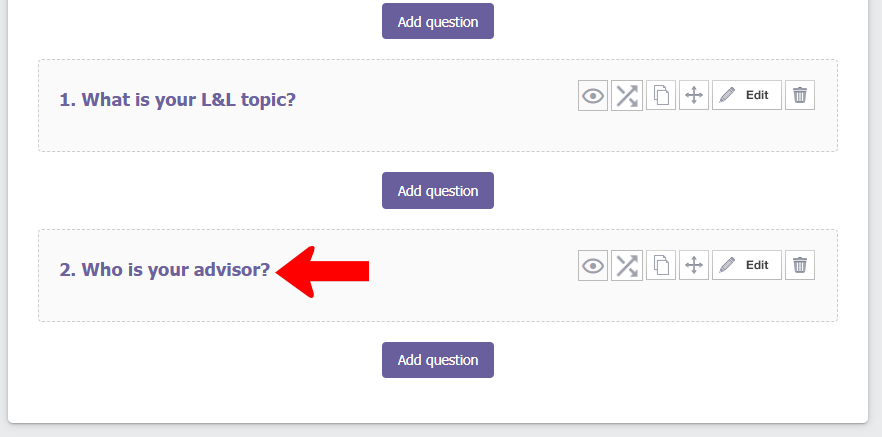
This is a User Select question. Note that multiple user selections are not allowed when using a dynamic user. To link the dynamic user to this question, click Advanced.

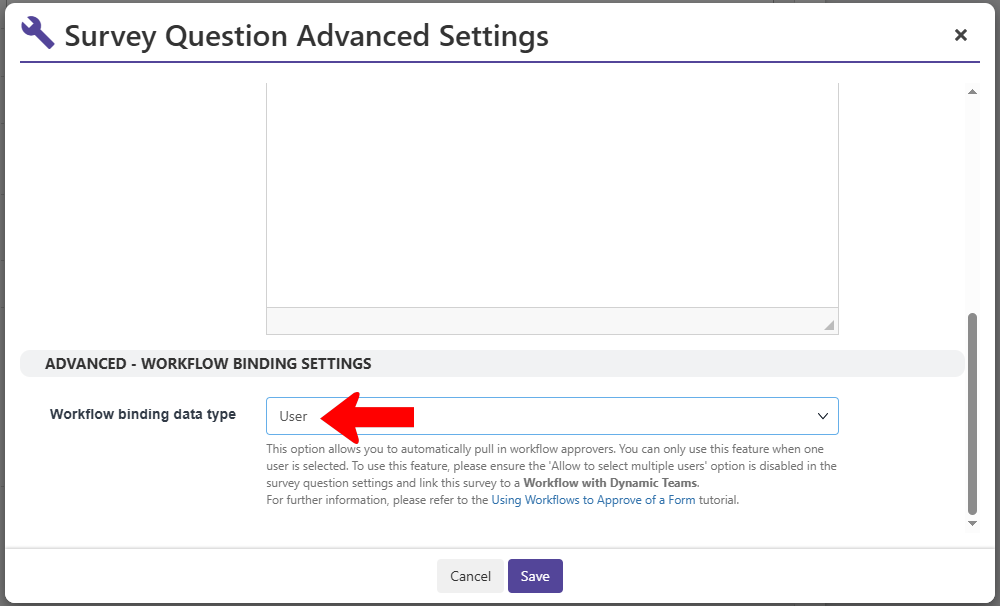
In the Advanced Settings, set Workflow binding data type to User.
When a user completes this form, they must select their advisor in Question 2.

On the officer side, to see the approval workflow for a submission, click See Workflow.
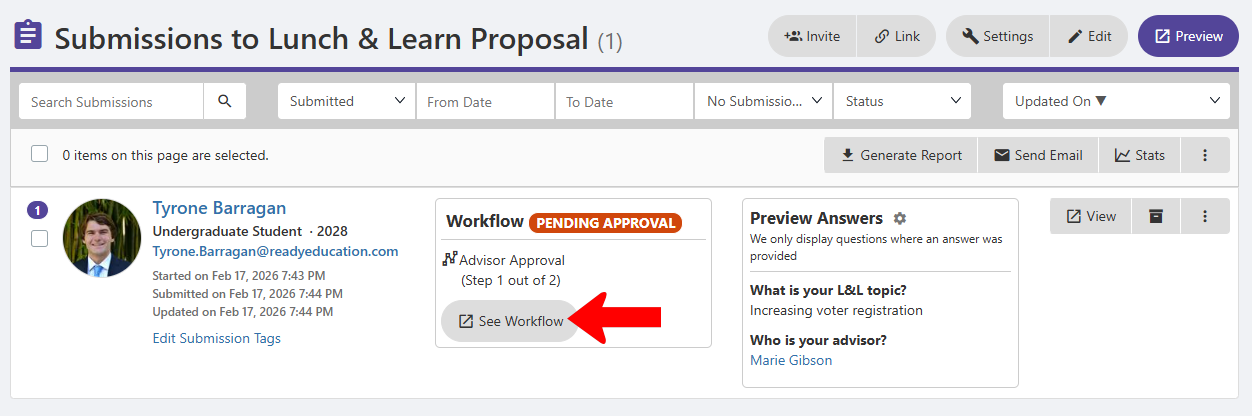
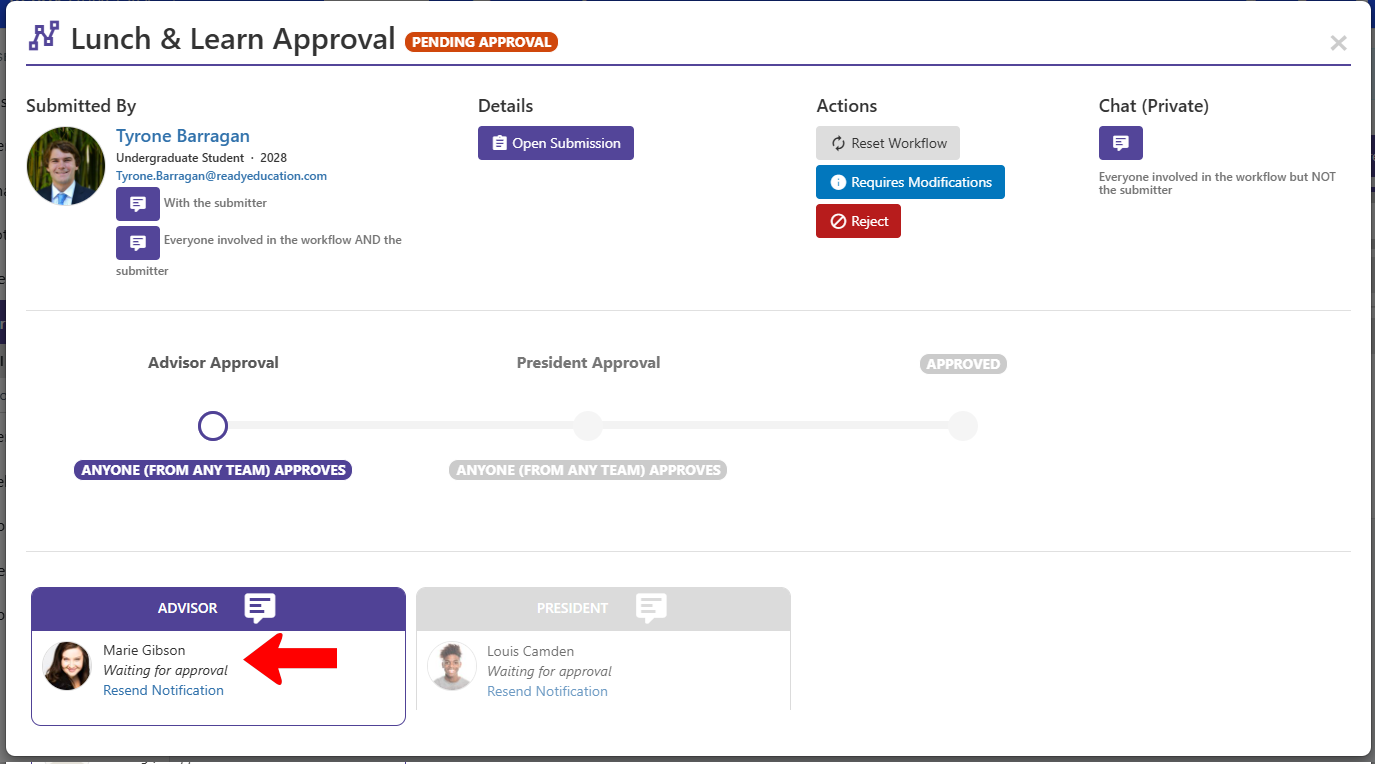
The Step 1 approver is the person selected by the user as their advisor.