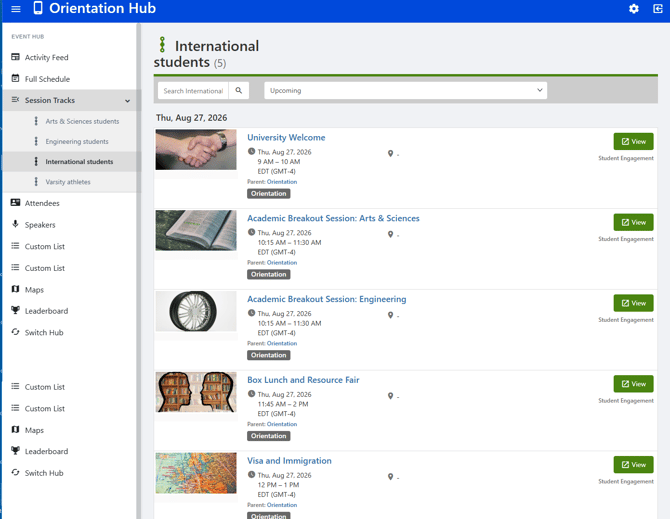
Tracks are added to an Event Hub in order to stream specific audiences into specific sessions.
Note: This article covers how to create tracks, then add sessions manually to each track. More commonly, and for larger hubs, sessions are uploaded into the hub Uploading Event Hub Sessions, and tracks must be created first before uploading.
This example will be an Event Hub for orientation events.
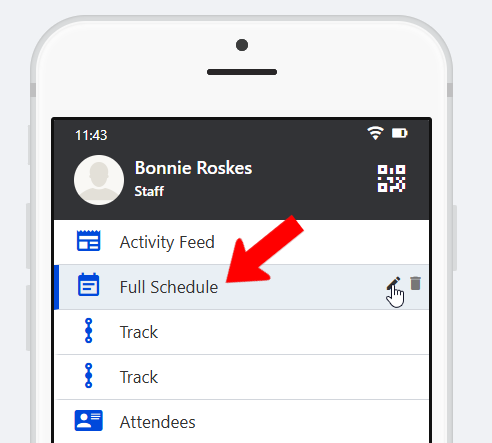
The Full Schedule menu below is a renamed Agenda menu hub item that contains all sessions Hub Menu Items. Clicking its Edit icon opens the menu settings.
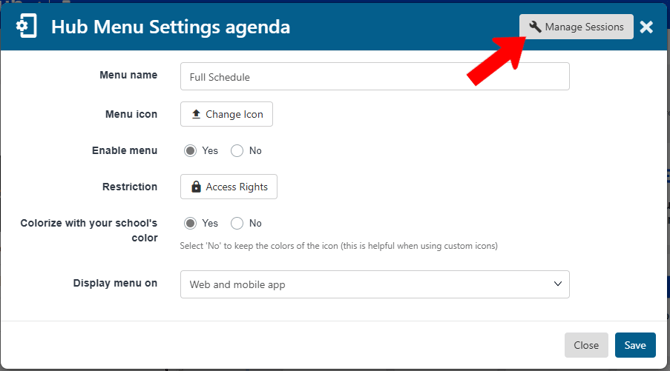
The sessions can be seen by clicking Manage Sessions.
There are six sessions, each with a different target audience.
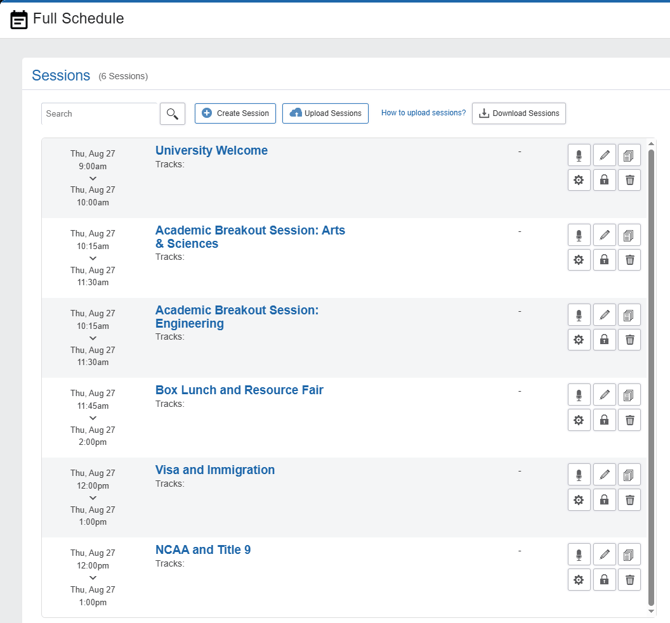
- University Welcome: All students
- Academic Breakout Session: Arts & Sciences: Arts & Sciences students
- Academic Breakout Session: Engineering: Engineering students
- Box Lunch and Resource Fair: All students
- Visa and Immigration: International students
- NCAA and Title 9: Varsity athletes
For this example, four tracks are needed:
- Arts & Sciences students
- Engineering students
- International students
- Varsity athletes
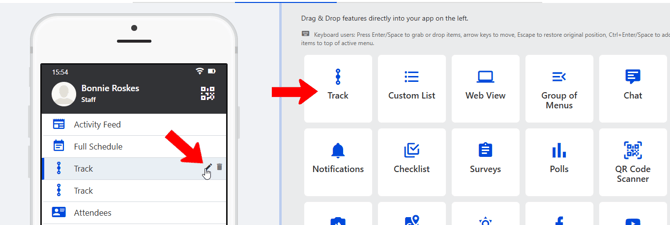
An Event Hub has two Track menu items by default, and you can bring in more as needed. To create the first track, click its Edit icon.
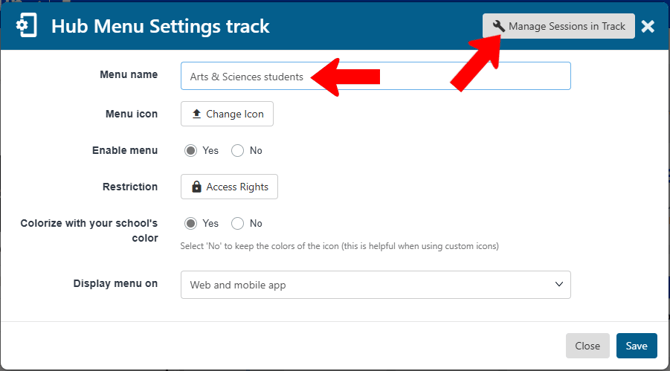
Assign the track name, and click Manage Sessions in Track.
The Sessions flyout lists all hub sessions. Switch the view to Not in Track and choose the sessions for this track.
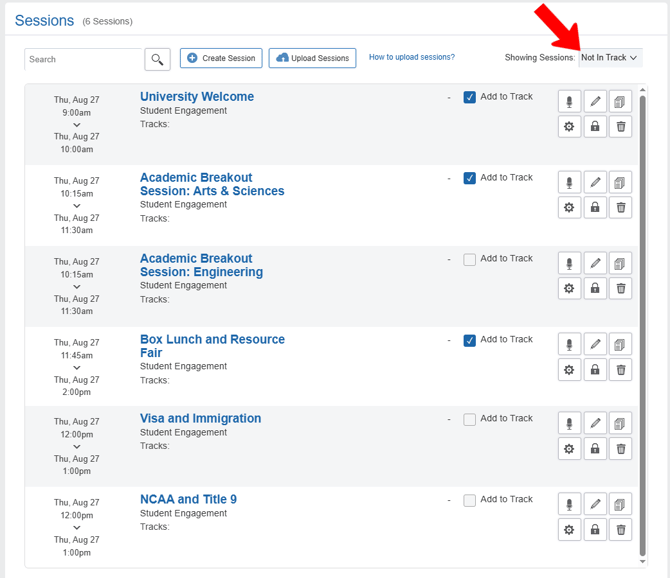
Note: The Create Session button can be used to create a new session that will be placed only in this track. The new session will be automatically added to the Event Hub agenda, and can be added to other tracks as needed.
Save the track, and continue to create and manage other tracks as needed. When finished, all tracks should be listed.

Note: The Agenda menu item is needed for managing sessions and tracks. But if you only want tracks to appear, and not the full agenda, edit the Agenda menu item. Click No for Enable menu, which will hide the menu while still retaining its information.
A handy way to organize menus so that tracks appear together is to add a Group of Menus Hub Menu Items menu item.

When managing the agenda, each session is listed with the tracks that include it.

To preview and check your tracks, it’s a good idea to view the Event Hub on web.

In this example, engineers will see the three sessions relevant to them.

International students will also see all events that apply to them, as well as the two Academic Breakout events between which they can choose.