
A Virtual Fair is an engaging online environment where users can explore groups and activities.
Users can ask questions via live chats, and even be matched with recommended organizations based on interest. Group officers can gain access to a list of interested students, for post-event follow-ups.
Note: After creating a Virtual Fair, an admin will need to make it accessible to users Virtual Fair Booth Settings.
To get started, please reach out to your Client Success Manager to get your fair enabled.
- If your campus has unlimited Virtual Fairs, we will need to activate access for the group hosting the fair.
- If your campus does not have unlimited Virtual Fairs, we will need to create each fair for you. For this we will need the fair name, participating groups, and start / end dates and times. All of these details can be edited as needed.
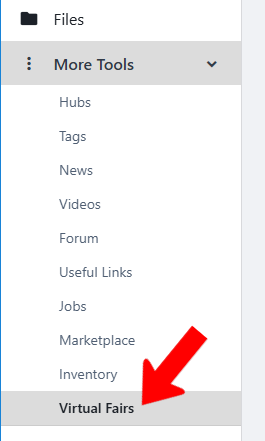
Manage the group Managing Group Officers hosting the fair, open More Tools along the left, and choose Virtual Fairs.
Click Create Virtual Fairs.

Assign a name and description, and choose the participating groups. You can choose groups by Group Types and / or select individual groups. Participating groups can configure their own booth settings Virtual Fair Booth Settings.
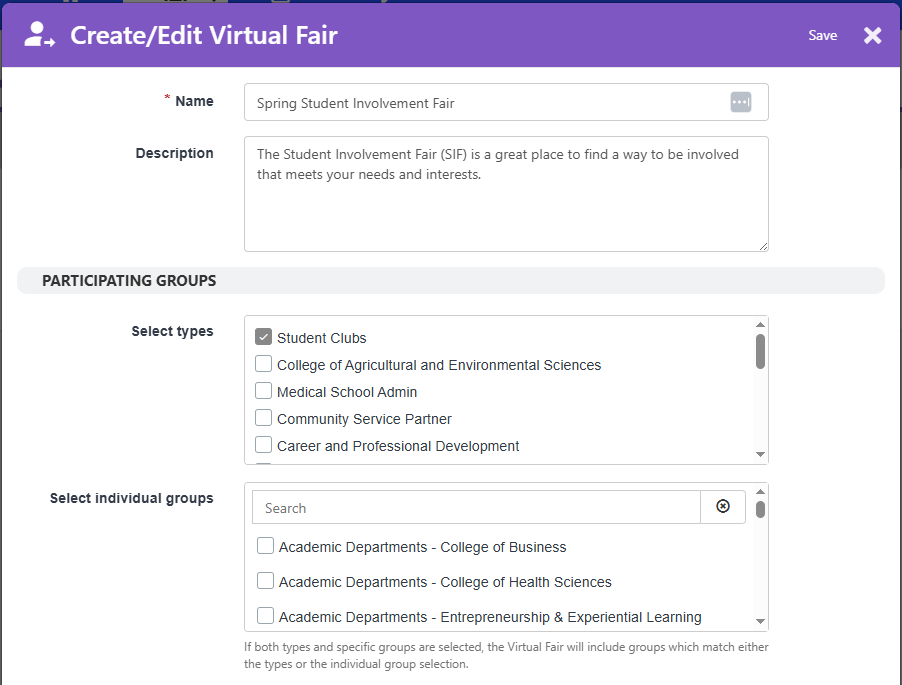
Other fields include:
- Start and end dates and times
- Information Booth: Choose the group hosting the Virtual Fair, OR one or more admins who will participate in the Info Booth chat. If a group is running the Info Booth, the group officers will be in the chat. If admins are running the booth, they will be in the chat.
- Fair Access: Choose whether the fair can be accessed by all platform users, only users registered to virtual fair events Virtual Fair Events (Agenda), or only users registered to events and while the events are live.
Note: When creating or editing an event, in Advanced Options for Events there is an option to add an event to a Virtual Fair.
- Custom Fair Map: Virtual Fairs use zones, similar to categories, to which to assign booths. By default, zones are displayed Virtual Fair Booth Settings as named bubbles. To use a custom map instead, upload the map image. To make the map clickable to your setup, you will need to email help@readyeducation.com or submit a ticket via the support portal.
- Advanced Options: If you want users to click an interest button for groups, enable that option and enter the button name. You can also provide custom terms for participating groups and booth admins. Other options include hiding engagement statistics, showing the fair on the home page, and the topbar color.
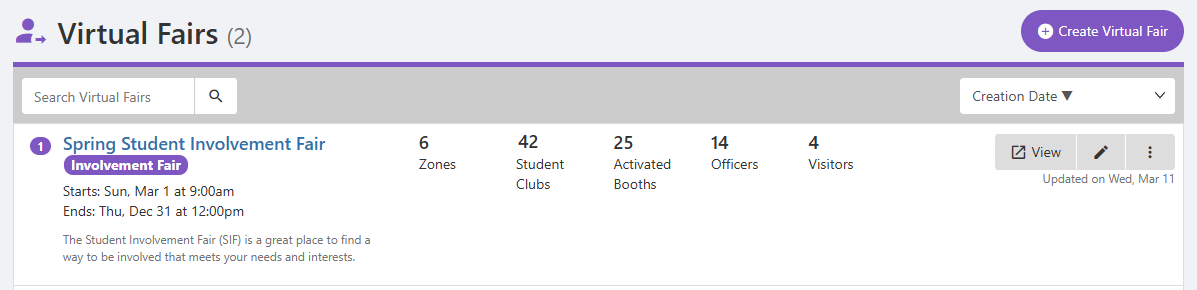
Once created, the fair appears on the Virtual Fairs list with the number of zones (zero until you set them up) and number of groups. To configure zones, click the fair name, or click its More (three-dot) icon and choose Manage.

Along the top is the number of booths not assigned to a zone; each booth needs a zone in order to be listed in the fair. Click Zones.

Use Create Zone to set up categories (zones) that will include all participating groups. Then click Back to return to the Virtual Fair manager.
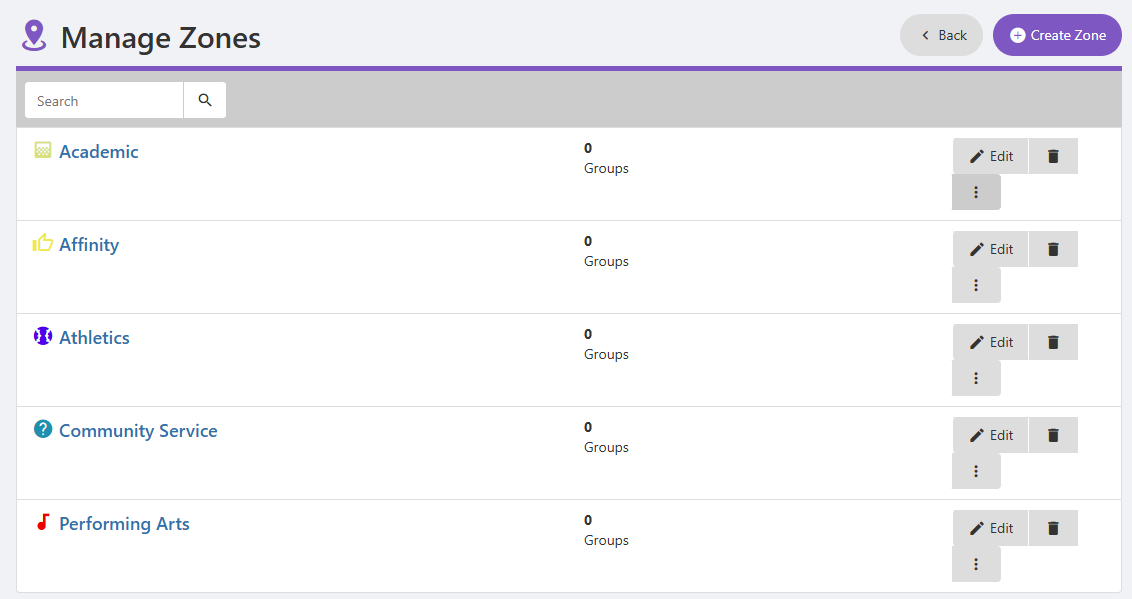
Assigning booths to zones can be done here, or group officers can do this in their Booth Settings Group Settings.
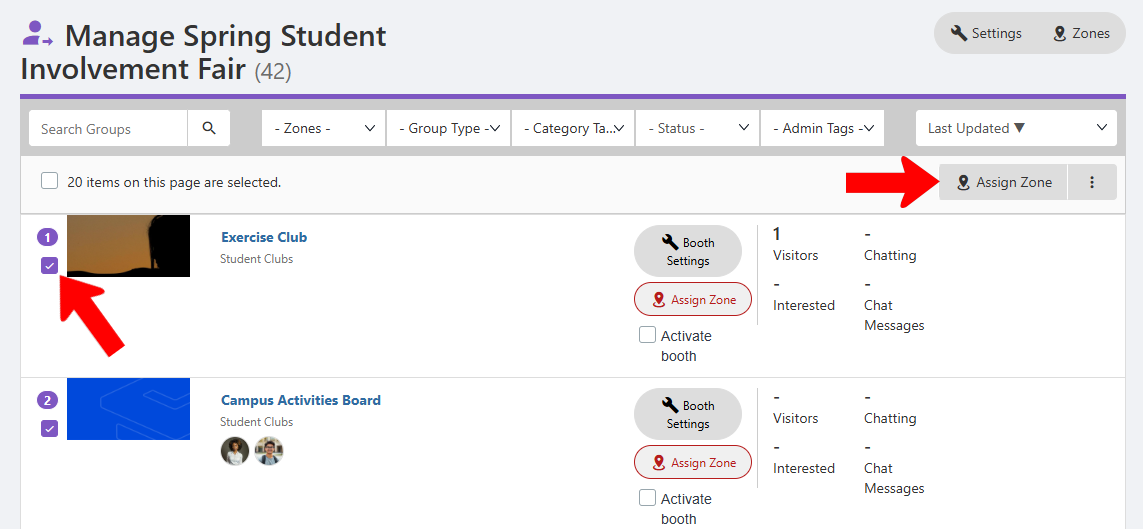
Each unassigned group will have an Assign Zone button. Clicking this opens the Booth Settings where Zone is the first option.
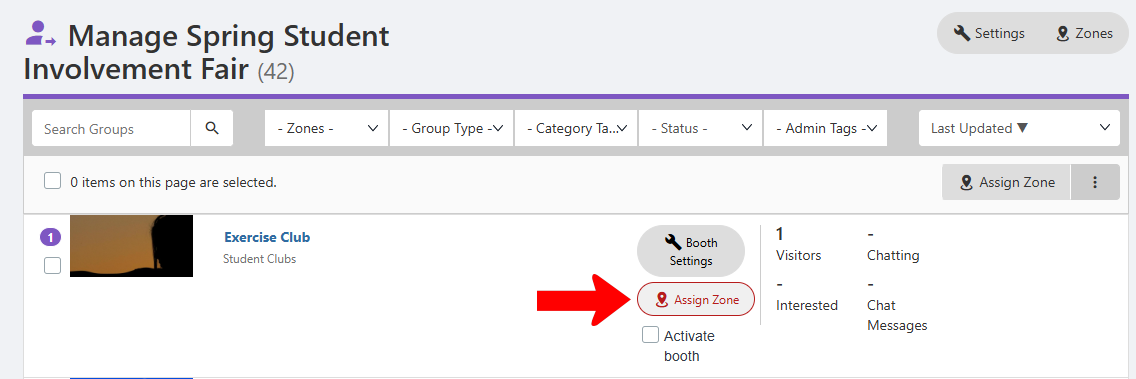
You can also select one or more groups and click Assign Zone at the top. Filtering the list All Groups List: Managing Groups by Group Type, Category Tag, or Admin Tag (admin only) makes it easy to find specific groups.
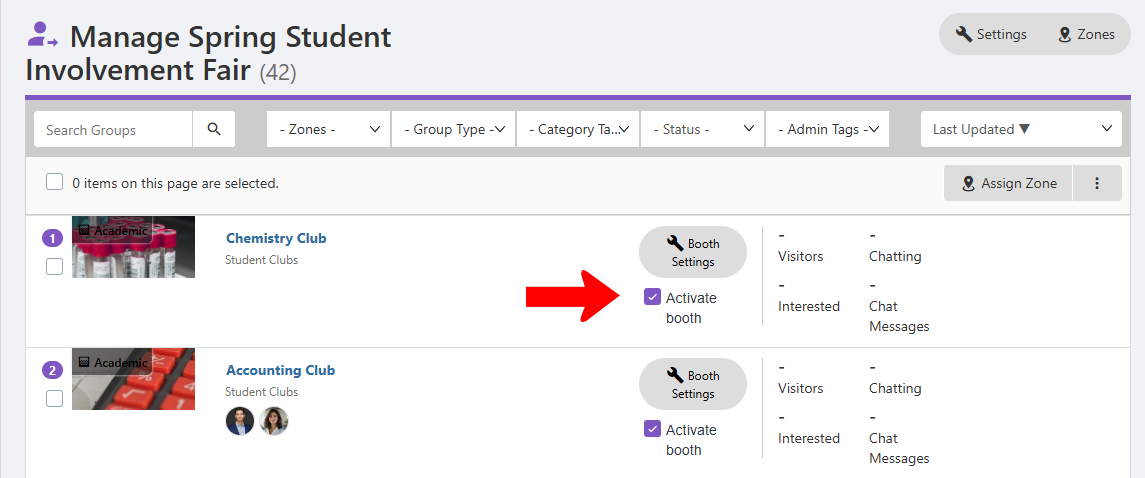
In addition to being assigned to a zone, each group needs to be activated in order to appear in the fair.
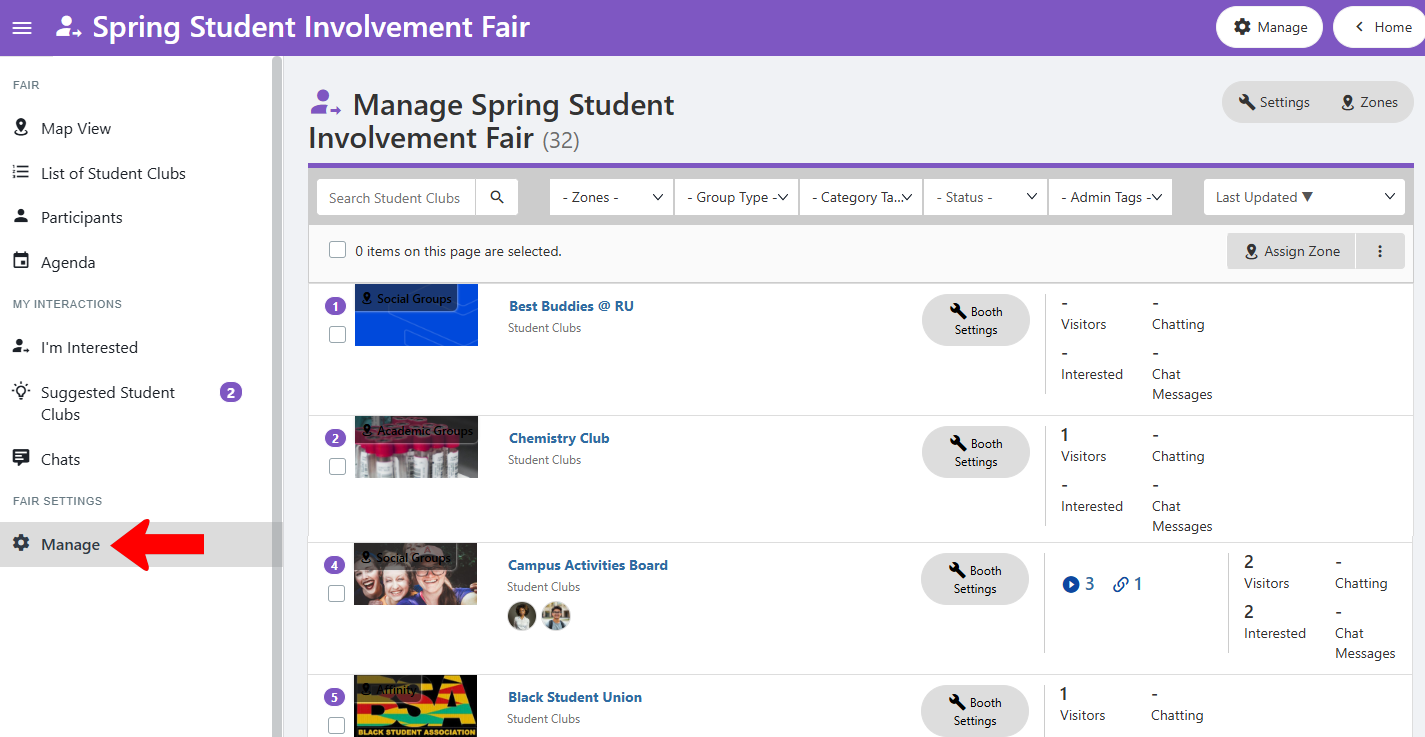
While the Virtual Fair is open for management, the view mirrors what Virtual Fair users will see Virtual Fair Booth Settings. The group hosting the fair also has a Manage option.
As booths are assigned and activated, group officers are populated automatically, as shown in the Virtual Fairs list.
The next step is to invite group leadership to the Virtual Fair, and ask them to add content to their booths Virtual Fair Booth Settings.
Note: Once the fair is ready for visitors, an admin will need to make the fair visible to users. When visitors attend the fair, you can generate attendance reports Virtual Fair Reports.