
To create a new form, open the Surveys & Forms list Surveys and Forms List, and click Create.

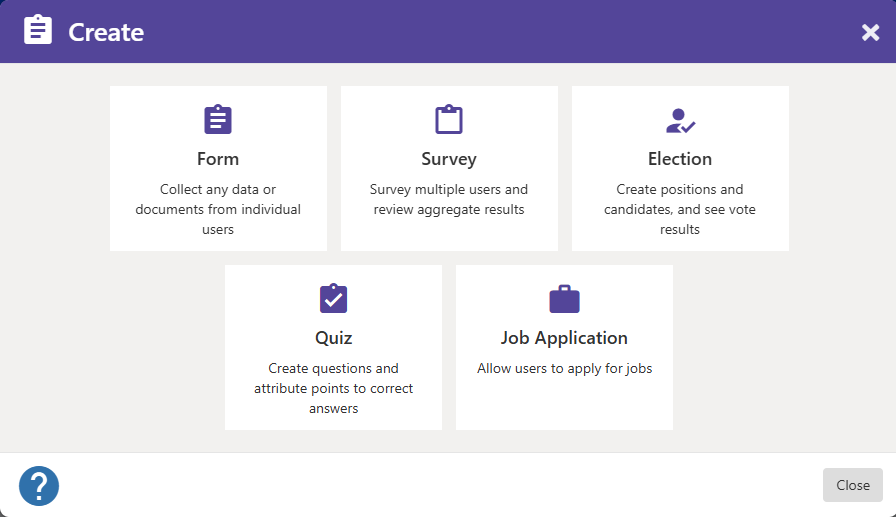
The Create popup lists several forms options.
Each form option works basically the same way, and provides the same question types, but the types vary in their default Settings Questions and Question Types. Choose the option most closely aligned with the form goals.
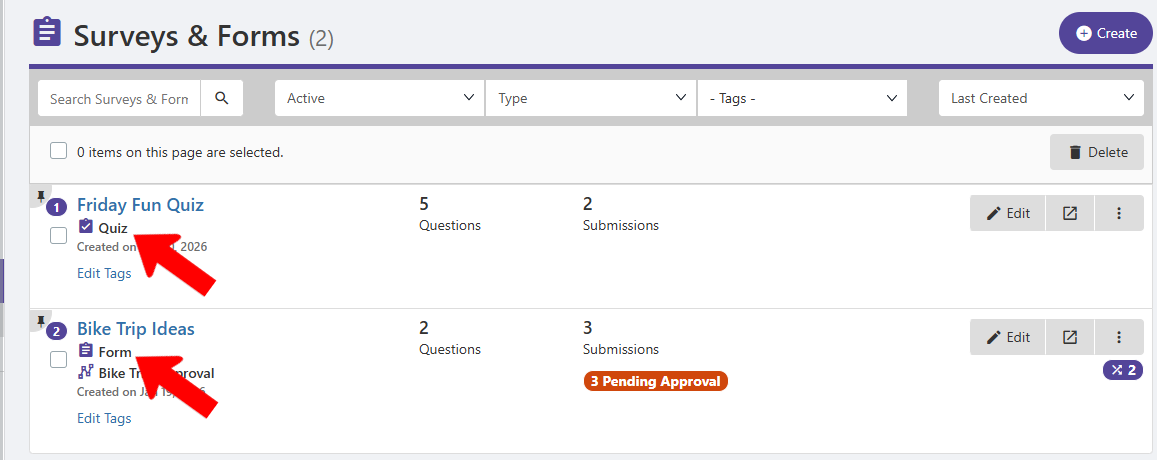
Note: In addition to differences in the default Settings, another difference between form options is how they are identified in the Surveys & Forms list Surveys and Forms List.
Enter a name for your form, and optional introduction text.
Because forms consist of one or more questions, start by clicking Add question. The Insert Page button can be used if your form will consist of multiple pages.

Pages are often used in longer forms or surveys, to separate groups of related questions. When multiple pages are used, we recommend using the last page for a final verification message before submitting.
Note: Your form will need multiple pages if you will be creating page logics Page Logic.
The question types Questions and Question Types appear across the top.

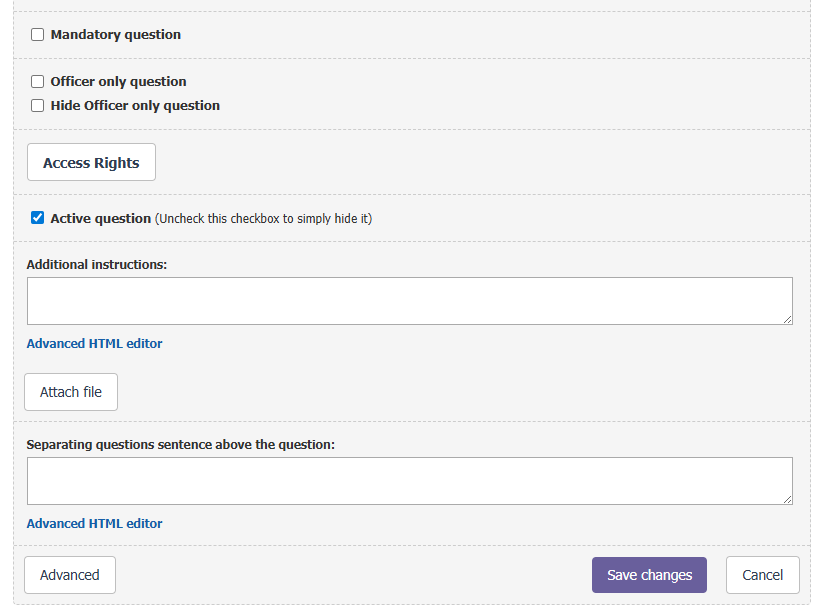
Question fields depend on question type, but all questions can be made mandatory, officer-only, and have access rights.
Text for Additional instructions will appear below the question, and text for separating questions sentence will appear above (useful for separating groups of questions).
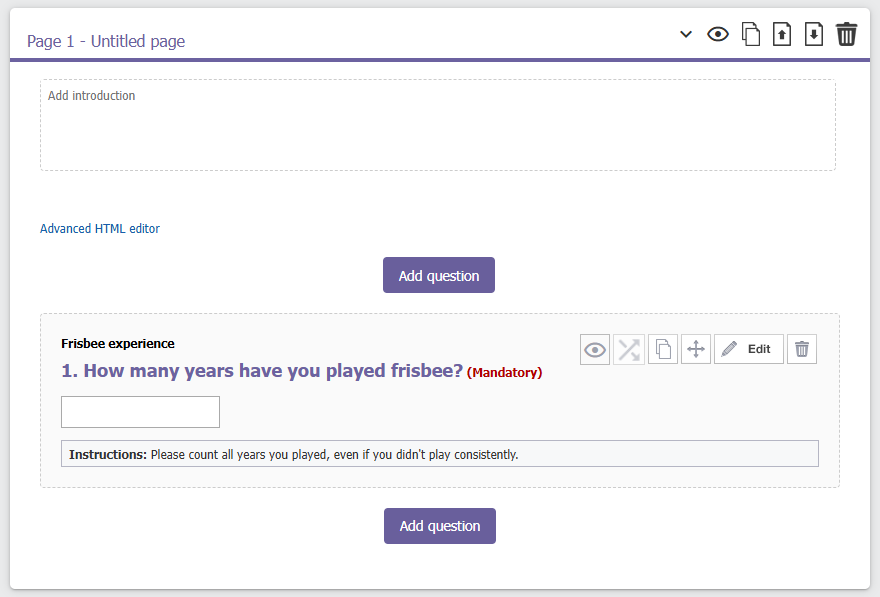
After saving a question, a preview appears. There are icons to hide the question and set logics Question Logic (depending on question type), duplicate, re-order, edit, and delete the question.
Add question buttons appear before and after each question, and questions can be re-ordered as needed.
Forms are saved automatically, and appear on the Forms & Surveys list Surveys and Forms List.

Before inviting users to complete and submit the form Inviting Users to a Form, be sure to go over the Form Settings.